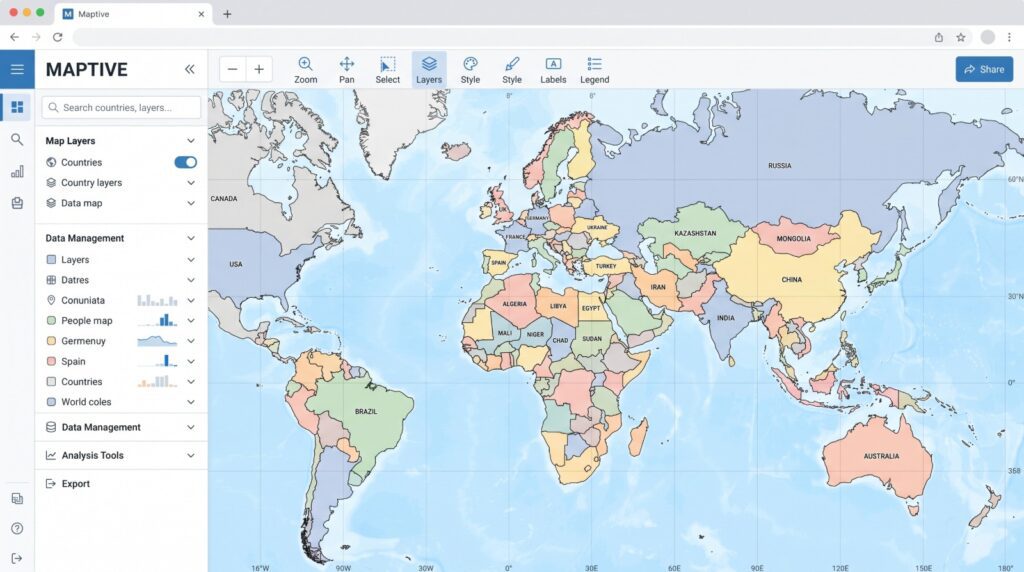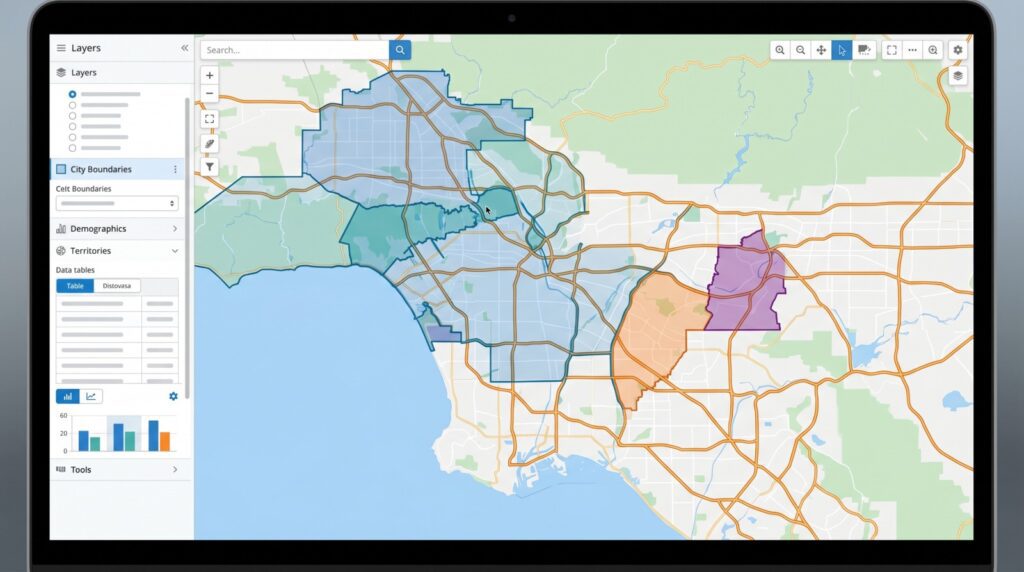


Your first coverage map has to give its audience a usable answer by the deadline. The request may concern where customers are today, how far a branch can reach, or which areas your organization has agreed to serve. Those are different questions, even when they begin with the same spreadsheet of customers and branches.
For a first-time builder, the pressure comes from learning the tool while preparing something other people will use. A manager looking at the finished map needs to understand what its shaded areas and locations mean.
| Coverage question | First useful layer | What it establishes |
|---|---|---|
| Where are recorded customers? | Customer markers or boundary row counts | Presence in the supplied customer file |
| Which locations lie within a set distance? | Distance radius circles | Straight-line reach from the selected origin |
| Which locations fall within a modeled drive time? | Drive-time polygons | Road reach under the tool's driving assumptions |
| Which areas have approved service eligibility? | The approved territory definition | The region your organization has agreed to serve |
Write down the one coverage question
Decide what the meeting needs to answer. If the manager wants to see current customers, start with the customer list. If the question concerns reach from a branch, get the agreed distance or driving-time threshold. If it concerns an approved service region, use that region's definition rather than drawing a new one from nearby customers.
Record the audience, source period, and rule in a short work note. State whether the origins are open branches, proposed locations, or both. Mark a proposed branch clearly so it doesn't get counted as operating coverage. Keep proposed and current locations clearly identified if the meeting needs to compare them.
A blank area in a customer file means no customers are recorded there in that file. It doesn't establish that the area has no demand or that you can't serve it. Likewise, a ZIP containing one customer doesn't establish service eligibility across the entire ZIP. Give the first map a title that describes the question it answers.
Leave demographics and territory redesign out unless they are needed for that question. Choose the output too. A static image may be enough for a slide, while an interactive map helps people inspect the included locations. Build for the intended use.
Import the smallest useful workfile
Keep a stable ID, a readable label, and complete location fields for each row. Add Location Type so you can distinguish customers from branches. Include the assigned owner or branch and source period when they matter. Keep only the fields needed for the analysis and the intended recipients.
Define the row unit before counting. One row might be a customer site, a job, or a branch. Remove true duplicates from the working file, while retaining separate sites that need their own coverage. Keep unresolved addresses in an exception list with their IDs and a person responsible for correction. Don't substitute a convenient branch address for a missing customer location.
Choose Create New Map in Maptive, enter the name and an optional description, and click Continue. Upload the Excel file or paste the data including the header row, then click Map Now. Open Data and Categorize Data to inspect the location matching. Keep ZIP codes as text in the source file so leading zeros survive.
Check any suspicious locations before you add the coverage layer. If you need to correct a cell in Data, press Enter after the edit to save it. Carry that change back to the source file too. Keep the original working file so you can account for exclusions and corrections during the handoff.
Make branches and customers easy to tell apart
Open Map Tools, then Grouping Tool / Colored Pins Tool. Choose Location Type as the Primary Group. Use the white icon beside each group to set its color or marker style. If the question is about existing assignments, use the owner or branch field where that helps the reader understand the map.
Check the category names before styling. A spelling difference can split one intended category into separate groups. Correct those values and check that each branch appears in the right category. Keep the key short enough to read in the intended output, then move on to the required coverage layer.
Add only the coverage layer the question needs
Show recorded customer presence
For customer presence by region, open Boundary Tool in Map Tools. Select the Boundary Set, choose Marker Count / Location Density, and click Load Boundaries. Check the row unit before interpreting the counts. If the data includes branches as well as customers, those rows need to be accounted for in your count.
My Group / Territory Data fills a boundary using the category with the most markers there. Use it carefully when showing owner groups. A majority color can hide accounts assigned to a different rep, so check the underlying records before describing the area as exclusively assigned.
If your question requires an approved service region, start from the existing approved territory map or its agreed boundaries. Keep the approval date with the first deliverable. Customer presence and majority-group coloring should not replace that definition. Ask the person responsible for service areas to confirm any unclear boundary before you release an eligibility map.
Show straight-line distance reach
Open Distance Radius Circles from Map Tools. Enter the branch address in Starting Location, set Proximity Within, choose miles or kilometers, and click Add Proximity Radius. Repeat only for the origins the first question needs, using the same threshold where you intend to compare them.
Click a circle to inspect its locations or use Customize Metrics for the required spreadsheet measure. Treat the circle as straight-line reach. A river or limited crossing can make the road trip much longer than the direct distance. Separately exported driving values help with that review, but they don't change the circle's membership rule.
Show modeled driving reach
Open Drive Time Polygon Tool from Map Tools. Enter the branch address or use its marker, set the hours and minutes, and click Add Drive Time Polygon. Build the required origins one at a time with the agreed threshold.
The polygons assume perfect driving conditions and exclude current and historical traffic. State that assumption when the map will inform a service-time discussion. Use the three-dot menu and Edit Proximity to give each shape a useful name and adjust its color or opacity, then Save. Check that the branches and customer points remain readable under the shaded areas.
Check the map before the meeting
Compare the imported rows with the source file and account for duplicates, exclusions, and unresolved addresses. Check IDs as well as the total count. Make sure the current view includes the intended categories. A filter left from an earlier inspection can change which locations the reviewer sees.
Inspect a few locations you know well, every location that appears unexpectedly far away, and important sites near the coverage edge. Check that branch origins use the intended address. An address placed at a ZIP-level point needs a closer check if its position determines whether it falls inside the area.
For a circle or drive-time polygon, use the three-dot menu and Export Locations to inspect the included rows. Compare them with the locations you expect the rule to include. If you add totals across overlapping areas, check unique customer IDs so the same location doesn't inflate the combined result. Keep branch rows separate from customer quantities.
Write down any unresolved exception and what it could affect. If the meeting can use a provisional map, label it that way and keep the exception list beside it. Identify whether an unresolved address could change an important inside-or-outside decision. That helps the manager choose which conclusions can be used now and which need a correction first.
Save and deliver the checked view
Zoom to the information the recipient needs, then click Save Map View on the left. Name the view and add a description containing the coverage rule, source period, and review date. Click Save Map View. Keep the working file and exception list with the deliverable when you need to preserve the evidence behind that dated review.
For a static output, click Export Map Image on the right. Choose PNG, PDF, or JPG, the export style, and Normal or Large, then Continue. Map + Legend includes a simplified grouping or boundary key. Map exports the map area, while Screenshot also includes the menus. Open the downloaded file at the size it will appear in the meeting and check the labels, key, and map extent. Put the coverage rule and driving assumption in the slide or accompanying note if the image doesn't explain them.
For an interactive output, use Share and Share Externally. Choose the right privacy setting and test the recipient view, including the record data it exposes. Unlicensed viewers cannot make permanent edits. Deliver the checked output with its remaining exceptions, the name of the person responsible for updates, and the date when the provisional findings will be reviewed.