


Heat Mapping Tool
Heat Map Generator: Create Heat Maps from Your Spreadsheet Data
A heat map uses color intensity to show where data points concentrate on a map. Maptive builds one from any spreadsheet of addresses in minutes. Upload your file, choose a style, and the densest areas of your data become visible.
No credit card required
Trusted by teams at
















How to Create a Heat Map from Excel in 3 Steps
The process takes one file and three decisions. Each step below corresponds to one screen in Maptive.
01
Upload Your Spreadsheet
Maptive accepts xlsx, csv, and tsv files with addresses or coordinates. Each row geocodes into a marker on the map. Any column in the file can drive the heat map after that.
02
Choose Marker Density or Weighted Value
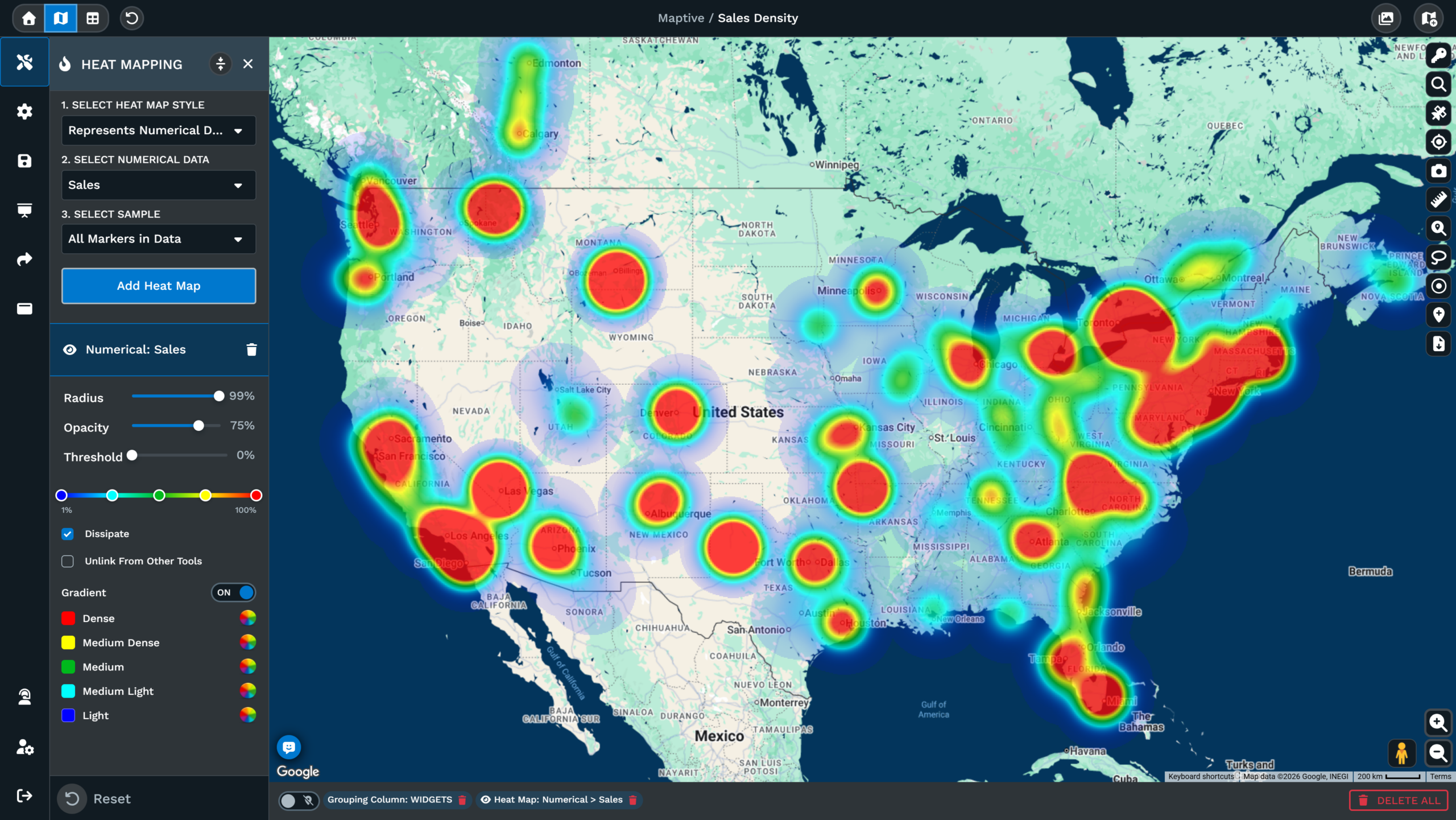
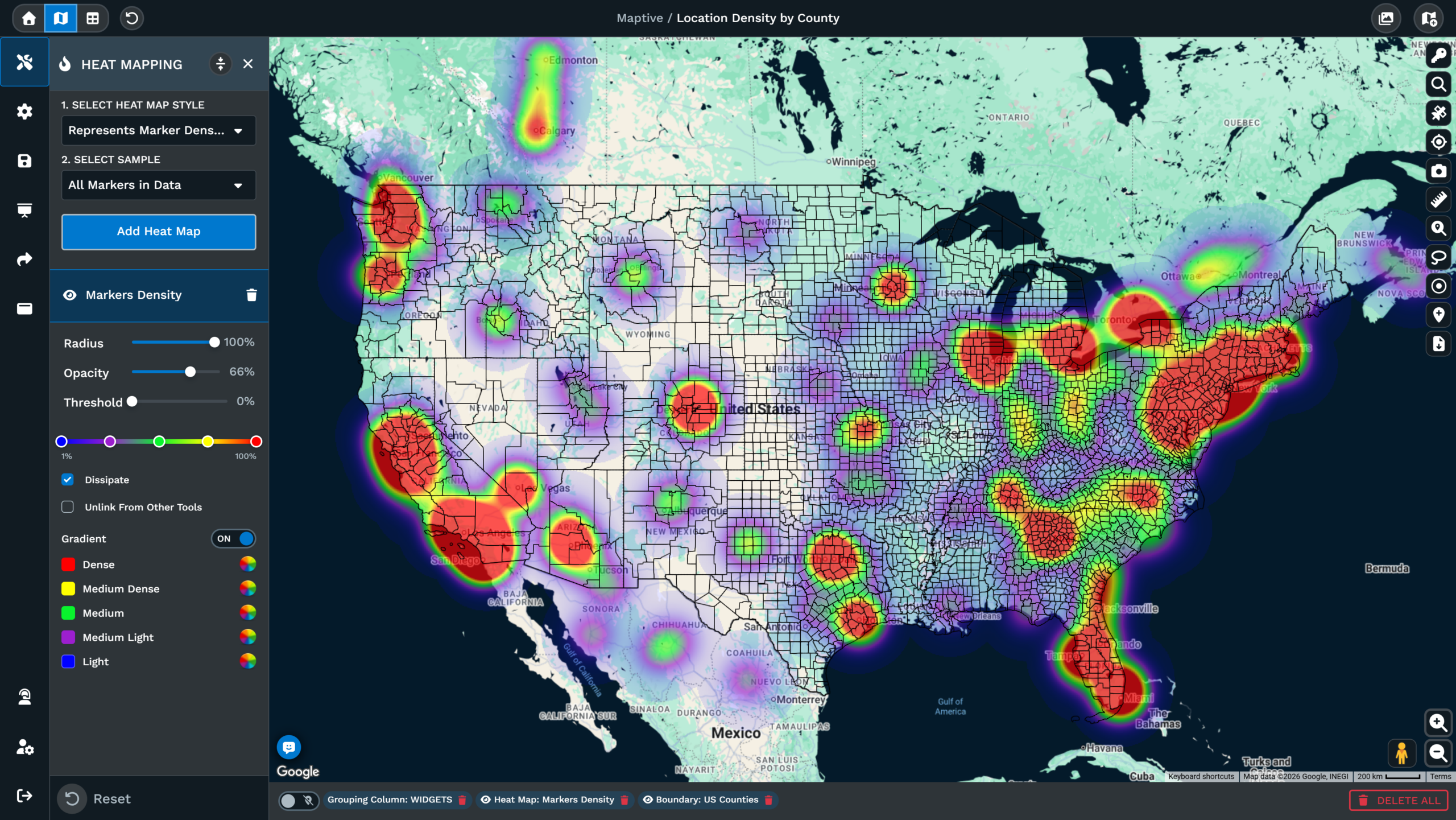
Open Map Tools and click the Heat Mapping Tool. Select Marker Density to map point concentration, or Represents Numerical Data to weight the heat by a number column such as Sales or Square Ft.
03
Tune Radius, Opacity, and Color
Click Add Heat Map to render the layer. Adjust radius, opacity, and intensity threshold by percentage, and set colors per category. The Gradient toggle switches the layer between a blend and one solid color.
Heat Map Use Cases by Team
The ten examples below cover the teams that use heat mapping most often. Each one names the data involved and the decision the map supports.
Sales Teams
Find Where Customer Demand Concentrates
A customer address list shows nothing about geographic concentration when read as rows. Plot the list, apply Marker Density, and adjust the radius until the concentration reads at the right scale. The brightest areas indicate where to point planning and outreach.
Map Customer Locations →Sales Ops
Balance Territories with Weighted Revenue Heat
Territory reviews fail when they rely on account counts alone. Weight a heat map by a revenue column and the map shows where income concentrates against where accounts sit. A dense patch of small accounts and a sparse patch of large ones read differently, which changes how boundaries get drawn.
Territory Management →Field Service
See Where Work Orders Pile Up by Region
A flat log of service visits hides regional workload. Weight a layer by visit count and the bloom reflects where work accumulates. Dispatchers get a visual basis for staffing decisions instead of a static report.
Field Service →Retail Site Selection
Spot Demand Pockets with No Nearby Store
Load existing store locations and demand markers together, then generate a Marker Density layer. Hot zones with no nearby pin indicate unmet demand. The result is a shortlist of areas to investigate before any further spreadsheet work.
Retail Store Planning →
Franchising
Catch Territory Overlap Before a Lease Signs
Franchise agreements depend on clean geographic boundaries. Stack a heat map of existing units against one of target households and check whether a candidate territory overlaps an active one. The check takes minutes and prevents disputes that cost far more.
Franchise & Multi-Location →Marketing
Compare Customer Segments with Stacked Heat Map Layers
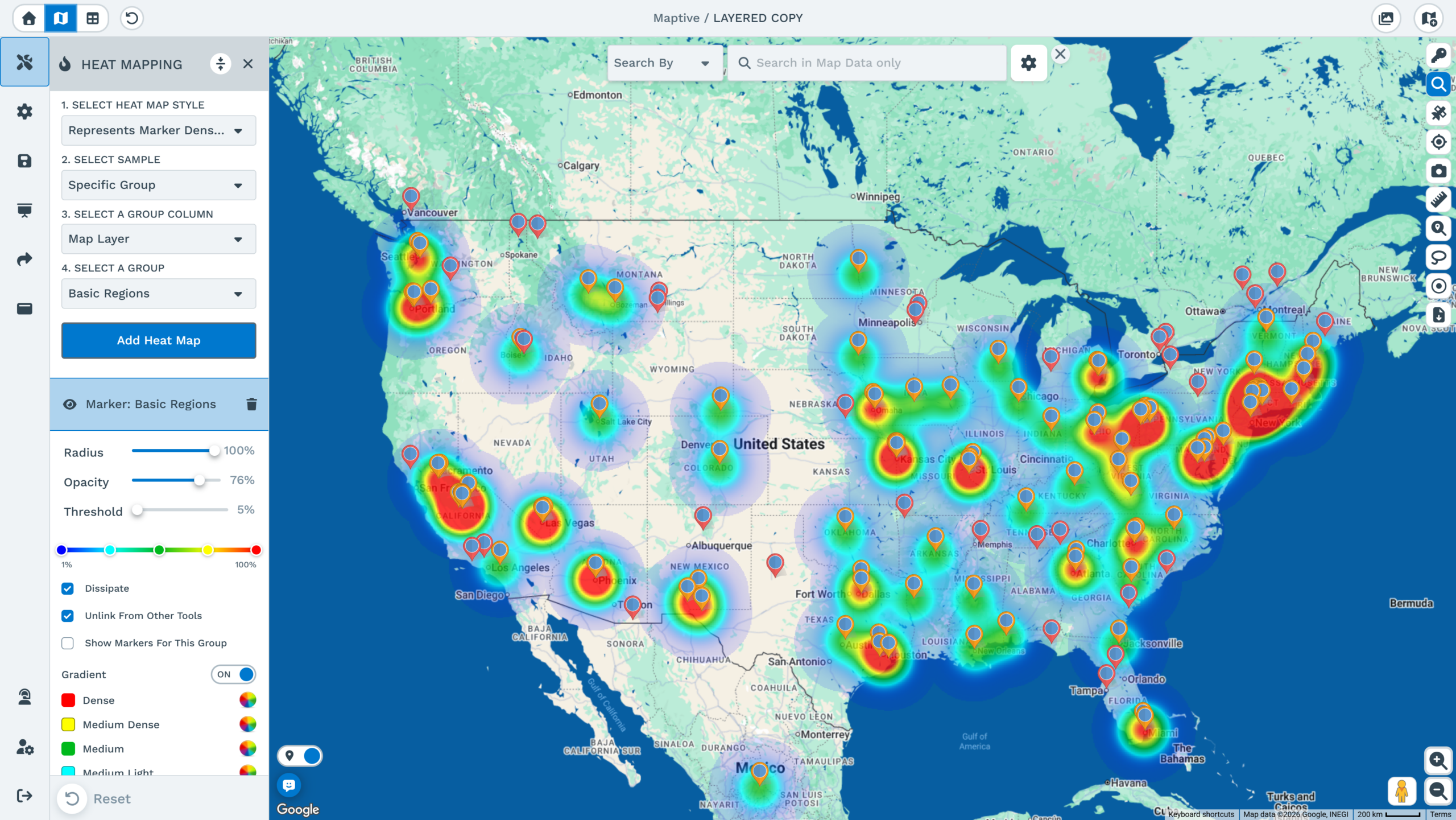
Segments that look identical in a table often occupy different ground. Run a Specific Group layer per segment and Maptive assigns each a different color automatically. Two or three segments can be compared on one view without filtering anything else on the map.
Teams →Insurance
Map Risk Exposure Across a Book of Business
Policy counts by zip code understate exposure where insured values differ. Weight the layer by a value column and the map shows where dollars concentrate, not where paperwork does. That read supports reinsurance conversations and producer book reviews.
Insurance →Logistics & Distribution
Place Facilities Near Demand Hot Zones
Facility placement errors are expensive and slow to reverse. A heat map of delivery addresses or order volume shows where demand accumulates relative to current depots. Candidate sites can then be evaluated against the hot zones rather than against assumptions.
Supply Chain & Logistics →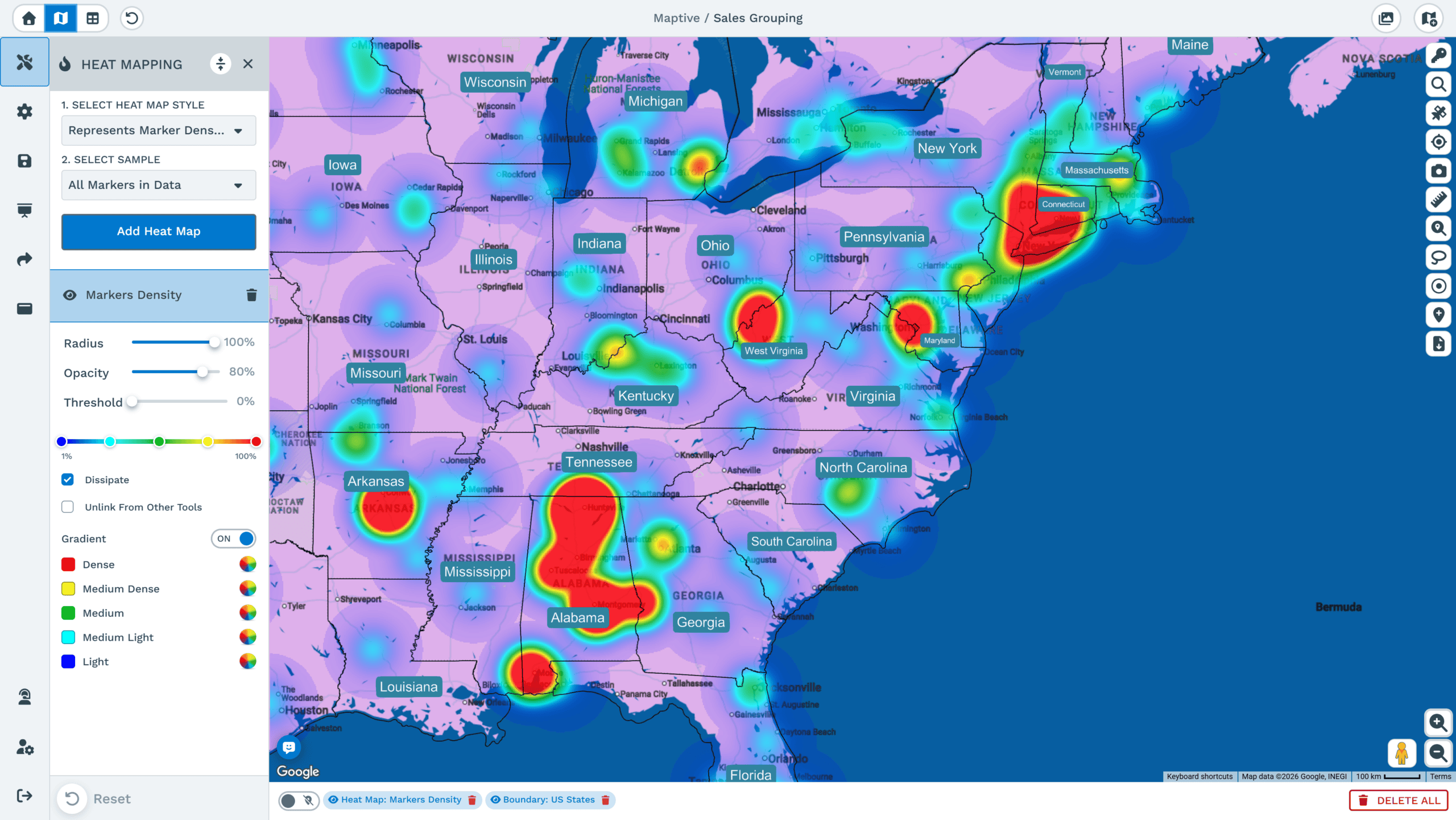
Commercial Real Estate
Build Trade-Area Maps Clients Understand in Seconds
Clients rarely read demographic tables. A heat map of customer origins or foot traffic around a site communicates the trade area immediately, and the radius control lets you adjust the picture to the question the client asked.
Commercial Real Estate →Nonprofits & Fundraising
Locate Donor and Alumni Concentrations
Donor lists ordered by gift size ignore geography. A density layer over an alumni or donor file shows which cities support events and chapter operations. One university used Maptive to map 200,000 alumni records for exactly this purpose.
Success Stories →Free Trial
See Your First Heat Map in Minutes
Upload your spreadsheet and see your first heat map in minutes. The trial is free and a credit card is not required.
Heat Map vs. Density Map: What's the Difference?
The two labels describe the same technique. Both use color to show concentration, and most mapping tools, Maptive included, use the term heat map for the feature and treat density as the reading the map produces. The distinction that affects your results is between counting points and weighting values.
Marker Density: Where Your Points Concentrate
Marker Density treats every point as equal. The bloom grows where markers sit close together, so the map answers a count question. This style fits address lists, foot traffic logs, and visit records, any file where the location of each row matters as much as the row itself.
Weighted Heat Maps: Where Your Value Concentrates
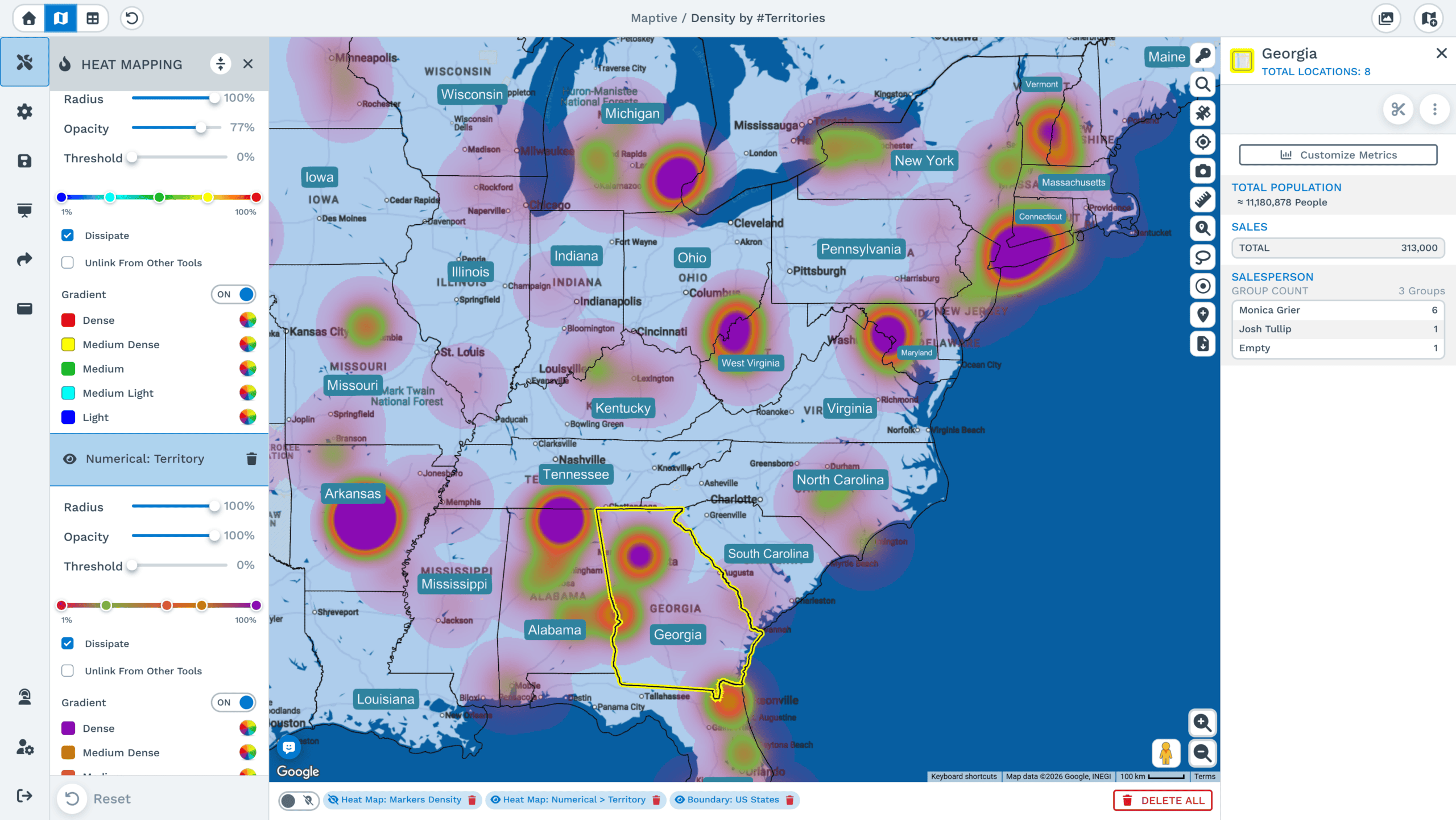
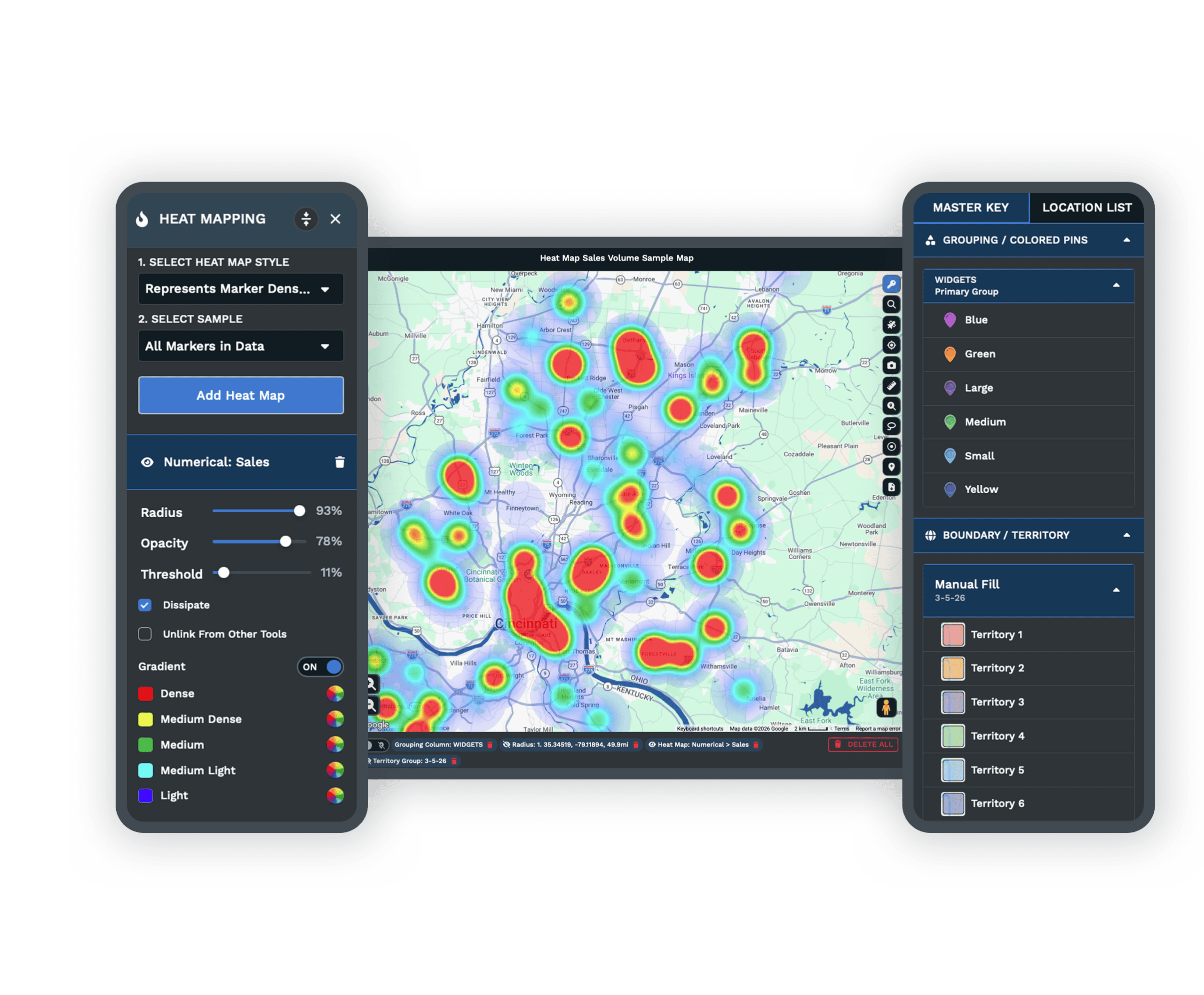
The Represents Numerical Data style weights each point by a column containing numbers only. The bloom follows the column instead of the row count, so a few high-value markers can outweigh a dense pocket of small ones. This style fits sales totals, price, square footage, weeks, and miles or kilometers.
| Marker Density | Weighted (Represents Numerical Data) | |
|---|---|---|
| Input | Marker locations | Marker locations plus one numeric column |
| Measures | Point count per area | Column value per area |
| Best for | Traffic, visits, addresses | Sales, price, square footage |
| Column requirement | None | Numbers only |
Maptive Heat Maps vs. Google Maps Heat Maps
Google Maps does not include a native heat map feature for business data. Producing one requires the Maps JavaScript API heatmap layer, a developer, and formatted coordinate data. Maptive produces the same visualization from a spreadsheet upload with no code.
- Input. Google requires coded coordinates through an API. Maptive geocodes addresses from xlsx, csv, and tsv files.
- Weighting. Both support weighted heat, but Maptive reads the weight column directly from your file.
- Editing. Google heat maps are fixed at render time. Maptive layers stay editable after creation, including radius, opacity, intensity, and color.
- Sharing. Maptive maps can be shared, embedded, or exported without additional development.
- Cost structure. The API bills per load. Maptive bills a flat subscription.
Heat Mapping Tool Features and Controls
The controls below remain available after a layer renders, so the map can be adjusted to the question without rebuilding it.
Filter by Category with Specific Groups
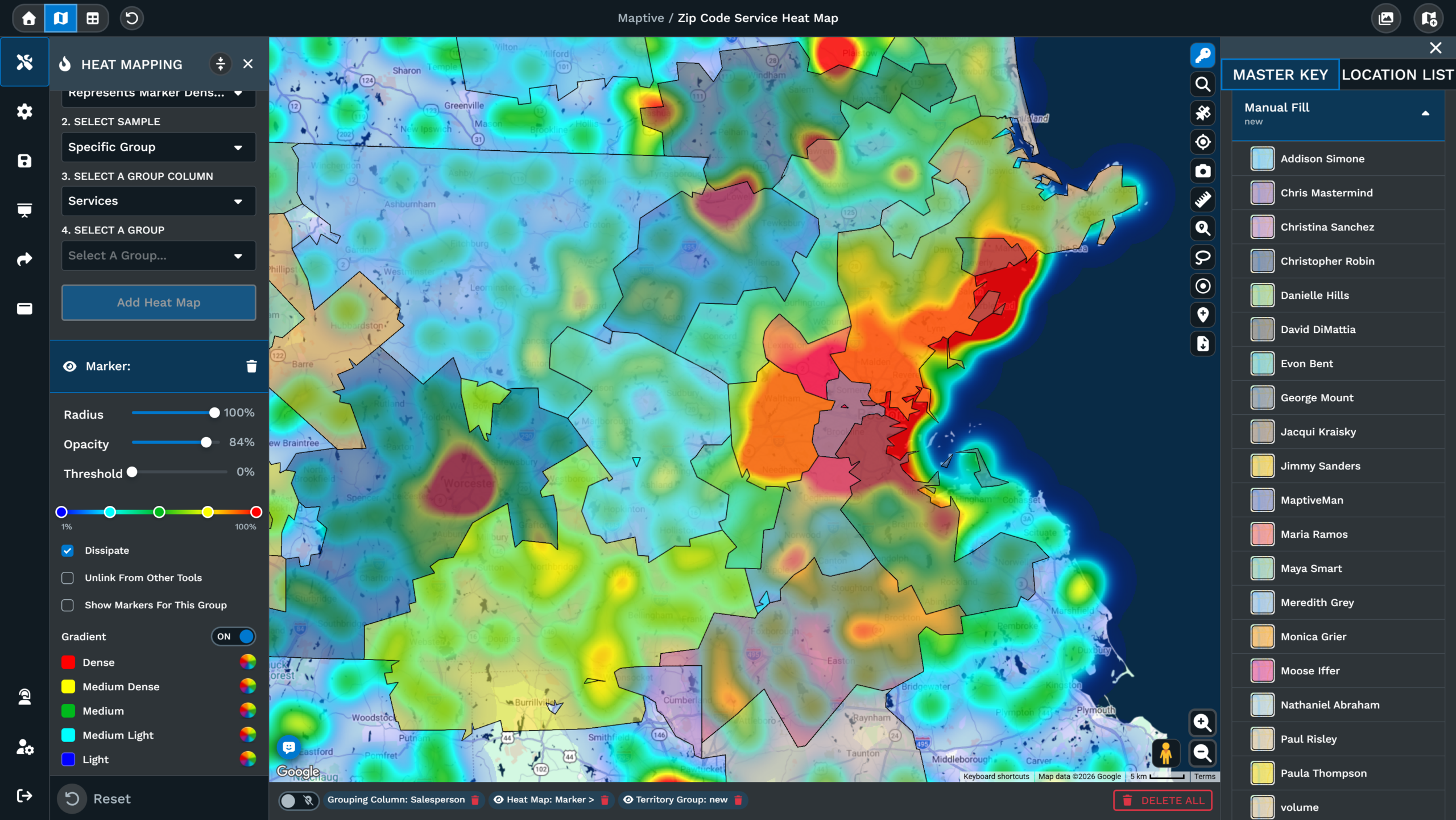
The Select Sample drop-down accepts All Markers in Data or Specific Group. The Specific Group option runs the heat map on one slice of the file, chosen by column and value, such as State set to AZ. Adding a second layer with a different value compares two categories side by side.
Stack Multiple Heat Map Layers on One Map
Each pass through the Add Heat Map button creates a new layer, and Maptive assigns a different color to each one automatically. A count layer and a value layer over the same data can be read together, which exposes where volume and value disagree.
Adjust Radius, Opacity, and Intensity Threshold
Radius, opacity, and intensity threshold are percentage sliders that update the layer live as they move. Radius controls how far the bloom spreads from each point, opacity controls how the layer reads against the base map, and the threshold sets where the heat begins to show.
Hide Layers Without Losing Your Settings
The eye icon next to a layer listing hides it without deleting its settings, which lets you read a layer that was sitting underneath. The trash can icon removes a layer permanently with no undo step. Checking Unlink From Other Tools keeps the heat map fixed while marker filters change the pins behind it.

Heat Map Generator FAQs
What is a heat map generator?
How do I make a heat map from a spreadsheet?
Can I weight a heat map by sales or revenue data?
Can I create multiple heat maps on the same map?
How do I create a heat map for one category or region?
What is the difference between a heat map and a density map?
More Ways to Visualize Your Data
Color-Coded Map
Color pins, boundaries, and heat by any data column.
Learn more →Bubble Maps
Size your data with radius circles on the map.
Learn more →Demographic Overlays
Add Census income and age data under your records.
Learn more →Marker Grouping Tool
Sort and group markers by any data column.
Learn more →Heat Mapping Tool
Start Mapping Your Data Today
Maptive includes over 60 mapping tools in one subscription, and the Heat Mapping Tool is one of them. The trial is free and a credit card is not required.