

Custom Printable Maps
Maptive Export Map Image saves the map on your screen as a PNG, PDF, or JPG file in 1 click, with the Map, the Legend, and the pin colors you set already on the file you save.
Print-Ready Maps for Field Use
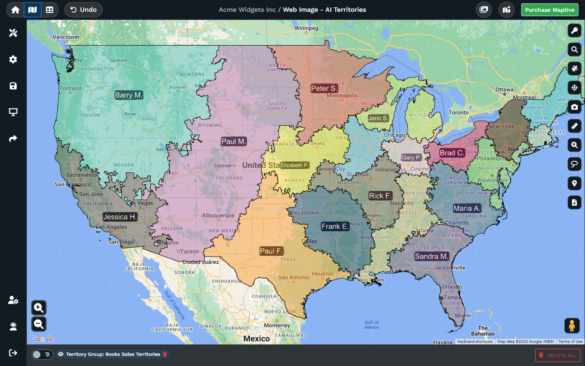
Export Map Image icon: A single icon on the right side of the Maptive map opens the export dialogue box, with no menu hunt to start the file you want on your desktop.
PNG, PDF, and JPG file types: The dialogue box offers 3 file types. PDF holds vector text for a print shop, while PNG and JPG go into slides, docs, or email attachments.
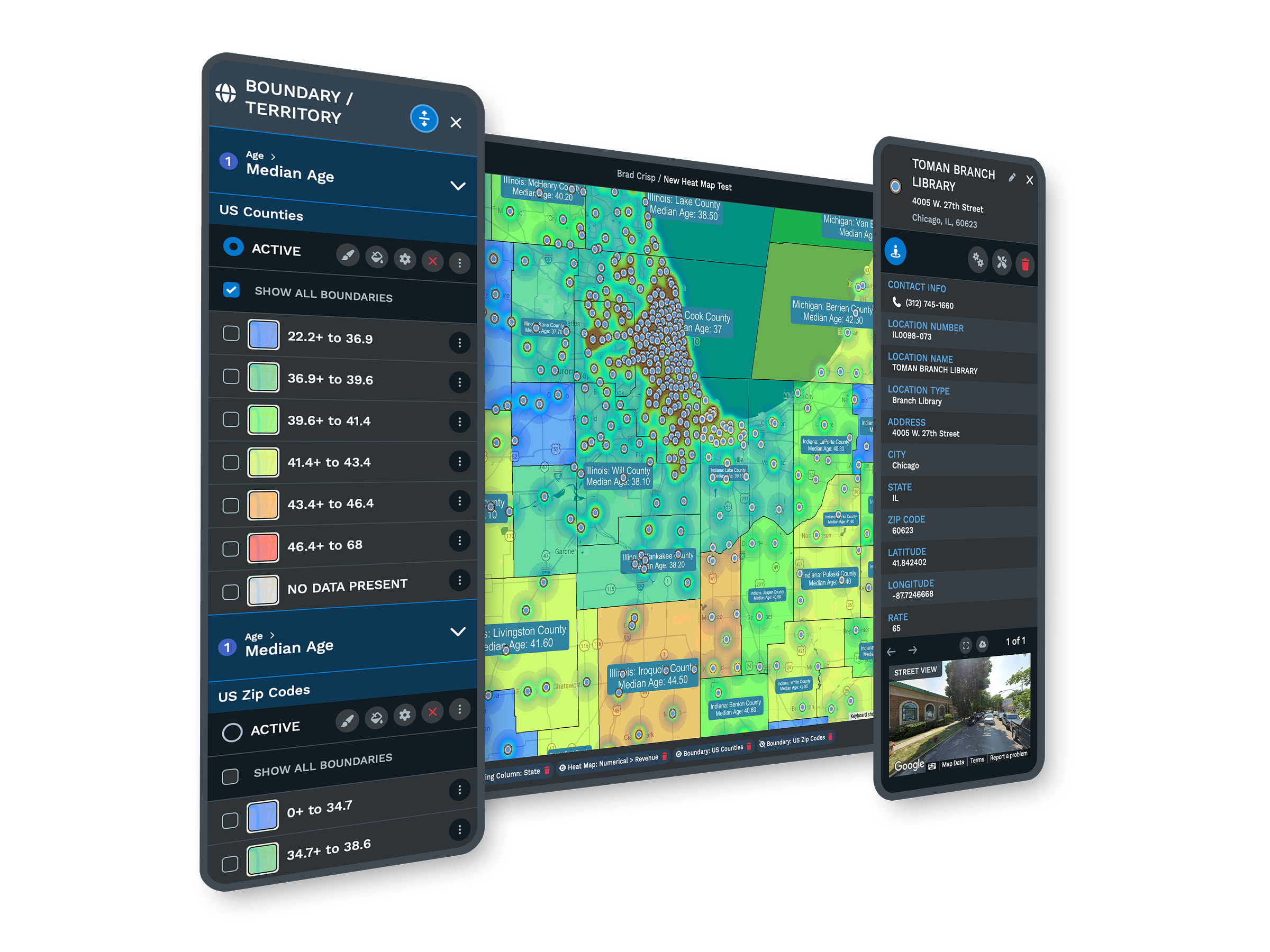
Screenshot Export Style: The Screenshot option saves the Menus and the Map together as they appear on screen, useful when side panels need to read on the printed page.
Map and Legend Export Styles: Map saves the canvas on its own. Legend saves the grouping or boundary tool key on its own. Send the pair to a printer or use a single file.
Map plus Legend Export Style: Map plus Legend renders the canvas with a simplified legend of the grouping or boundary tool next to it, the look of a traditional handout.
Normal and Large sizes: The dialogue box lets you pick Normal or Large, with Large producing a bigger file for a wall print and Normal sized for a letter print at home.
Print a Map in 3 Steps
1
Frame
Set your map to the view you want printed. Pan, zoom, toggle filters, and confirm pins, the Legend, and overlays sit.
2
Export
Click the Export Map Image icon on the right of the map. Pick PNG, PDF, or JPG, an Export Style, and Normal or Large.
3
File
The downloaded file is print-ready, easy to send to a print shop, drop into a deck, or hand off to a graphic designer.
Hard Copy Wall Maps
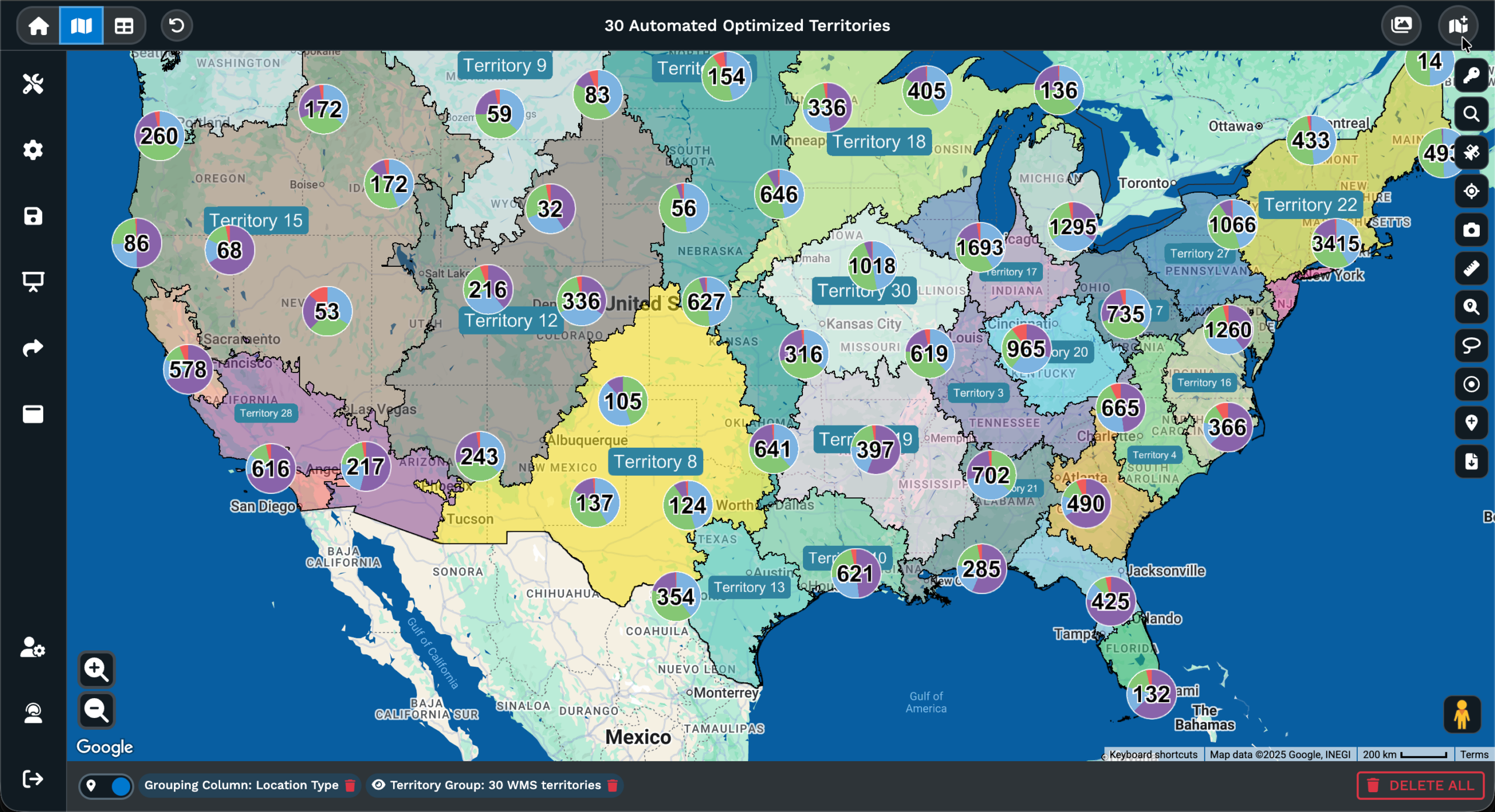
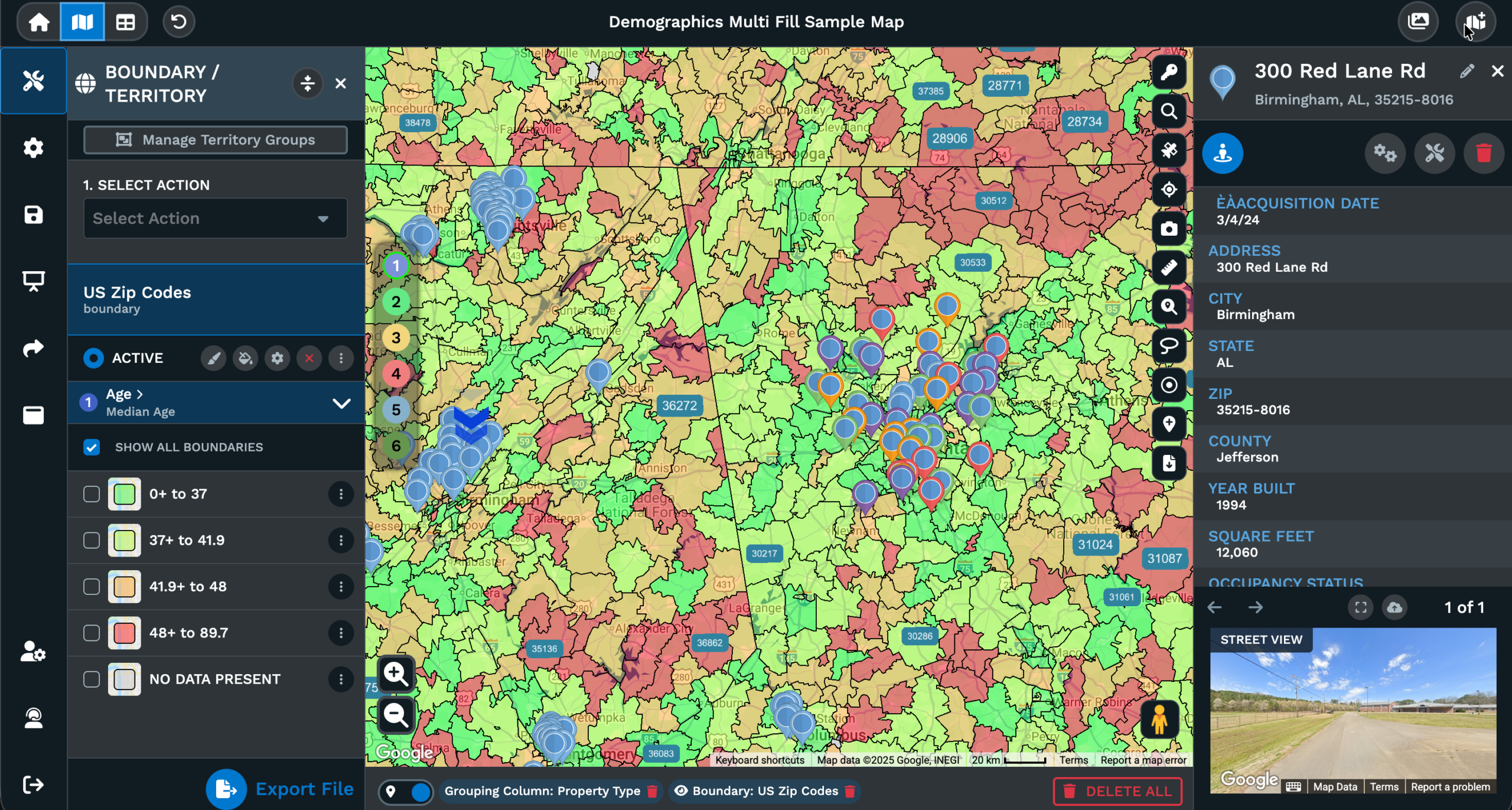
Field Paper Backups
Event Maps With Keys
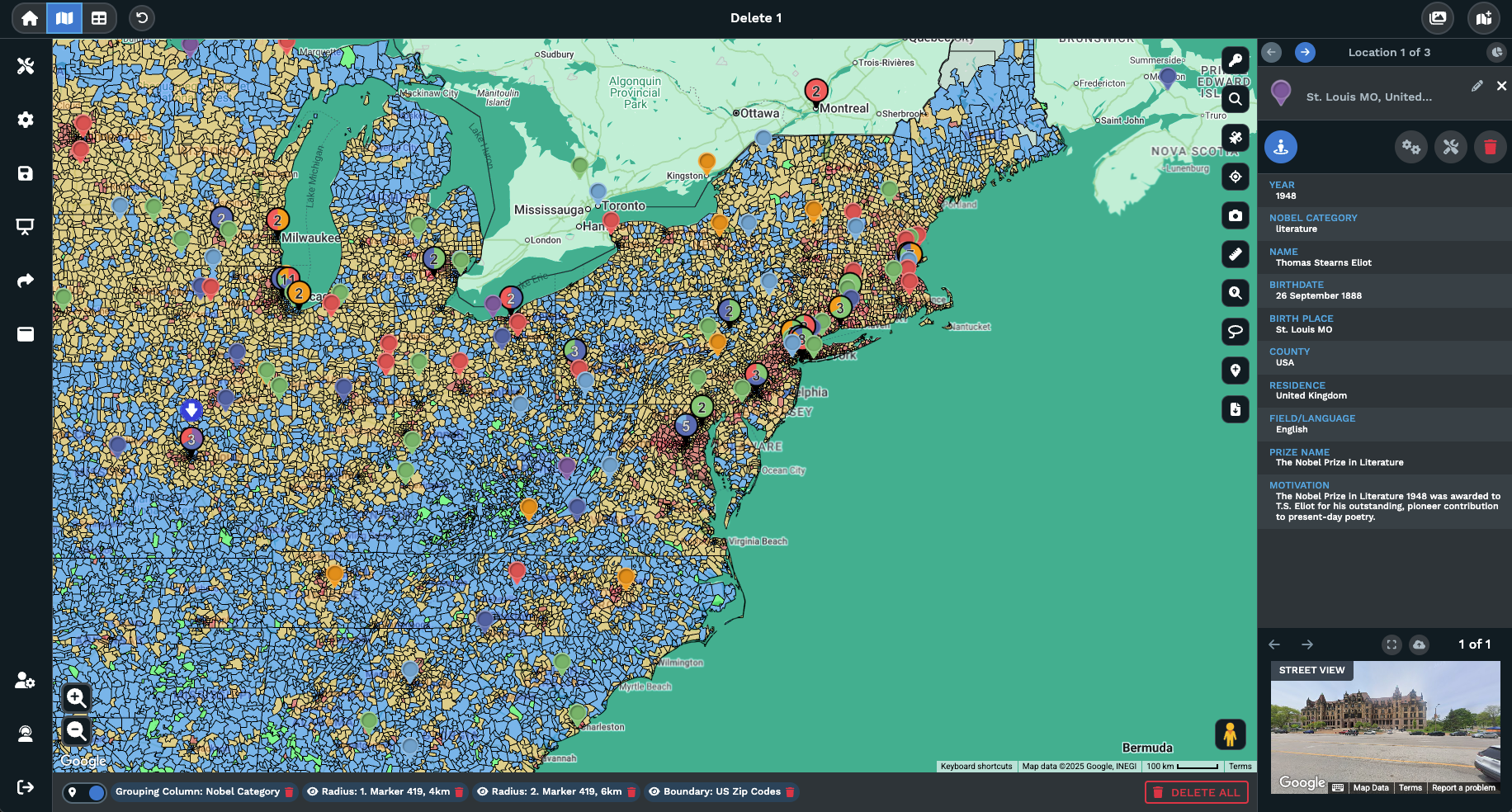
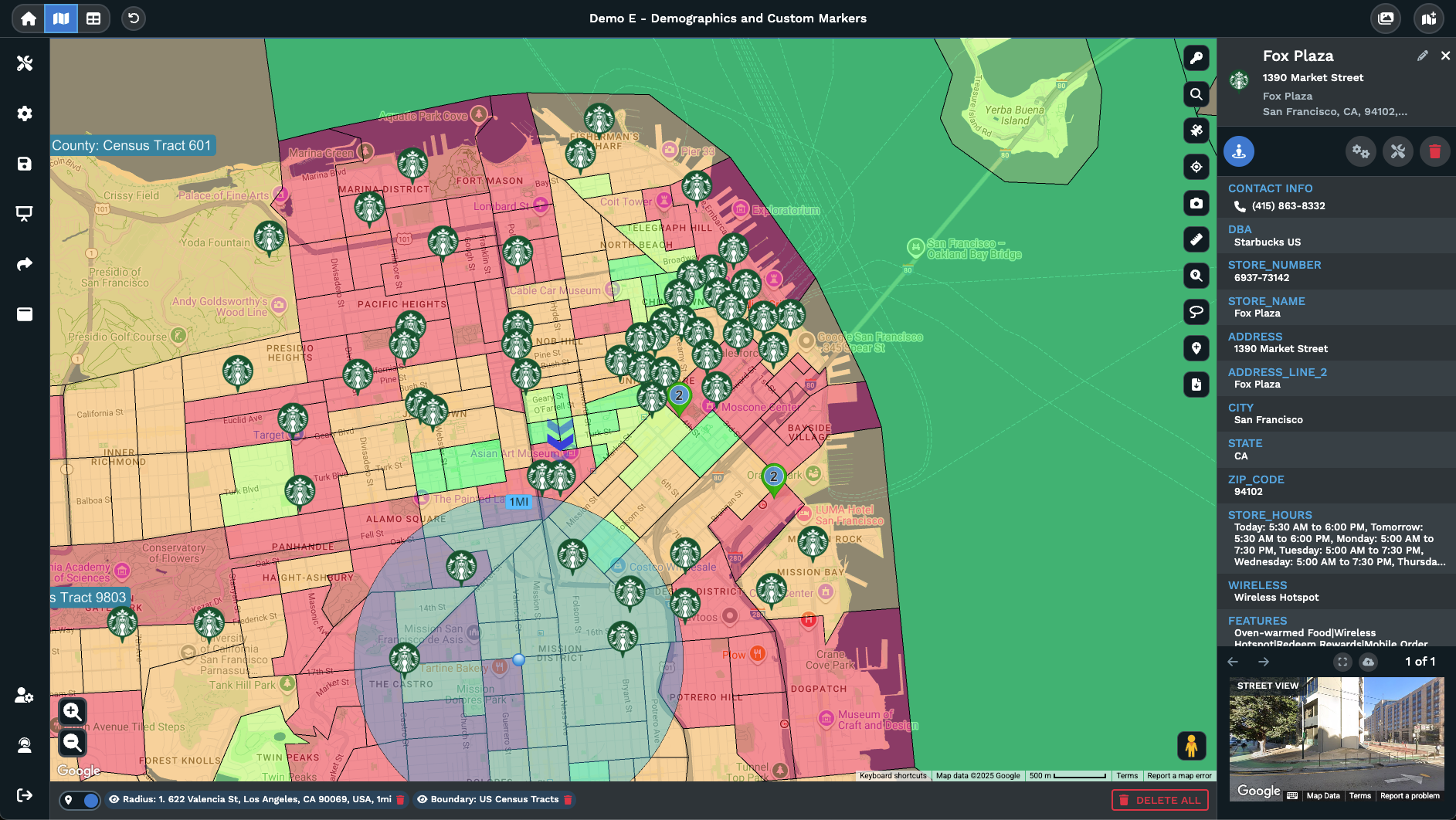
Property and Listing Sheets
A Branded Leave-Behind
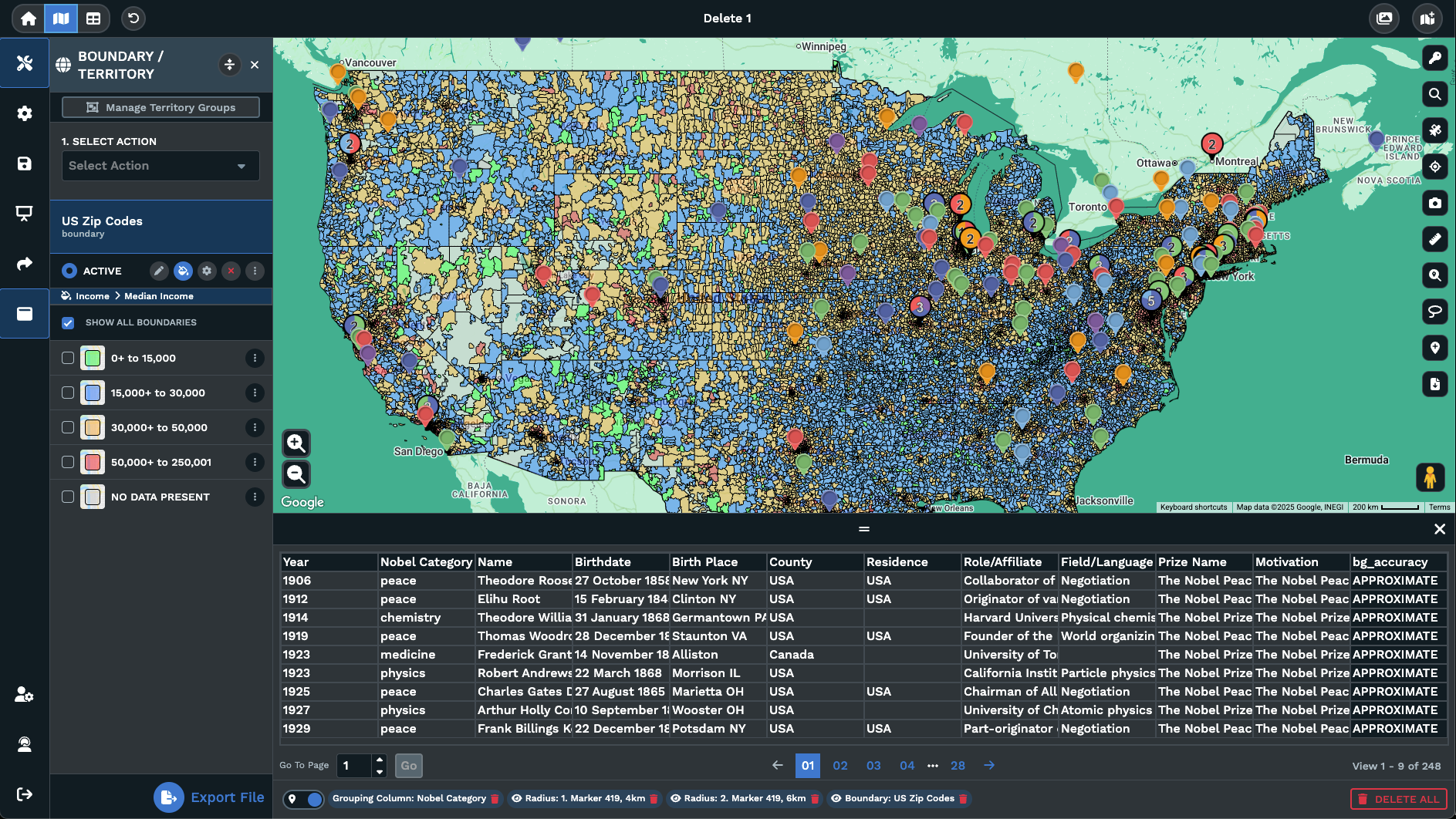
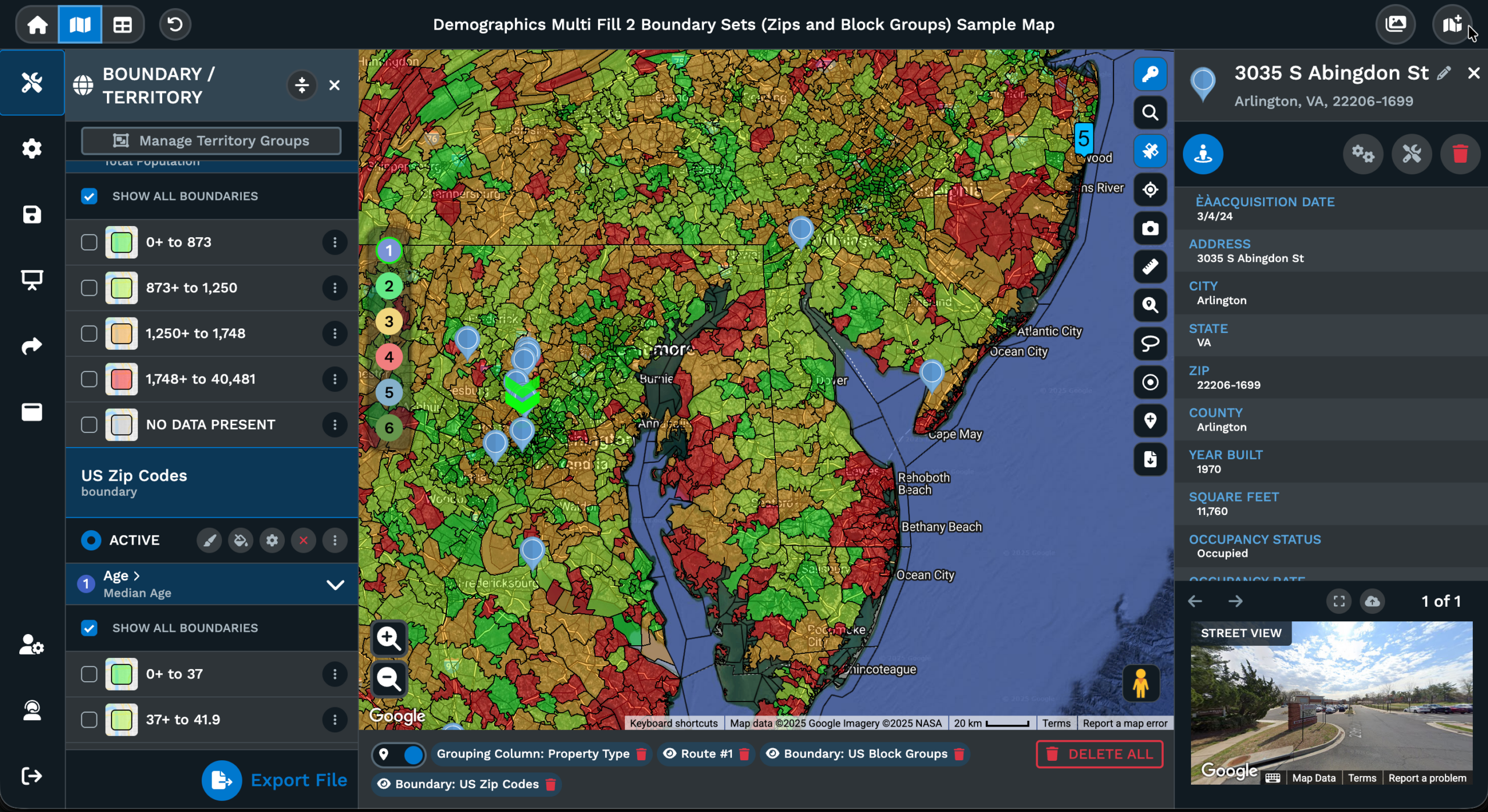
Per-Partner Coverage Files
Printable Map Building for the Field
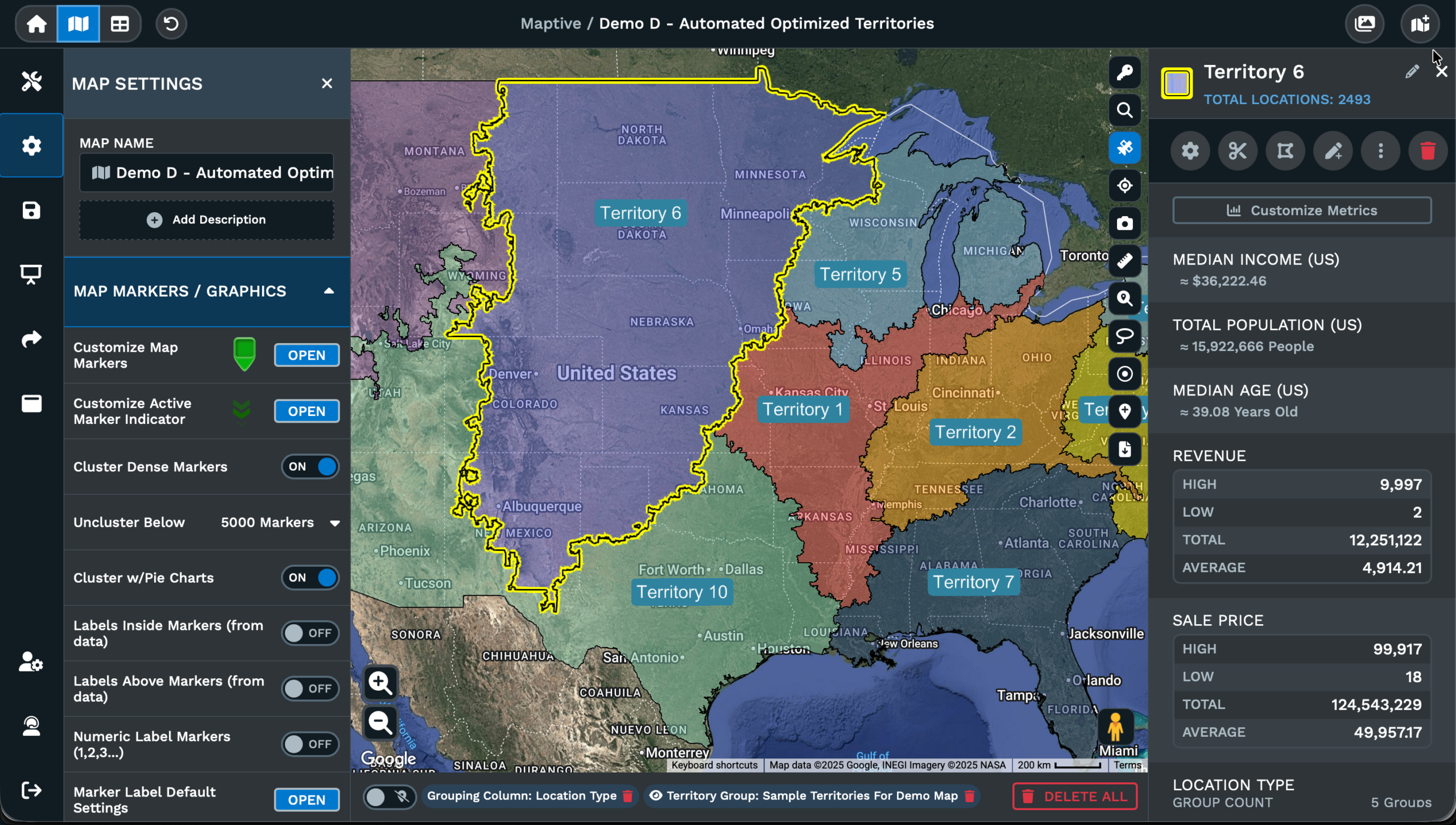
Picking a File Type
Maptive offers PNG, PDF, and JPG inside the Export Map Image dialogue, and the file type you pick changes what the printer sees. PDF holds vector text and a fixed page, so a print shop reads the legend, labels, and color groups at the size you set without losing edges at scale. PNG and JPG are flat raster images, suited to slides, docs, or email attachments where the map sits inside another file as a picture for the reader.
The Export Style on the same dialogue stacks with the file type. Screenshot saves the Menus and the Map together as they read on screen, Map saves the canvas on its own, Legend saves the grouping or boundary tool key as a standalone file, and Map plus Legend pairs the Map with a simplified legend next to it. Each Export Style runs with any of the 3 file types, so the same canvas saves as a PDF for the printer and a PNG for the deck.
Pick Normal or Large in the size selector on the dialogue to set the output dimensions. Large is the option for a wall mount or a board print, Normal is sized for a desk handout or a letter print. Click Continue and the file downloads to your desktop in the format, Export Style, and size you set, ready for the printer or a slide deck.
Size for the Surface
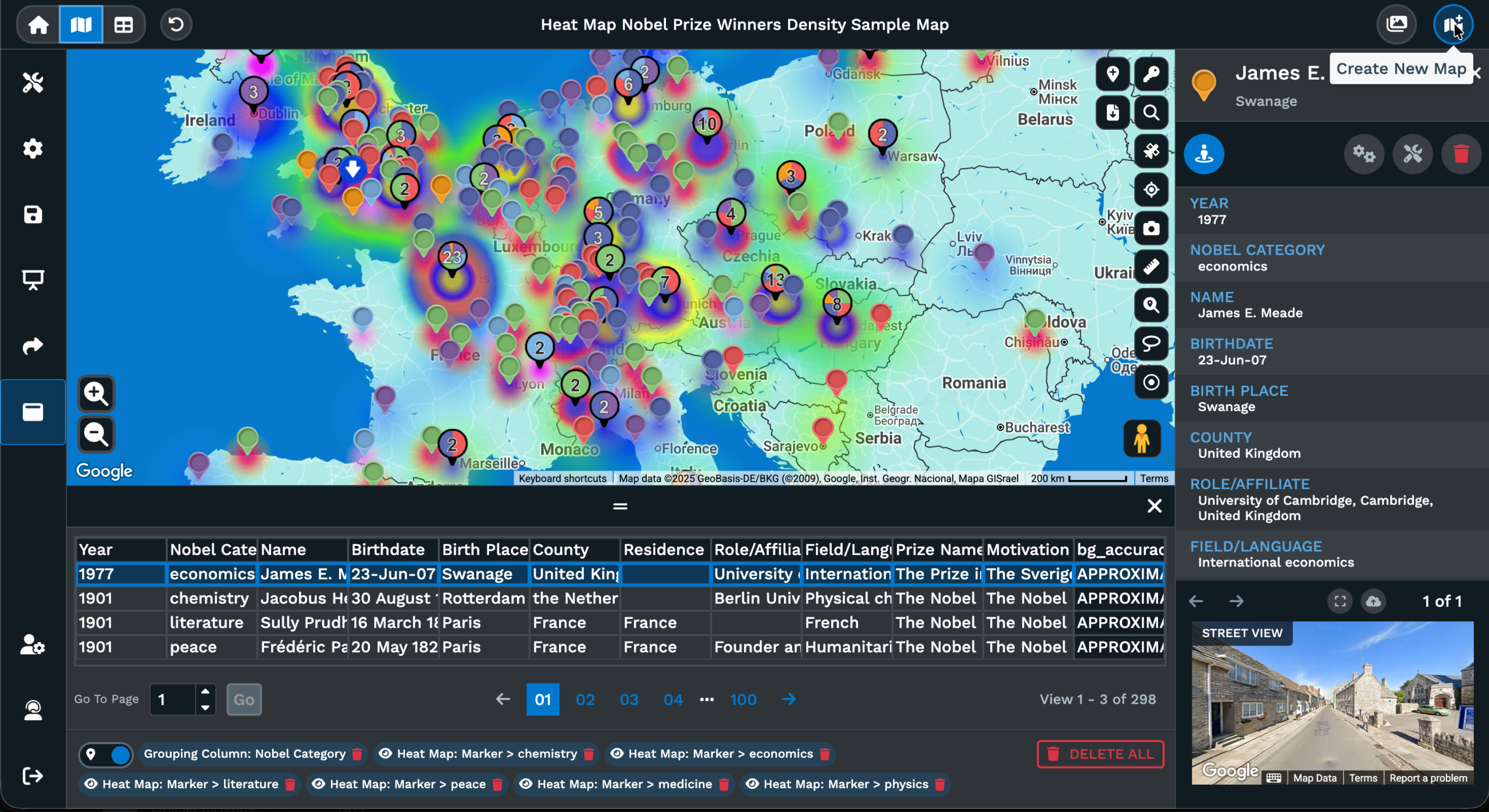
Maptive offers 2 sizes in the Export Map Image dialogue, Normal and Large. Normal saves a file sized for desk prints and letter handouts, the kind a team picks up at the office printer and carries into a meeting. Large saves a bigger file with more pixels and a bigger page in PDF, which is the file to send to a large-format printer for a wall map or a board print. Pick Normal for a folder, Large for a wall.
The file holds whatever you had framed on the canvas at the moment of export. If you panned and zoomed to a single region, the printed sheet covers that region. If you zoomed out to a state or a country before clicking the Export Map Image icon, the sheet covers that wider area at the Export Style and size you set. Set the view first, run the export, and the canvas on the printer matches the canvas on screen.
The mix of file type, Export Style, and size on a single dialogue is what gets a map out of Maptive in a print-ready file with no back-and-forth. PDF plus Map plus Legend plus Large is a wall-print recipe. PNG plus Map plus Normal is a slide-ready recipe. JPG plus Screenshot plus Normal is an email recipe. Pick the recipe that fits the surface and click Continue to save the file.
Map and the Legend
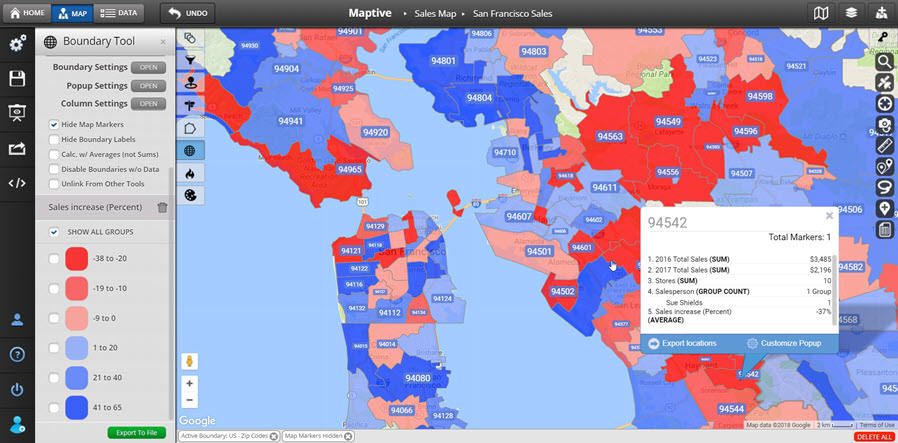
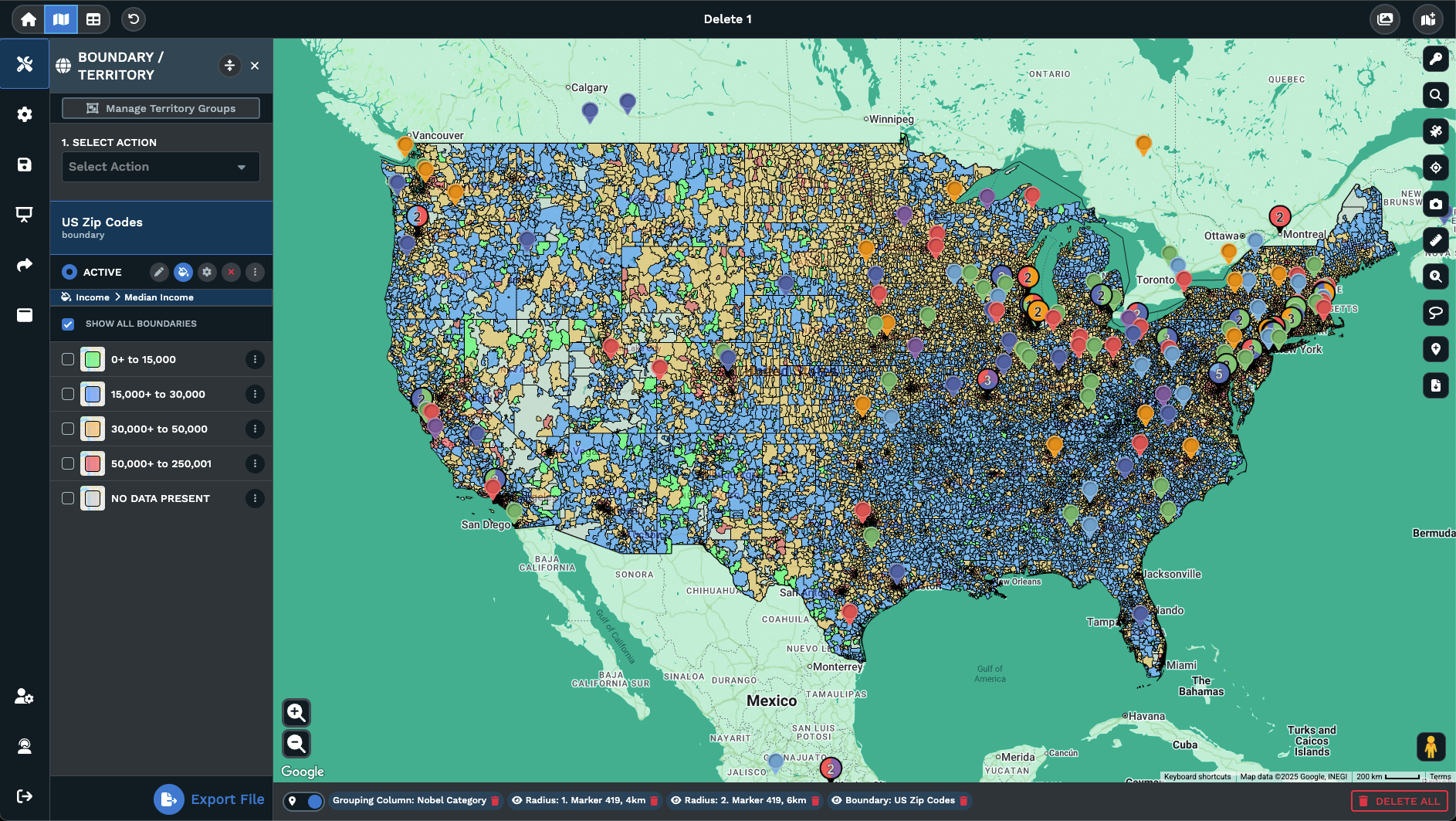
A printed map that loses its Legend is hard to read. Maptive ties the Legend to the grouping or boundary tool you set on the canvas, and the Export Map Image dialogue has options for the Legend on its own or for the Legend printed next to the Map. Map plus Legend renders the canvas with a simplified legend right next to it, so the printed sheet reads like a traditional map with a key the reader can scan.
Picking Legend by itself saves the key as a standalone file. That route is useful when a designer is laying out a printed piece with the map on the front and the key on a panel of its own, or when the Legend is the artifact you want for an email to a colleague who already has the map. The Legend file carries the colors, labels, and groupings of the marker grouping or boundary tool.
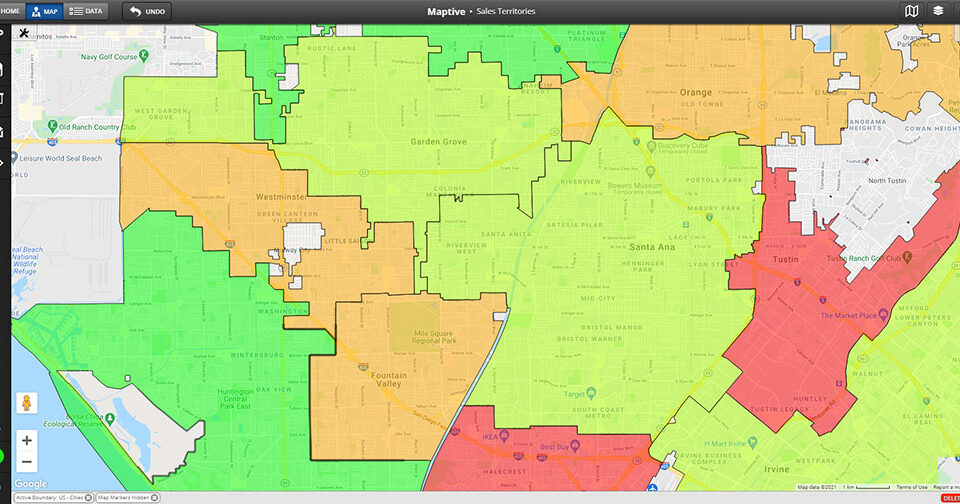
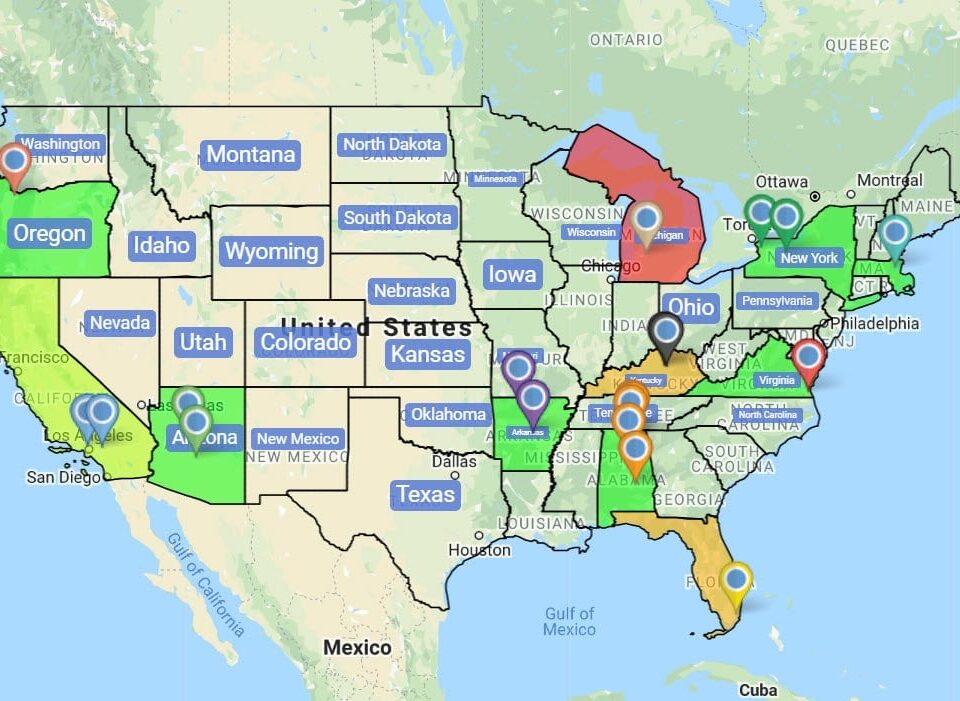
Picking Map by itself drops the Legend from the output. That route fits a printed map where the legend is being typeset by hand elsewhere on the sheet, or a slide where the legend is going on a different page of the deck. The Map keeps the pins, color codes, routes, polygons, and overlays you set, framed exactly as they read on screen the moment you clicked Continue in the export dialogue box for the file.
FAQs About Custom Printable Maps
How do I print a large custom map?
Open the map in Maptive, frame the view you want printed, then click the Export Map Image icon on the right side of the canvas. In the dialogue box, pick PDF as the file type, pick Map or Map plus Legend as the Export Style, then pick Large for the size. Click Continue and the PDF downloads to your desktop. Send the PDF to a large-format printer for a wall print or a board print at the size you need.
What is the best way to print a map with multiple locations?
Upload every location in Maptive as a row of source data, with markers set the way you want them to read on paper. Use the marker grouping or boundary tool to color code the pins by category, status, or area. Then click the Export Map Image icon, pick PDF, pick Map plus Legend, and pick Normal or Large. The downloaded PDF carries every pin and a simplified legend that reads at a glance, ready for the printer or a slide deck for the team.
Can I print a map with a legend and labels?
Yes. The Export Map Image dialogue has a Map plus Legend Export Style that renders the canvas with a simplified legend of the grouping or boundary tool right next to it. Marker labels you set on the canvas carry into the file, so each pin reads with its own label on the printed page. Pick Map plus Legend, pick PDF as the file type, and pick Normal or Large for the size. Click Continue and the PDF downloads to your desktop, ready for the printer.
How do I create a print-ready PDF from a map?
Frame the map at the zoom, center, and Legend you want printed. Click the Export Map Image icon on the right of the canvas. In the dialogue, pick PDF as the file type, pick the Export Style that fits the surface (Map, Map plus Legend, Legend, or Screenshot), and pick Normal or Large for the size. Click Continue. The PDF downloads to your desktop, ready to send to a print shop, drop into a mailer for partners, or hand to a graphic designer.
What resolution should a printed map be?
Maptive does not name a fixed dots-per-inch number in the dialogue box. The size selector offers Normal or Large, with Large producing a bigger file with more pixels for wall prints and Normal sized for letter prints at the office. Pick PDF as the file type and Large for the size to get the heaviest file for a large-format printer. Pick PNG or JPG plus Normal for a map heading into a slide deck or an email attachment to a colleague.
How do I print a map for a wall poster?
Set the canvas at the zoom and center you want on the wall, with markers, color codes, and the Legend set the way the reader should see them on paper. Click the Export Map Image icon on the right of the map, pick PDF, pick Map plus Legend, and pick Large for the size. Click Continue, then send the downloaded PDF to a large-format printer. The printed poster carries the map and the simplified legend on a single sheet ready to mount.
Can I print driving directions with a map?
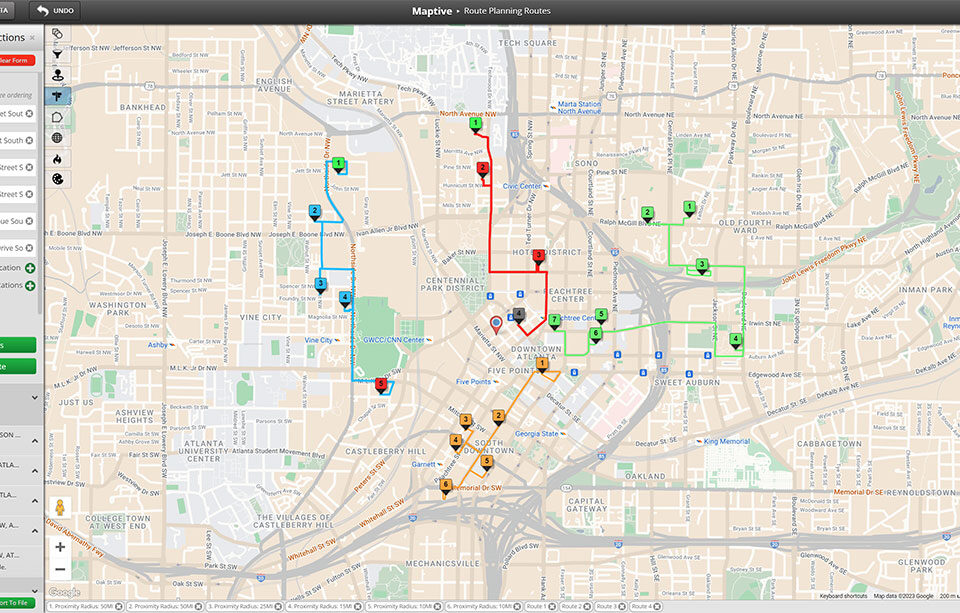
The Export Map Image dialogue exports the map you have framed on the canvas, with pins, route lines, polygons, and any other overlays you set. Build an optimized route in the Routing tool first, so the route line and ordered stops render on the canvas, then run Export Map Image to save a PDF of the map. For the address list itself, save the route data from the Routing tool on the side, then pair the 2 sheets on the printer.
How do I make a printable map with my own pins?
Upload your data into Maptive, set markers on the canvas, and color code them by any column in the source data with the marker grouping tool. Frame the canvas at the zoom and center you want printed, then click the Export Map Image icon on the right side of the map. Pick PNG, PDF, or JPG, an Export Style, and Normal or Large for the size. Click Continue and the file downloads to your desktop, ready for the print shop.
Does the Export Map Image tool save PNG and JPG too?
Yes. The dialogue box on the right-side Export Map Image icon offers 3 file types, PNG, PDF, and JPG. PDF is the format for a print shop, since it holds a fixed page and vector text the printer can read at any scale. PNG and JPG are flat raster images, useful for slides, docs, and email attachments to a colleague. Pick the file type that fits the surface, set the Export Style and the size, then click Continue to save the file.
Can I export only the Legend from my map?
Yes. The Export Map Image dialogue has a Legend Export Style that saves the legend of the marker grouping or boundary tool on its own, without the canvas on the file. Pick Legend as the Export Style, pick PNG, PDF, or JPG as the file type, pick Normal or Large for the size, and click Continue. The legend downloads to your desktop as a standalone file, useful when a designer is laying out the printed piece with the map elsewhere on the sheet.