

Google Places API & Search
Search Google Places straight from your Maptive map and drop matching businesses, points of interest, and keyword category results alongside the pins you have already plotted.
Google Places Pulled Onto Your Map
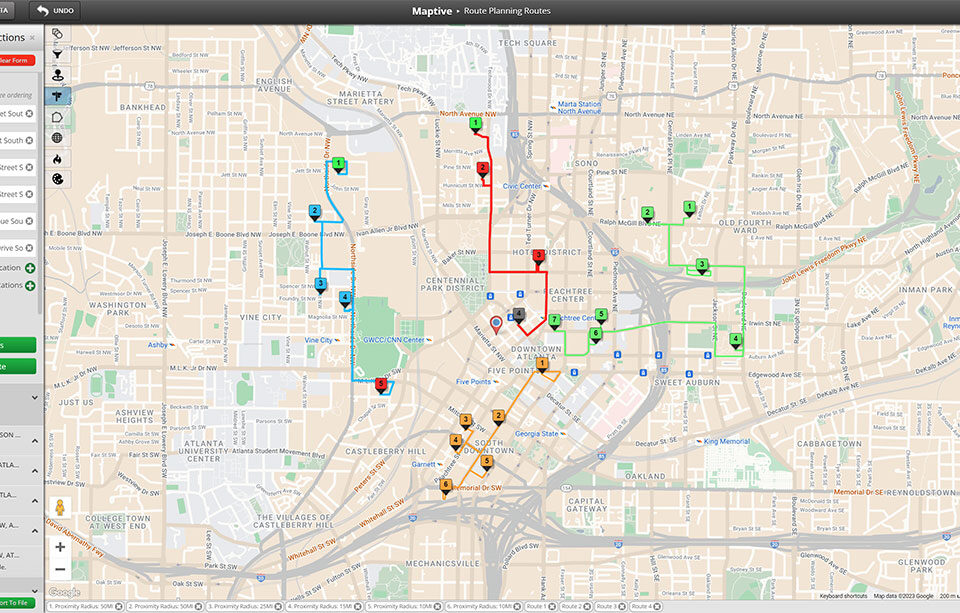
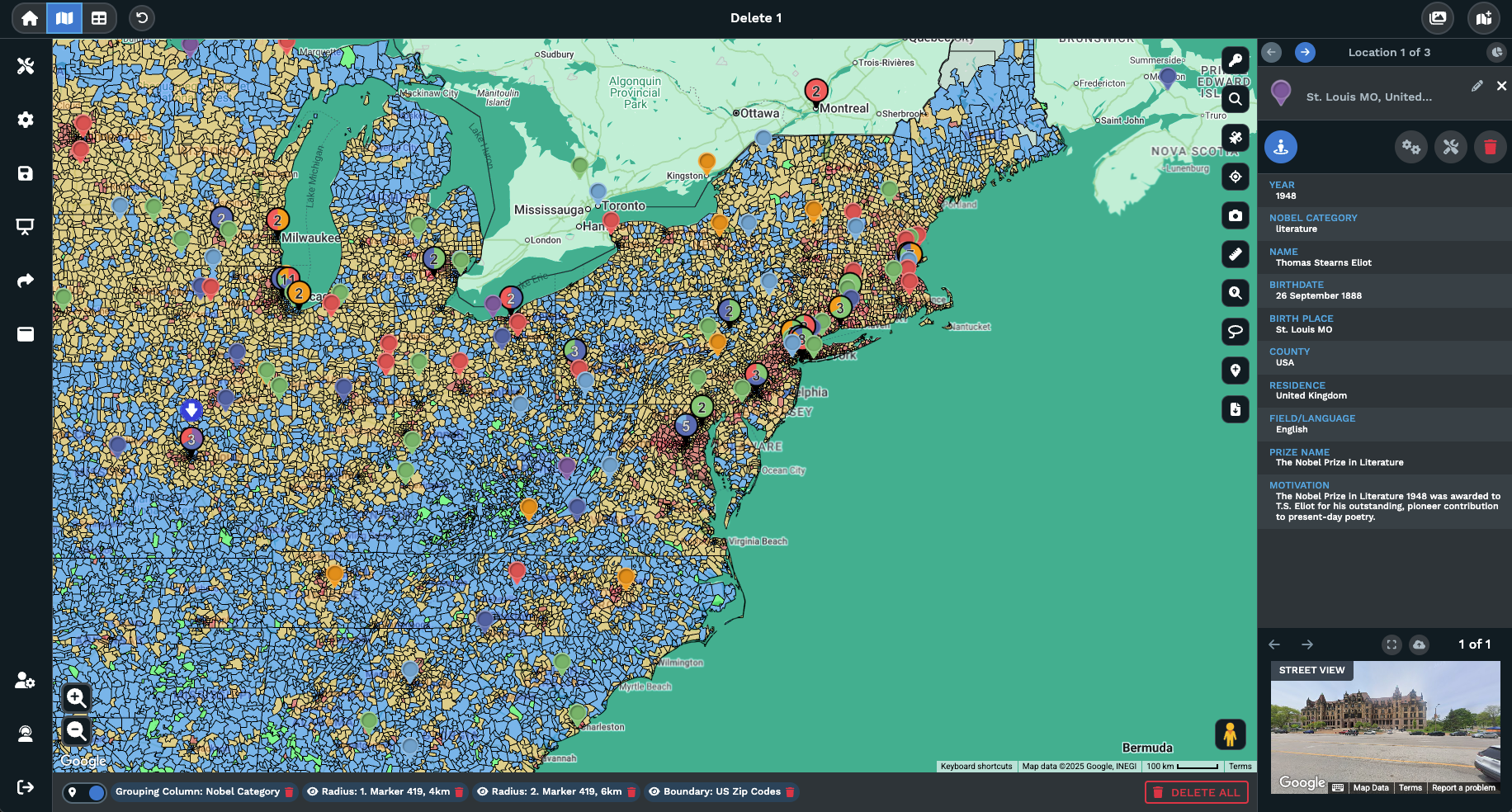
Search by name or category: Type a brand, a chain, a category, or a keyword the way you would inside Google, and matching places show up on the map next to your own pins.
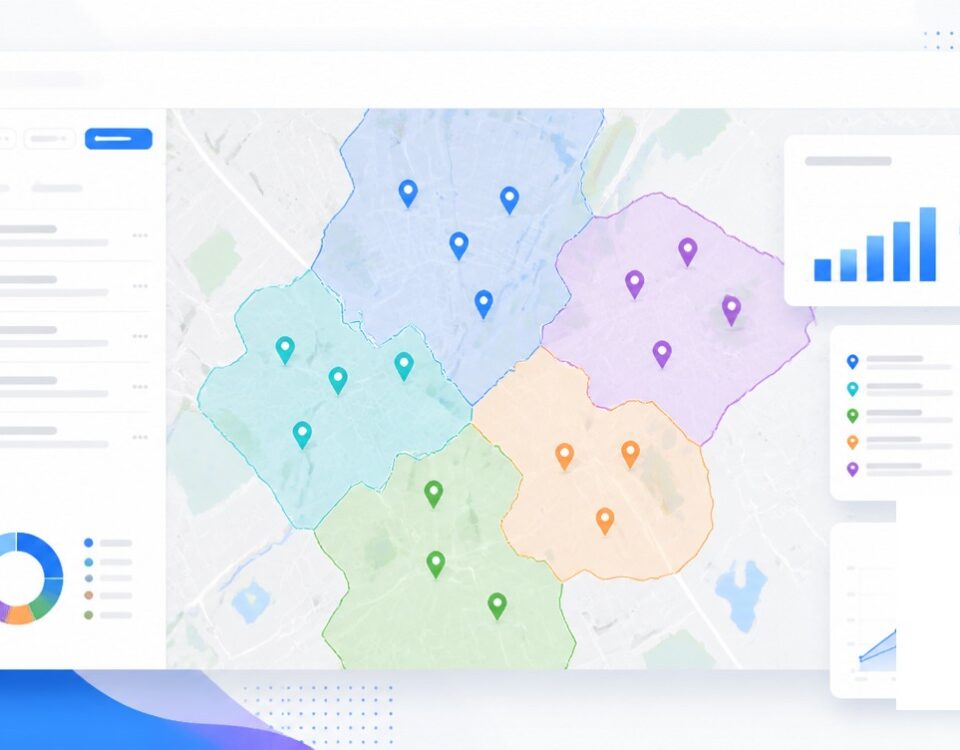
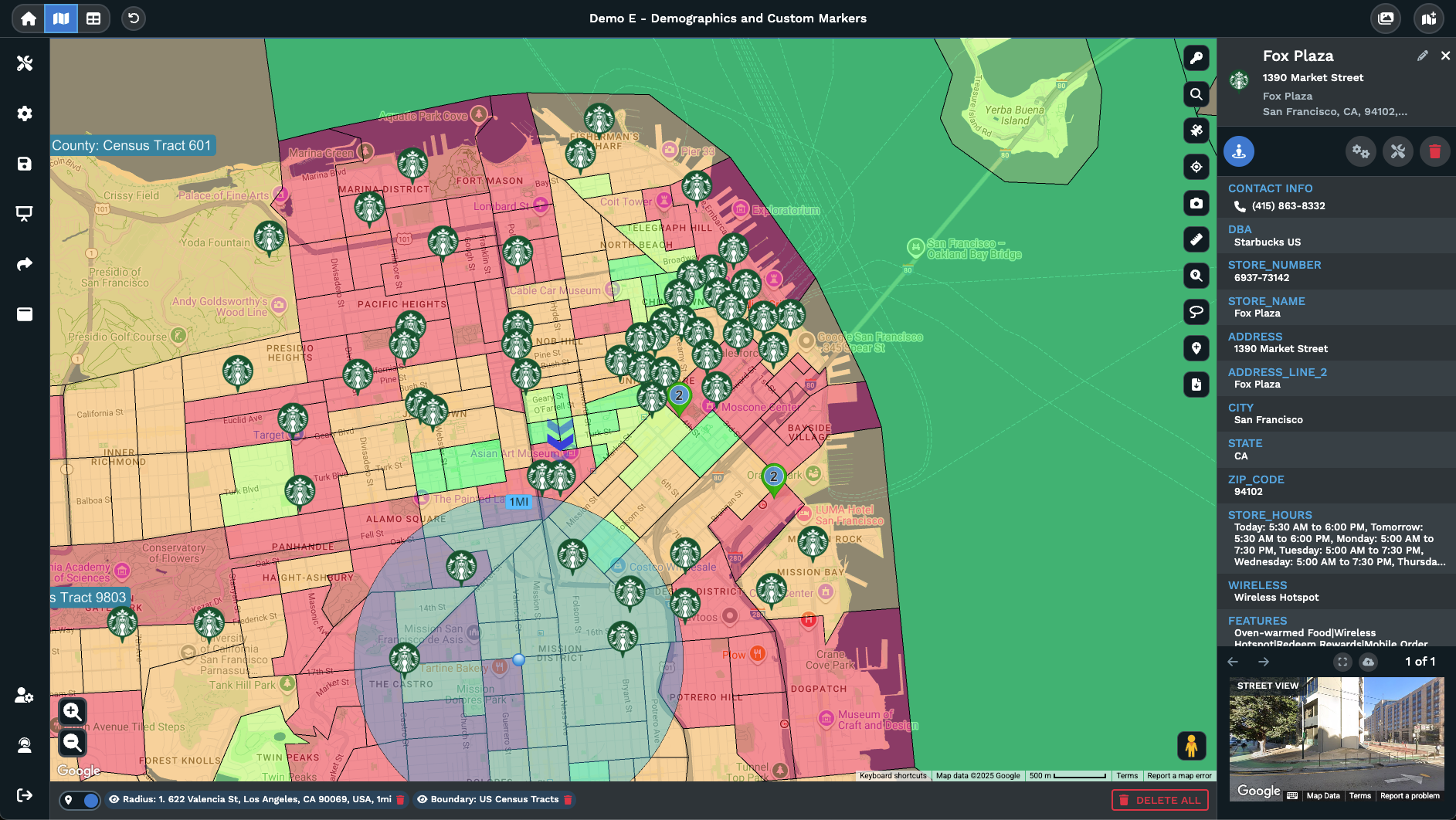
Place markers where the result sits: Each returned spot plots as a marker on the map so you can read position, spacing, and grouping against the pins you already mapped.
Open the place details: Click a returned marker to read the name, address, and place fields the lookup brings back, the same data you would scan in a Google result card.
Save useful places to data: Use Add a Marker on the right side of the map to keep a returned place as a row inside the Data tab so it carries forward with your own rows.
Take the rest off the map: Close the search from the X or the magnifying glass icon and the returned places drop off, leaving your own dataset on the map untouched alone.
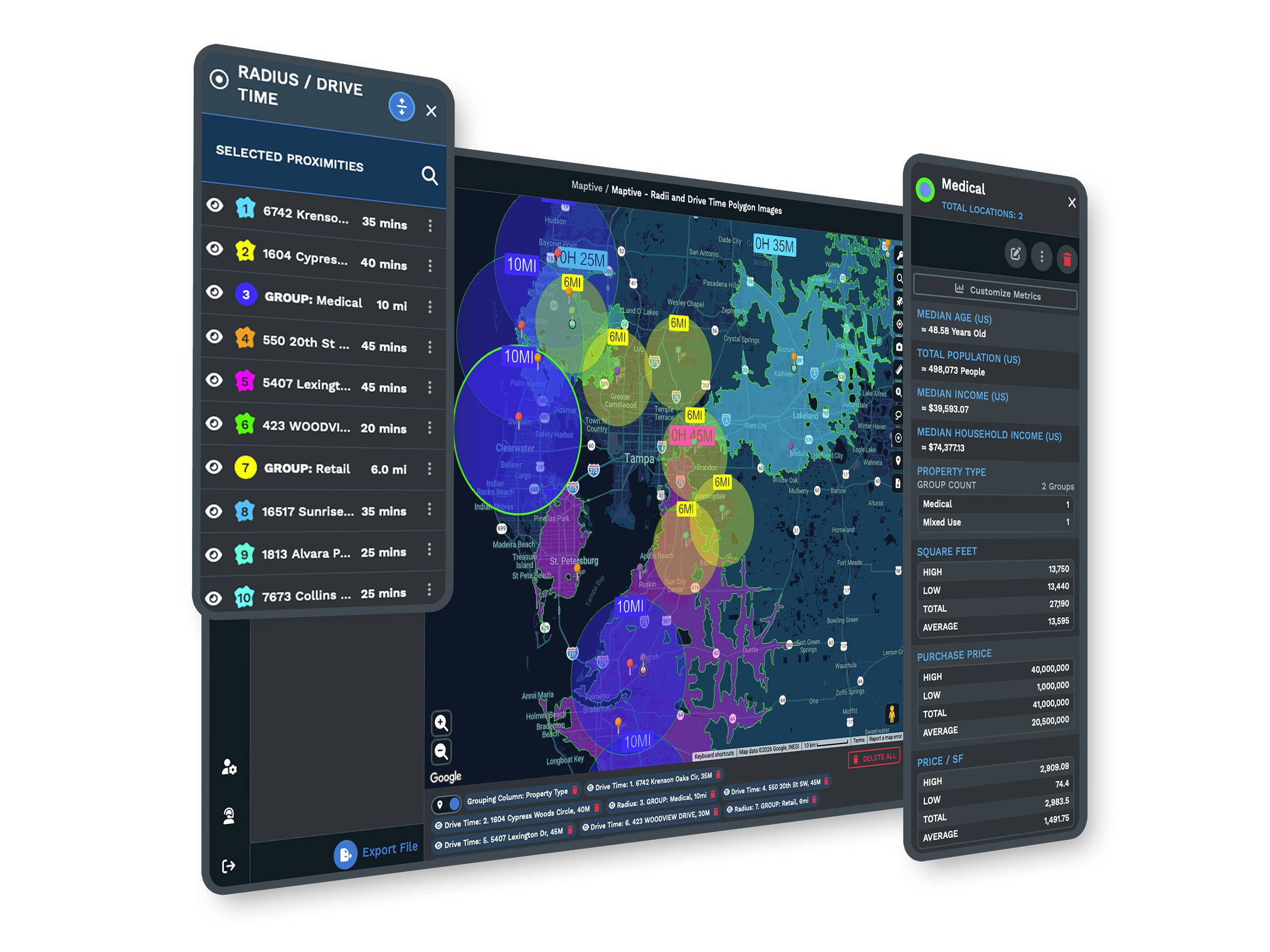
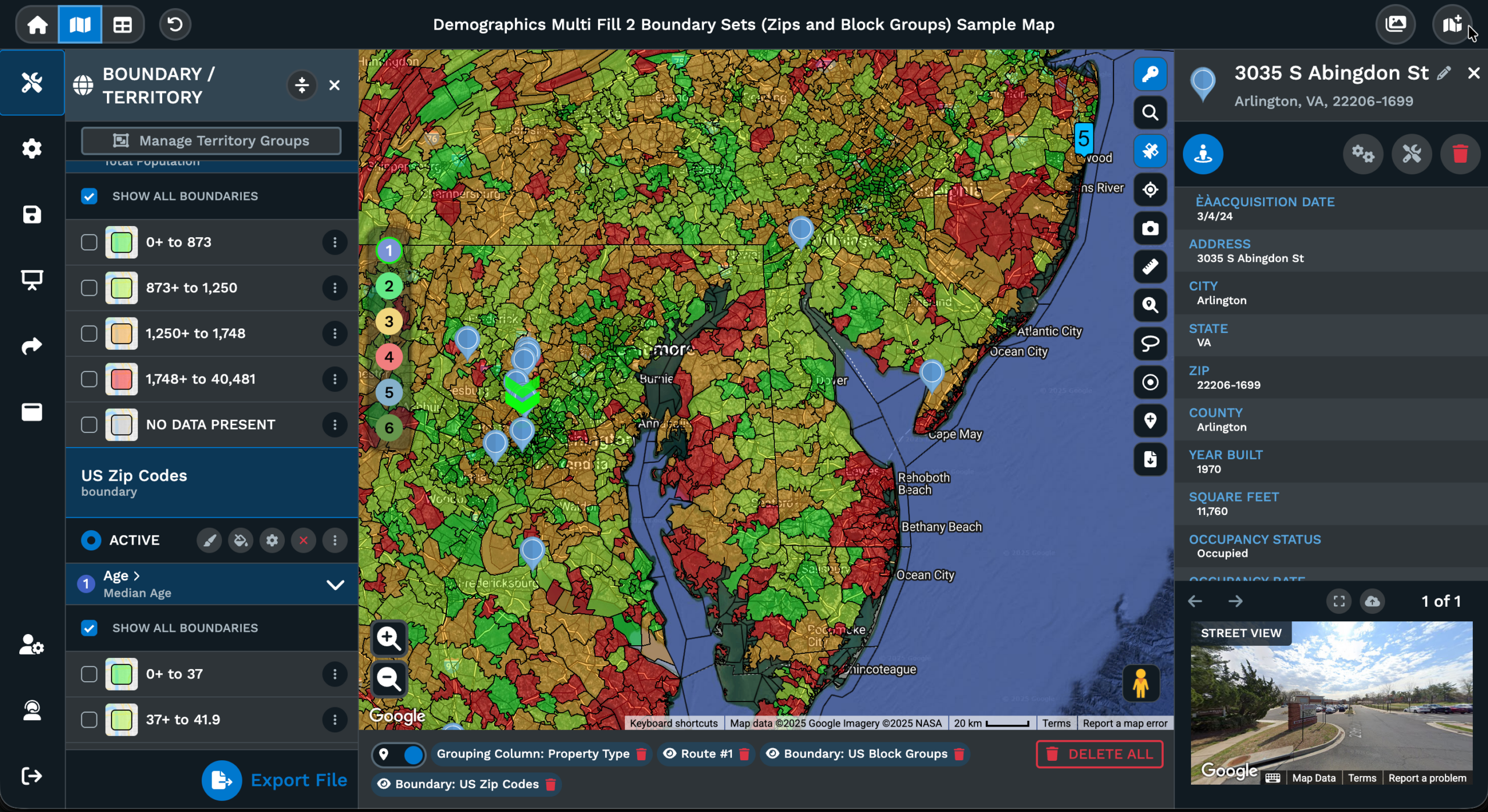
Stack with other map tools: Run a Places search inside a drawn radius, a drive time area, or a filtered view, so the lookup answers a coverage question on the active map.
Add Places in 3 Steps
1
Open
Click the magnifying glass icon at the upper right of the map and a search bar opens at the top center of the screen.
2
Type
Pick the Google Places option from the drop-down beside the search bar, then type in a brand, chain, or category word.
3
View
A ranked list of nearest matches arrives in the side panel, where you can zoom, route, or save as .xlsx, .tsv, or .csv.
Stores and Chains
Eateries and Cafes
Schools and Campuses
Clinics and Hospitals
Transit and Anchors
Vendors and Suppliers
Google Places Mapping for Sites
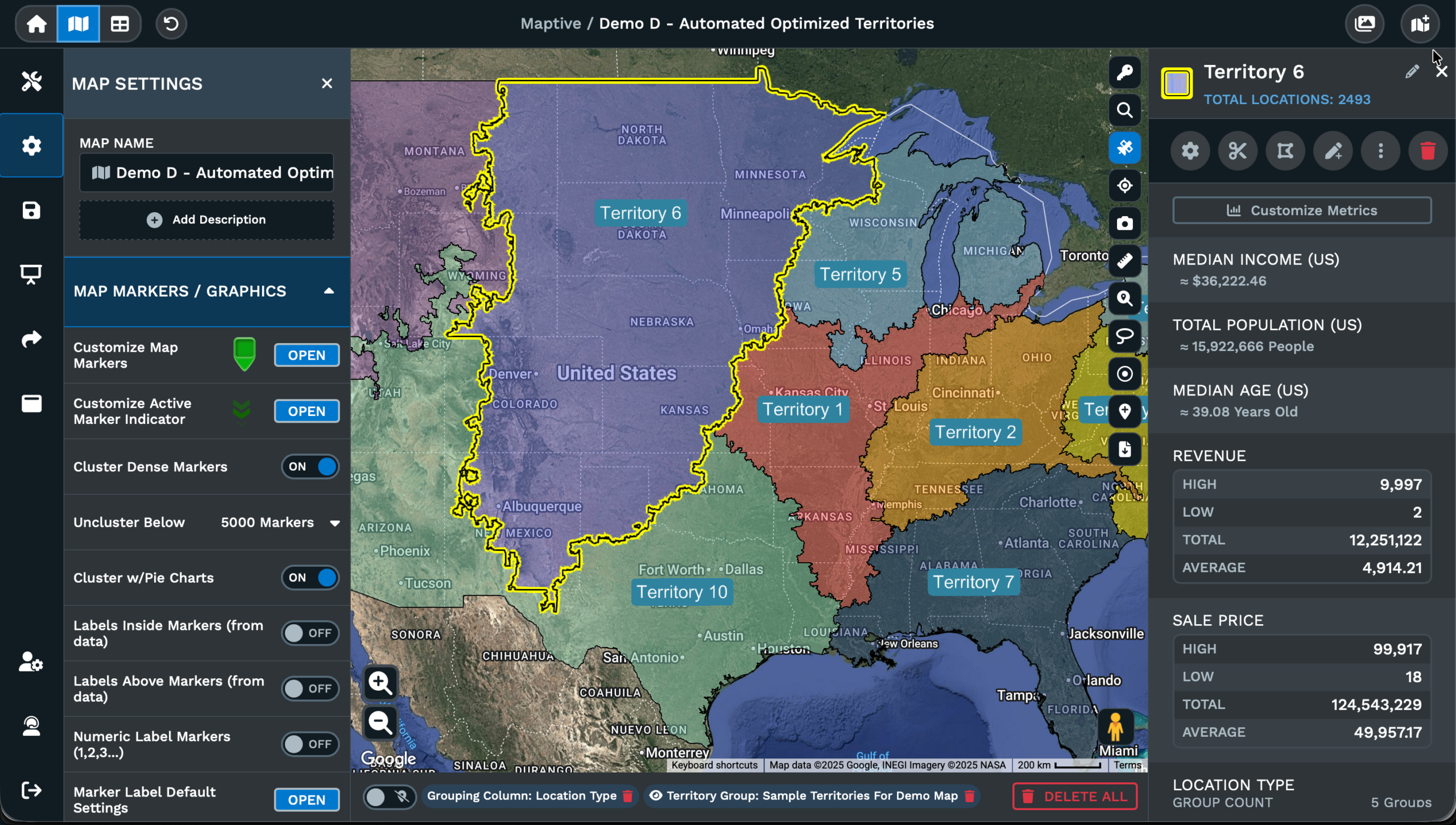
From Search to Pins
A spreadsheet of your own locations covers only half of what a real planning map needs. The other half is the businesses and places around those locations: the chains, the schools, the transit stops, the vendors that drive foot traffic past your own pins on the map. Maptive carries that lookup inside the same map screen instead of inside Google itself in a second browser tab on the side of it next to you.
Click the magnifying glass icon at the upper right of the map and the search bar opens at the top center of the view. Pick the Google Places option from the drop-down beside the search bar and the search shifts from your own data set to the wider Google index of every place out there in the world. Type a keyword the way you would type it into Google itself when looking for a brand or category.
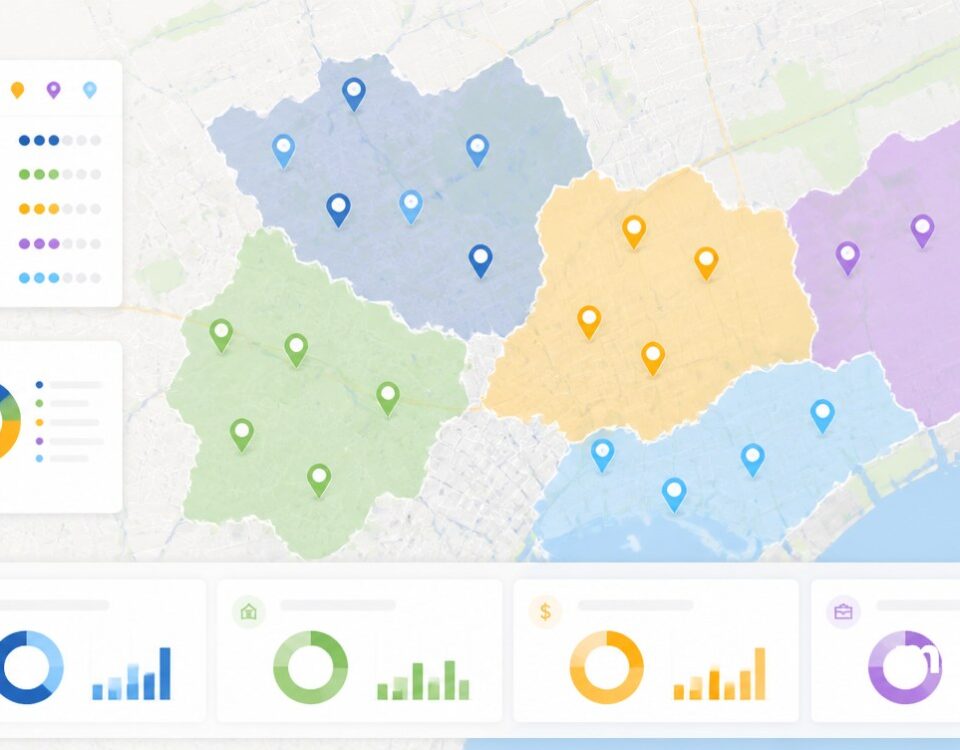
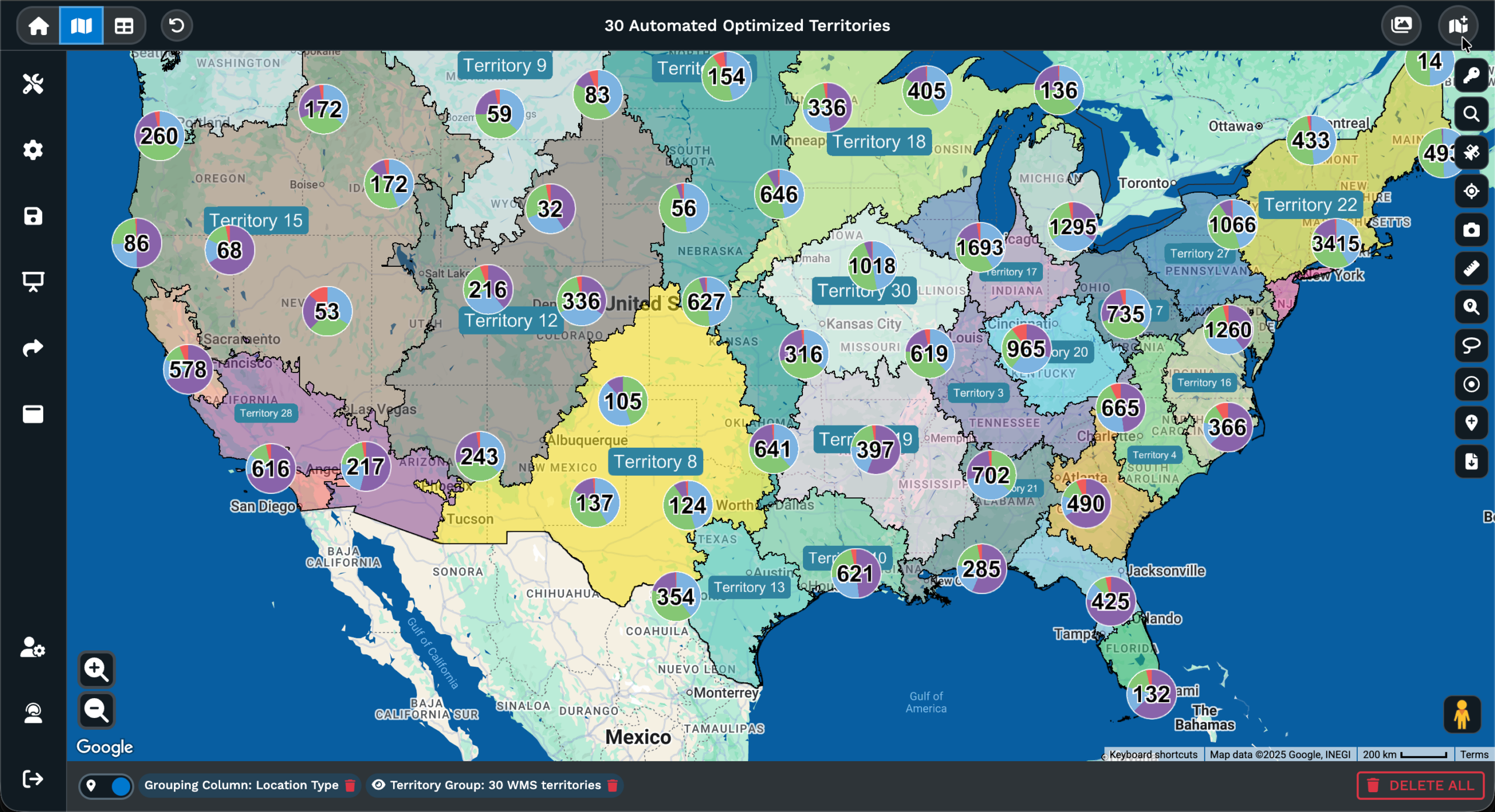
Matching places plot on the active map next to your pins so that position, spacing, and grouping all read at a single glance. You stay inside the same browser tab, the same data, and the same map view the entire time. The lookup runs against the area you have open on the map, so a tight zoom returns a tight set of places, while a wider zoom pulls back a wider set of them all over the page.
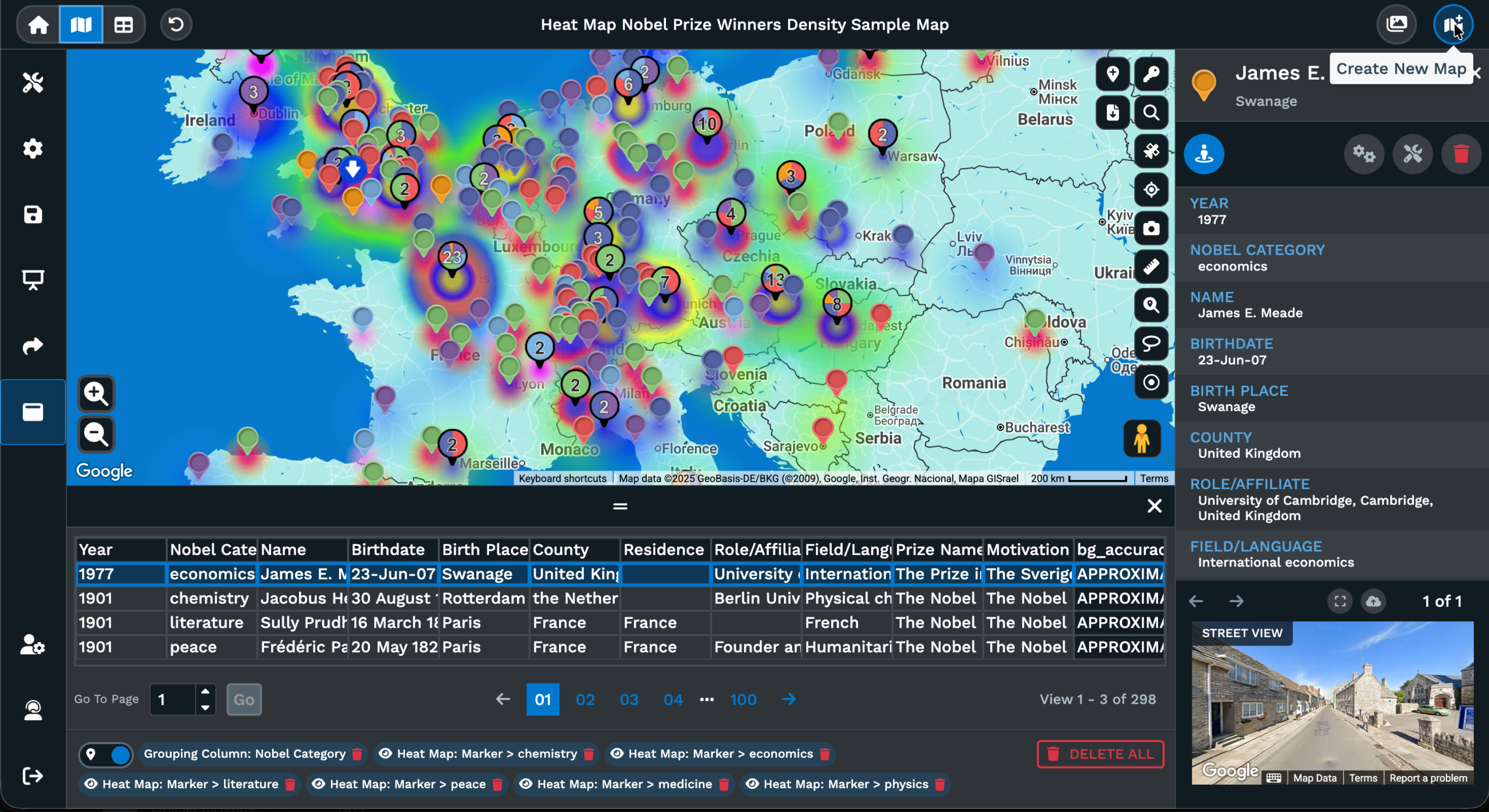
Keeping the Right Ones
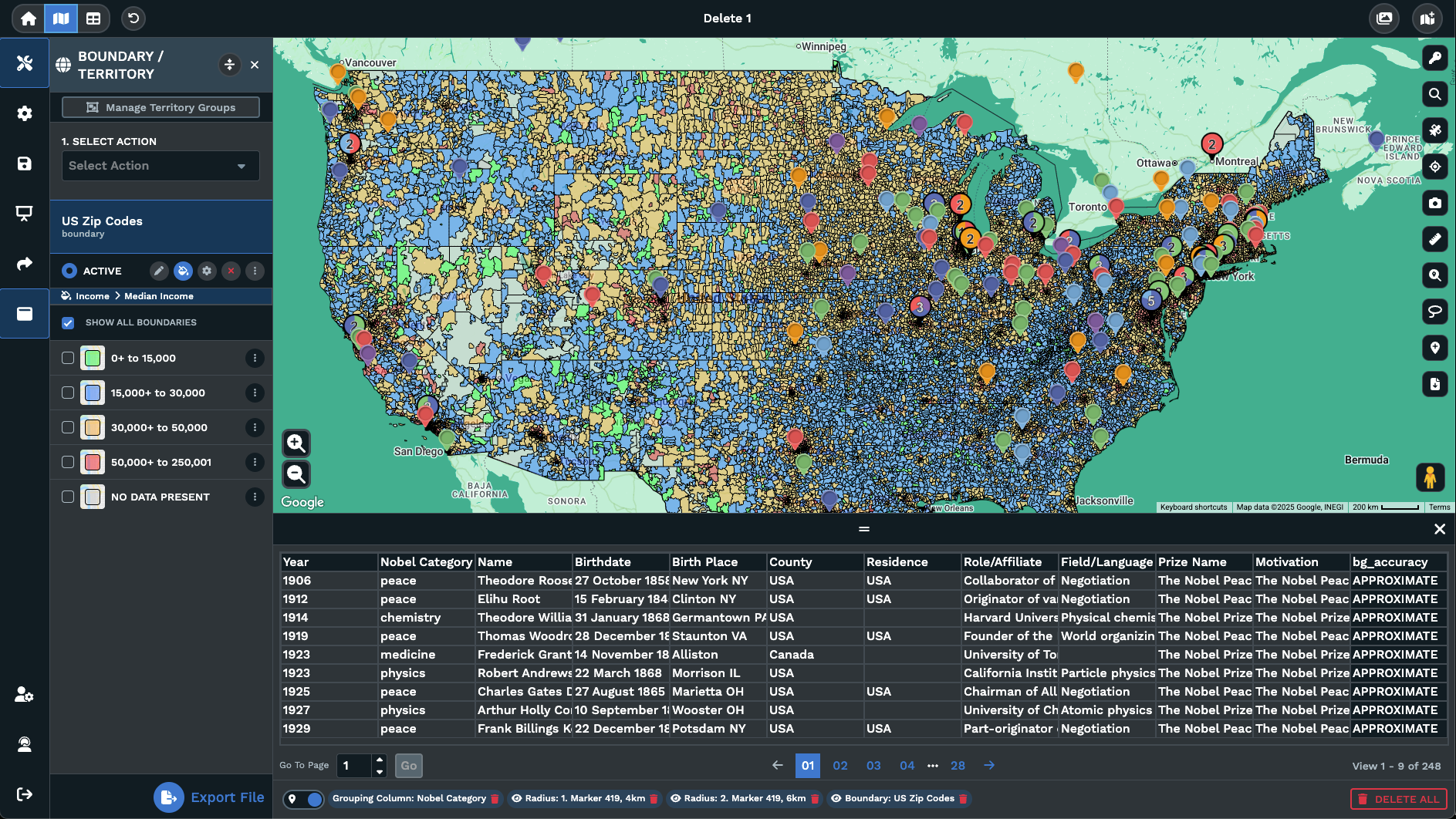
A search returns more places than any single plan really needs, and most of them drop off when you close the search itself. The ones worth keeping stay around through Add a Marker on the right side of the map view. Pick a returned place, save it to your own data, and it becomes a row inside the Data tab with the address columns you have already set up for your own dataset of locations.
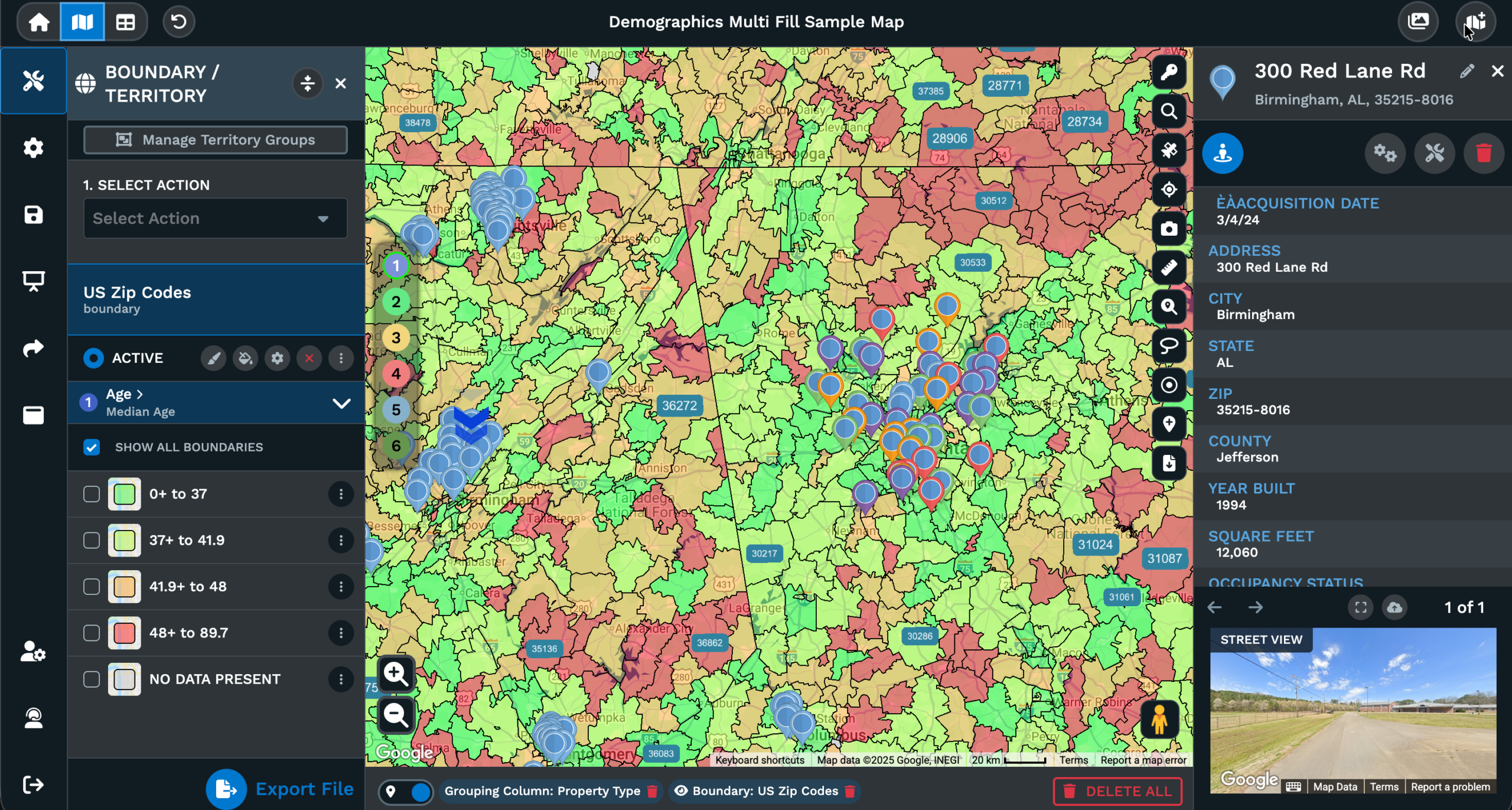
From that point it filters, exports, and groups the same way every other row inside the dataset does. Address columns from the returned place map to your own address fields and the rest of the place detail sits inside the marker popup on the map. The result is a single-list view that mixes your own locations and the places you pulled in from Google, ready for the Routing tool, the Lasso tool, or an export of the data.
Export your map data as .xlsx, .tsv, or .csv from the Data tab and the file carries the saved places too. Nothing about saving a place locks you into the result. Drop a row, edit a field, or move a marker the same way you would for an original pin you uploaded back on day 1. The saved places live as your own data from that point on, ready to act on inside any tool the map offers next.
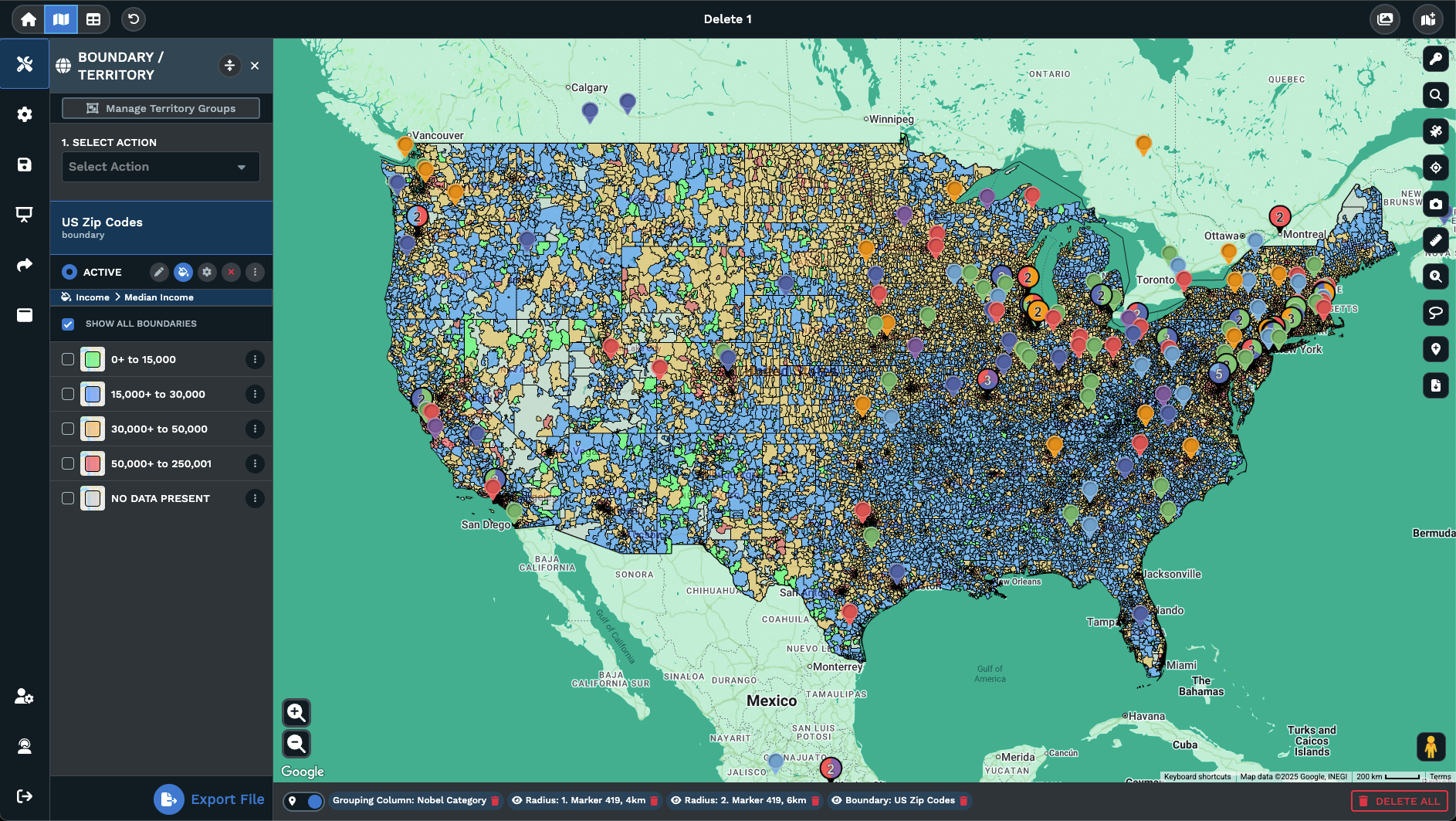
Reading Place Results
A list of nearby places sorted by distance reads as a column on the side. A list of nearby places plotted on a map reads as a picture instead. Maptive returns the Google Places result as the second of those formats. You see chains pooling on the same corridor, campuses splitting the map view into halves, or hospitals sitting outside the area that your business actually serves on a daily basis.
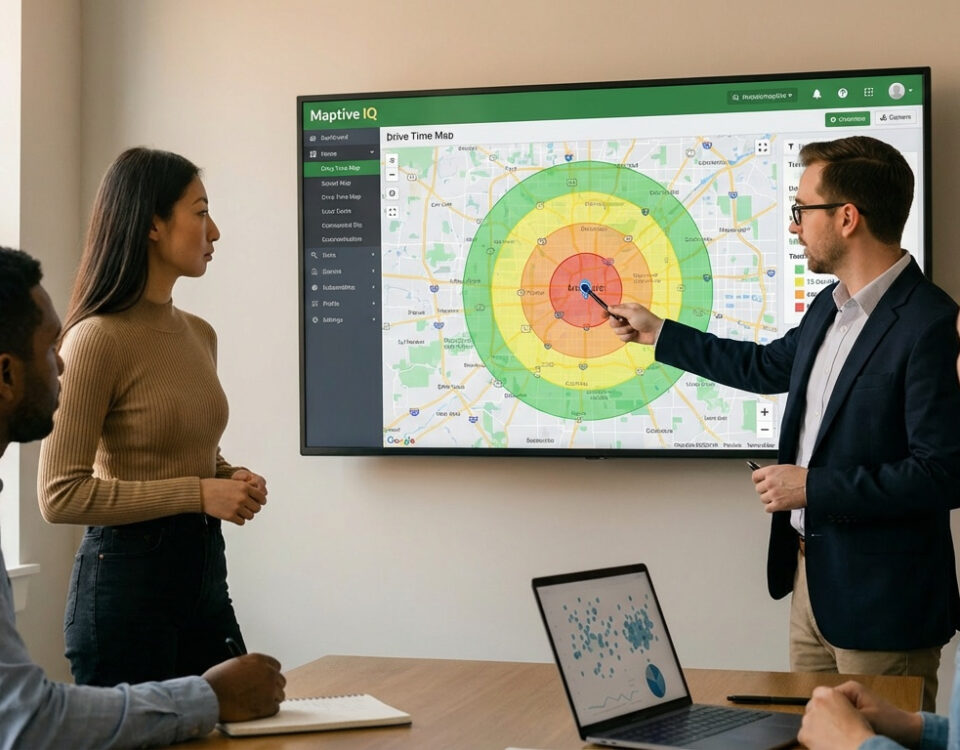
You read the answer faster than a list of distances or addresses would let you read it, because position is the very question that most planning work is asking from the start. Pair the Places search with a drive time polygon or a drawn radius and the lookup answers a sharper question still: which Google places sit inside this 15 minute drive of a candidate site, or which fall inside this hand-drawn area.
Stack the Places search with a Filter on your own data and the map reads as your own relevant pins plus the relevant places around them at the same time. Close the search from the X or the magnifying glass icon and the Places results drop off, leaving your own dataset on the map untouched. The map view is back to the state it started in before the search opened up at the top center on the page.
FAQs About Google Places Search
Can I search Google Places from inside my Maptive map?
Yes. Click the magnifying glass icon at the upper right of the map and a search bar opens at the top center of the view. Use the drop-down beside the search bar to pick the Google Places option, then type in a brand, a chain, a category, or a keyword the way you would in Google itself. Matching places plot on the active map next to your own pins so position and grouping read at a single glance, with no second browser tab.
How do I save a returned place into my own data?
Use the Add a Marker icon on the right side of the map view. Pick the returned place, save the location, and it becomes a row inside the Data tab with the address fields filled in for you. From there the row carries the columns you have already set up for your own dataset, and it filters, exports, and groups the way every other pin in your data does. Open the Data tab to confirm the saved row sits next to your other locations.
Can I export the places I pulled in from Google?
Yes. Once a returned place is saved through Add a Marker, the row sits in the Data tab and exports alongside the rest of your own data. Click the Export Data icon, pick Export Entire Dataset, Export Filtered Data, or Export Data Visible on Map, and then pick the file format you want: .xlsx, .tsv, or .csv. The download carries your own locations and the saved places together in a single file, ready for a spreadsheet open on your machine.
What kinds of places can the Google Places search return?
The drop-down passes the keyword through Google Places, so the categories and brand matches you would see inside Google itself are the same categories and brand matches that show up on the map view. Stores, chains, restaurants, schools, hospitals, clinics, urgent care, transit stations, airports, parks, and vendor types are common keyword hits inside a real planning session at work. Anything Google indexes as a place is fair game to type into the same search box on the map view.
Does the search cover the whole globe or only the map view?
The search runs against the active map view itself. Zoom into a single city and the returned result covers that city. Zoom out to a wider region and the returned result covers the wider region instead of the city. To switch the search area, pan or zoom the map first, then run the search again from the same drop-down beside the bar. The returned places are tied to what is on the screen at the moment you press the search itself.
How do I get the Google Places results off my map?
Click the X on the search bar or click the magnifying glass icon again at the upper right of the map view. The returned places drop off and the map view falls back to your own dataset alone on the page. Anything you saved through Add a Marker stays as a row inside the Data tab from then on. Anything you did not save drops with the search itself. The map view is back to the state it was in before the search opened.
Can I run a Places search inside a radius or a drive time area?
Yes. Draw a radius from the Distance Radius tool or a drive time area from the Drive Time Polygon tool, keep that radius on the map view, then open the Places search from the magnifying glass icon at the top right. The returned places plot inside the same view that the radius sits in, so you read which places fall inside the area and which fall outside of it. The radius and the search work as a single picture instead of as 2 separate jobs.
Does the Google Places search replace my own data on the map?
No. Your own pins stay on the map view while the search runs and a Places search adds the returned places on top of them. Closing the search drops the returned places off and leaves the original pins in place on the same map view. The 2 datasets stay separate until you save a returned place into your own data through Add a Marker, at which point the row sits inside the Data tab with your other rows from then on.
Can I look up a single place by name?
Yes. Type the full place name into the search bar with the Google Places option picked from the drop-down, and the matching place plots on the map view. Click the marker to read the address and the other fields the lookup brings back from the Google index. From there you can save the place to your data through Add a Marker or close the search to drop the result off. A keyword match also works the same way for a brand or chain.
What can I do with the place details after the result plots?
Click the returned marker and the popup opens with the place fields the lookup carries back. Save the place to your own data through Add a Marker and the row sits inside the Data tab with your address columns filled in for you. Pair that saved row with the Routing tool for turn-by-turn directions to the location. Export the row with the rest of your own data as .xlsx, .tsv, or .csv from the Data tab when you are ready to act on it.