

Global Coverage
Maptive runs the same geocoding pipeline on a worldwide list, so addresses outside the US plot on the same map as domestic rows without splitting the file by region first.
Worldwide Maps From a Single File
Address column matcher: The Categorize Data popup reads the City, Zip code, and address columns from any file, with Section 1 holding only address fields before Done.
File formats from any region: Maptive accepts .xlsx, .csv, .tsv files, a Google Sheet, a clipboard paste of rows, or a blank map you fill in by hand from any country list.
Manual column fixes: If the auto-match picks the wrong column on a non-US format, the pull-down arrow swaps in the right field or sets the column to No Match before Done.
A single map per region: A worldwide upload geocodes onto the same canvas, so European, Canadian, Asian, and US rows render as pins under the same zoom and filter set.
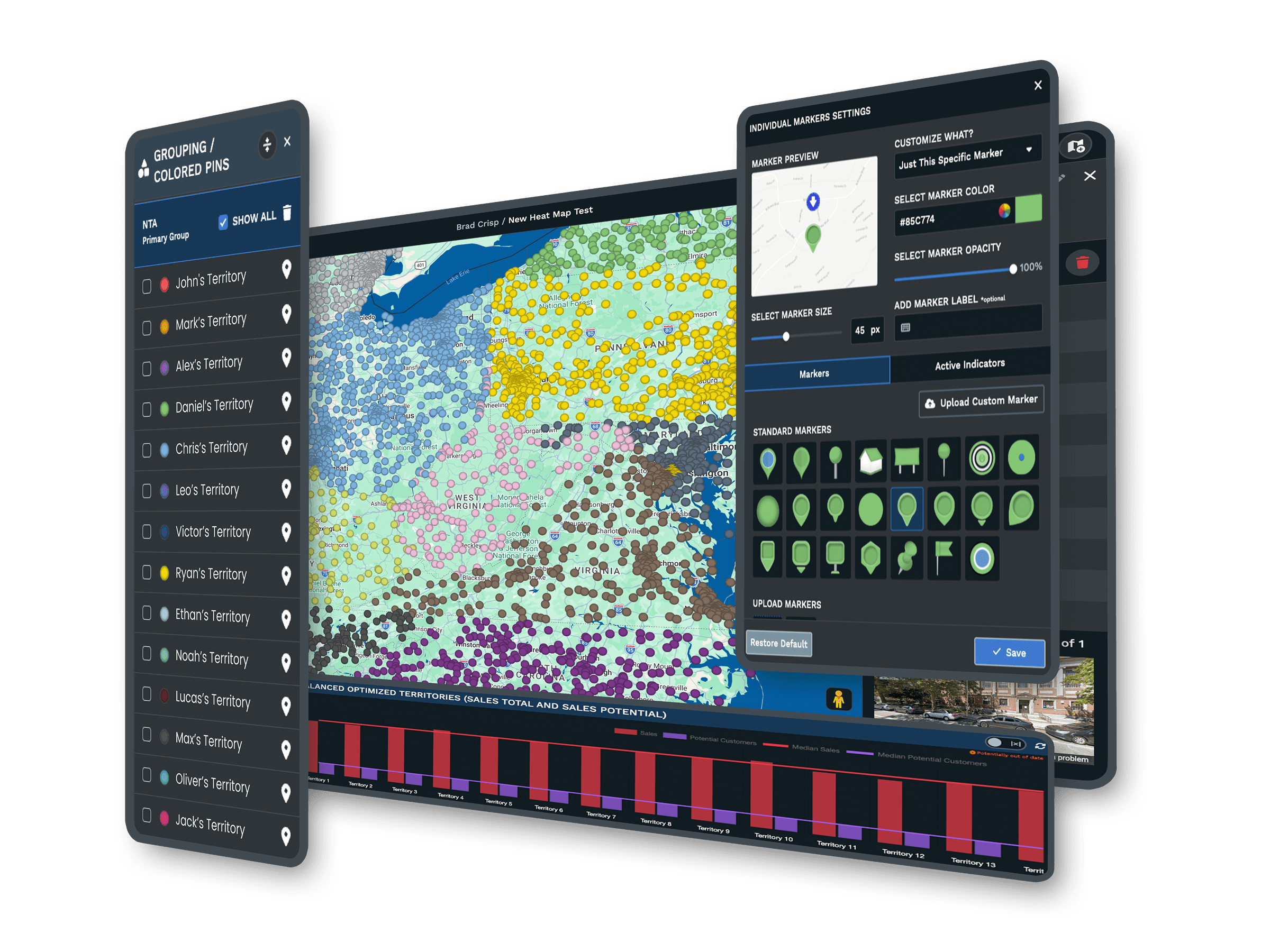
Pins ready for any tool: Once worldwide pins load, the Grouping Tool, Filter Tool, Routing Tool, and Heat Mapping Tool work on them the same way as on a US-only marker.
Export the cleaned set: Export Data sends the geocoded dataset back as .xlsx, .csv, .tsv, or clipboard, with options for Entire Dataset, Filtered Data, or Visible on Map.
A Single Pass Worldwide
Regional Quirks Handled
Cross Border Routing
Worldwide Density Made Easy
A Picture for Stakeholders
A Clean File Back
Plotting Worldwide Data on a Map
Importing a Worldwide List
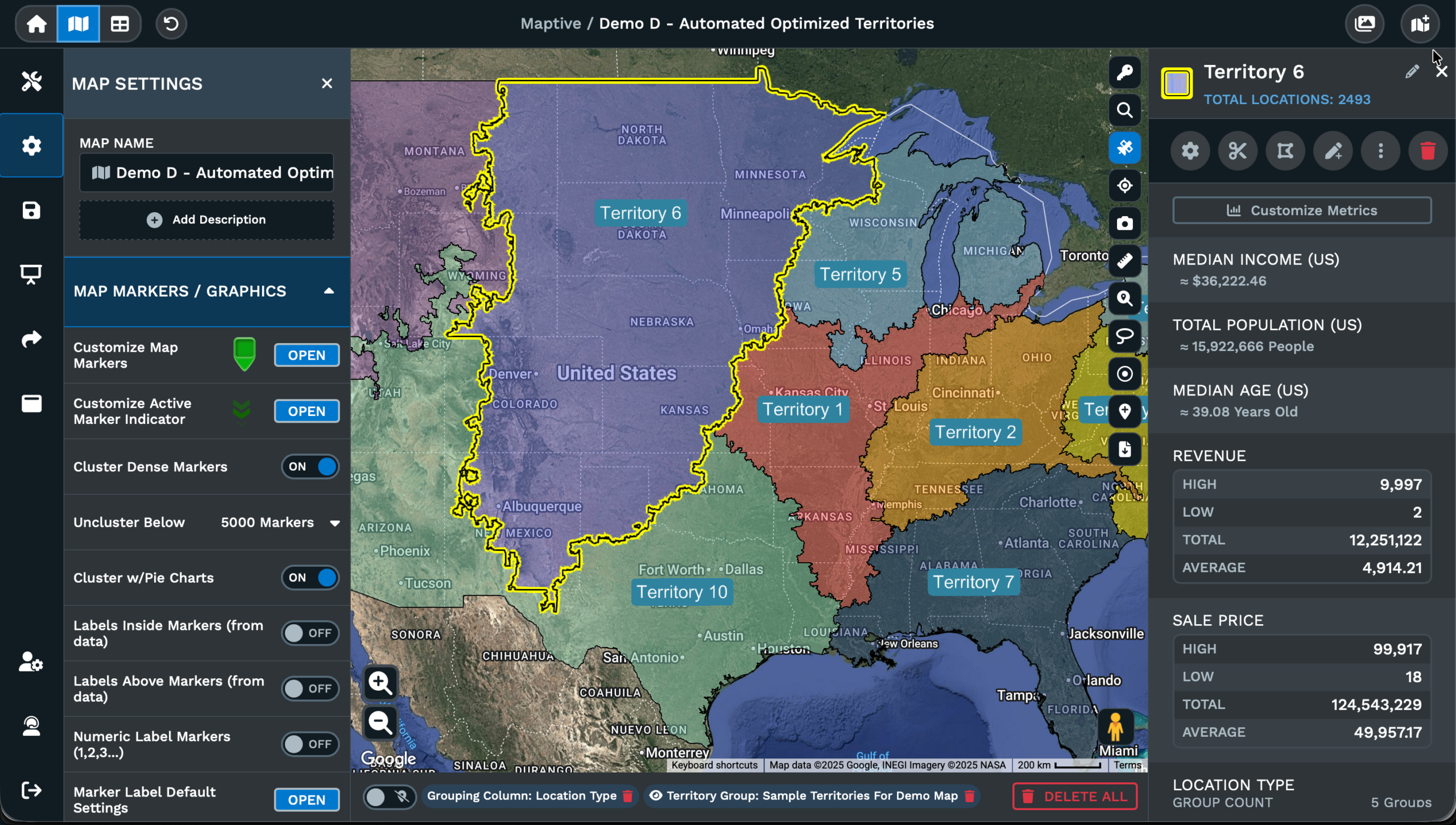
A worldwide spreadsheet of customers, suppliers, or partners arrives in Maptive through the same Create New Map flow as a domestic file. The upload takes an Excel file with the .xlsx extension, a comma-separated file with the .csv extension, or a tab-separated file with the .tsv extension. A Google Sheet works in place of a download, and a paste handles a test.
The dataset needs header columns across the top row so Maptive reads what each column holds, with names like Address, City, Zip code, Country, Name, and Phone Number. The Categorize Data popup opens with a pair of sections. Section 1 takes the address fields. Section 2 takes Location Name, Website URL, Image URL, Email, and Phone Number. Maptive auto-matches what it can, and the arrow lets you swap a wrong match or pick No Match.
After Done is clicked, the geocoding process begins and the canvas fills with 1 pin per row from the upload. The map carries every region from the file on a single view, so a worldwide list reads as a single dataset rather than a stack of regional exports from different tools. A fresh marker can be added from Add New Row on the Data tab, and a missed column can be re-matched from the gears icon on a marker.
Cleaning a Non-US File
A file pulled from a non-US source often arrives with regional column names that a domestic tool will mis-read. Headers like Postcode, Postal Code, Region, or Prefecture sit alongside Address and City on a worldwide list, and the count rarely matches a US-only template. Maptive reads the header row as it stands and brings every column into the import dialog, so the file stays as it sits.
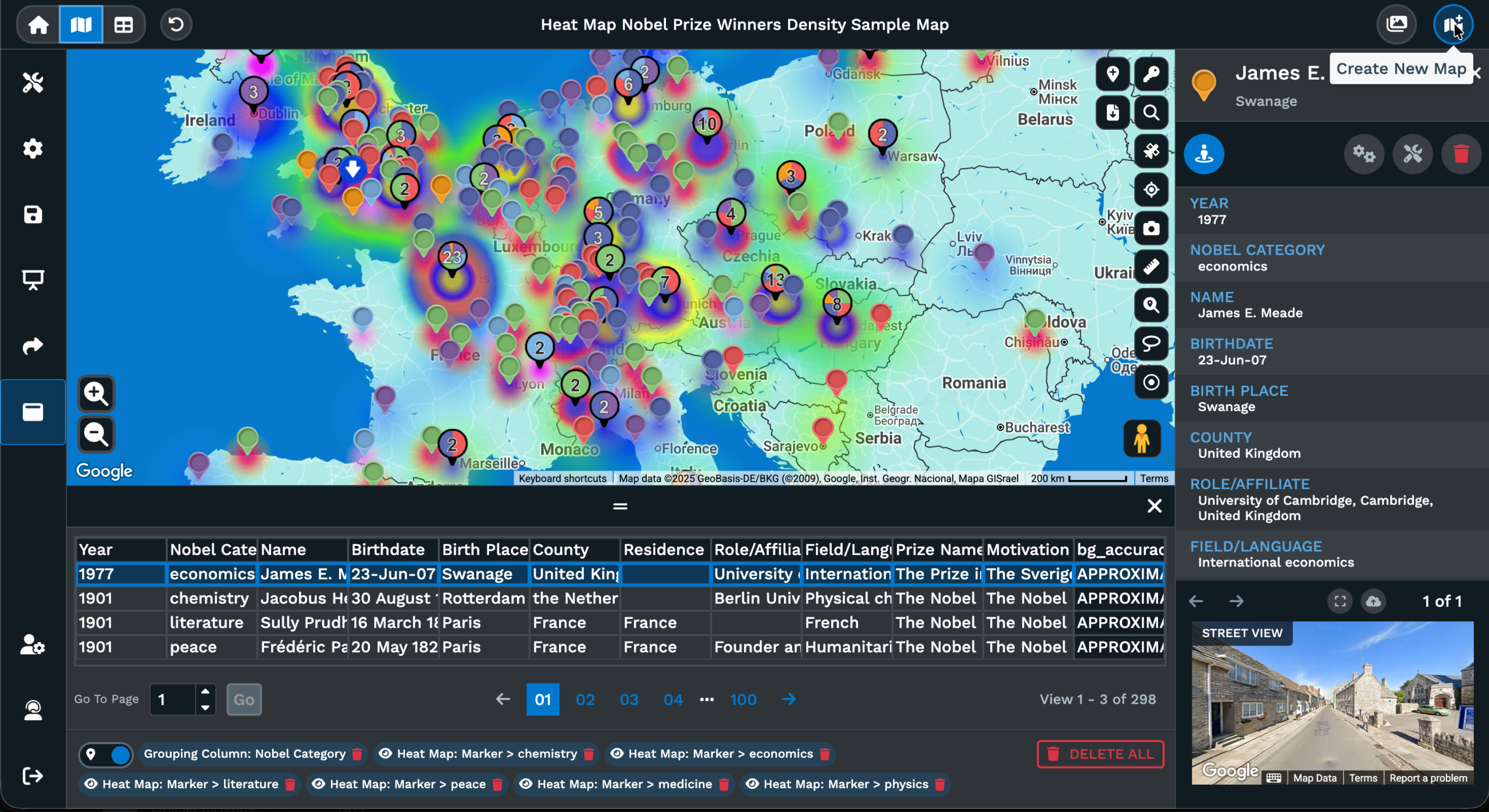
Inside the Categorize Data popup, every column appears under the pull-down arrow for each row in Section 1 and Section 2. If Maptive auto-matches Postcode to the wrong field on a UK or German list, click the arrow and pick the right column from the headers. Section 1 holds the address fields only, so a column like Region or Sales Territory belongs nowhere in that section and can sit on No Match.
After the matches read correctly, click Done and the geocoding step runs against every row, no matter which country the address comes from. A missed column does not lock the map. Open Categorize Data again from the Data tab or from the gears icon on a marker popout, change the dropdown, and every marker on the canvas refreshes its column read. The file reads as a single worldwide dataset for the rest of the tools.
Working a Worldwide Map
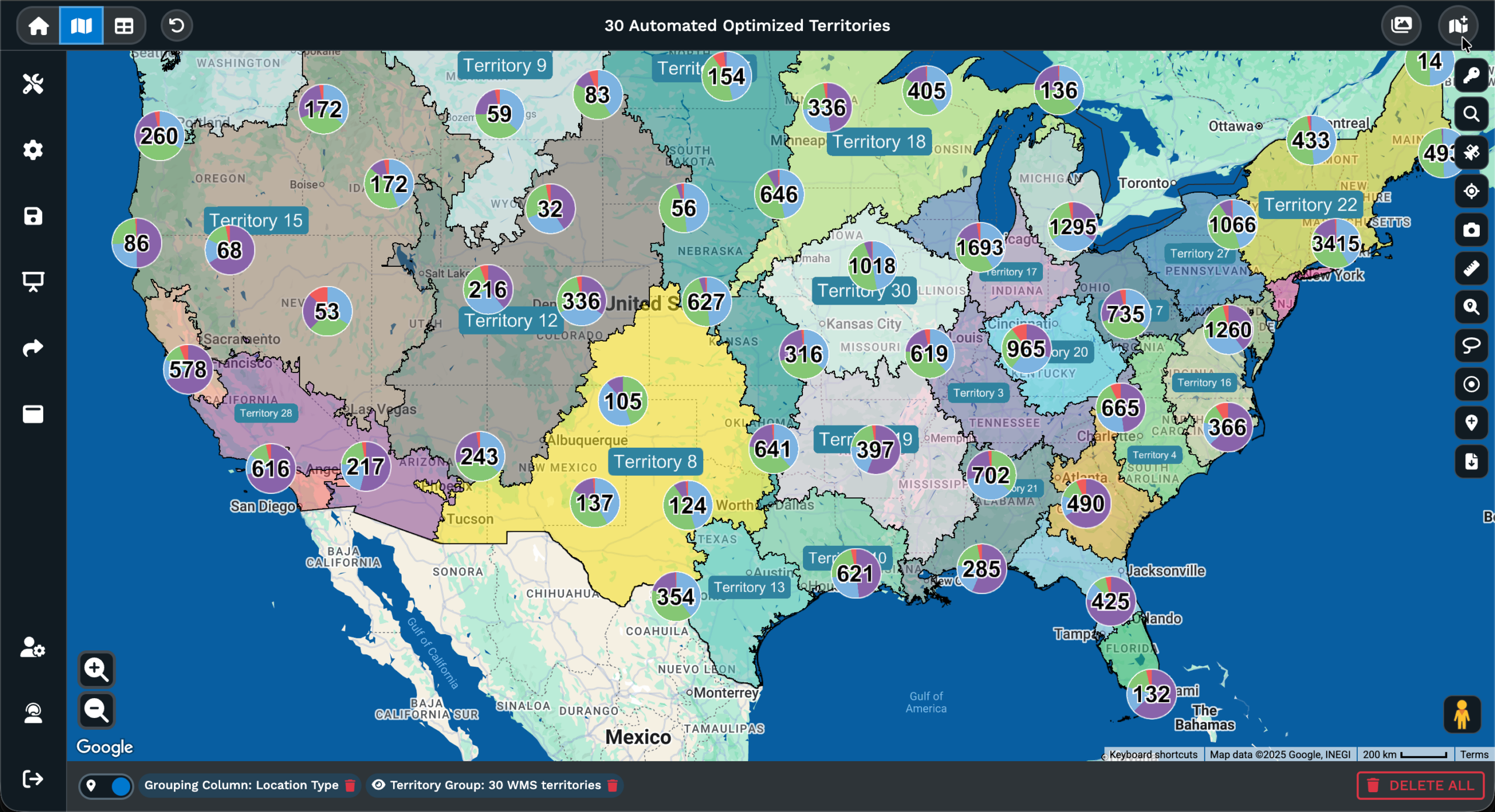
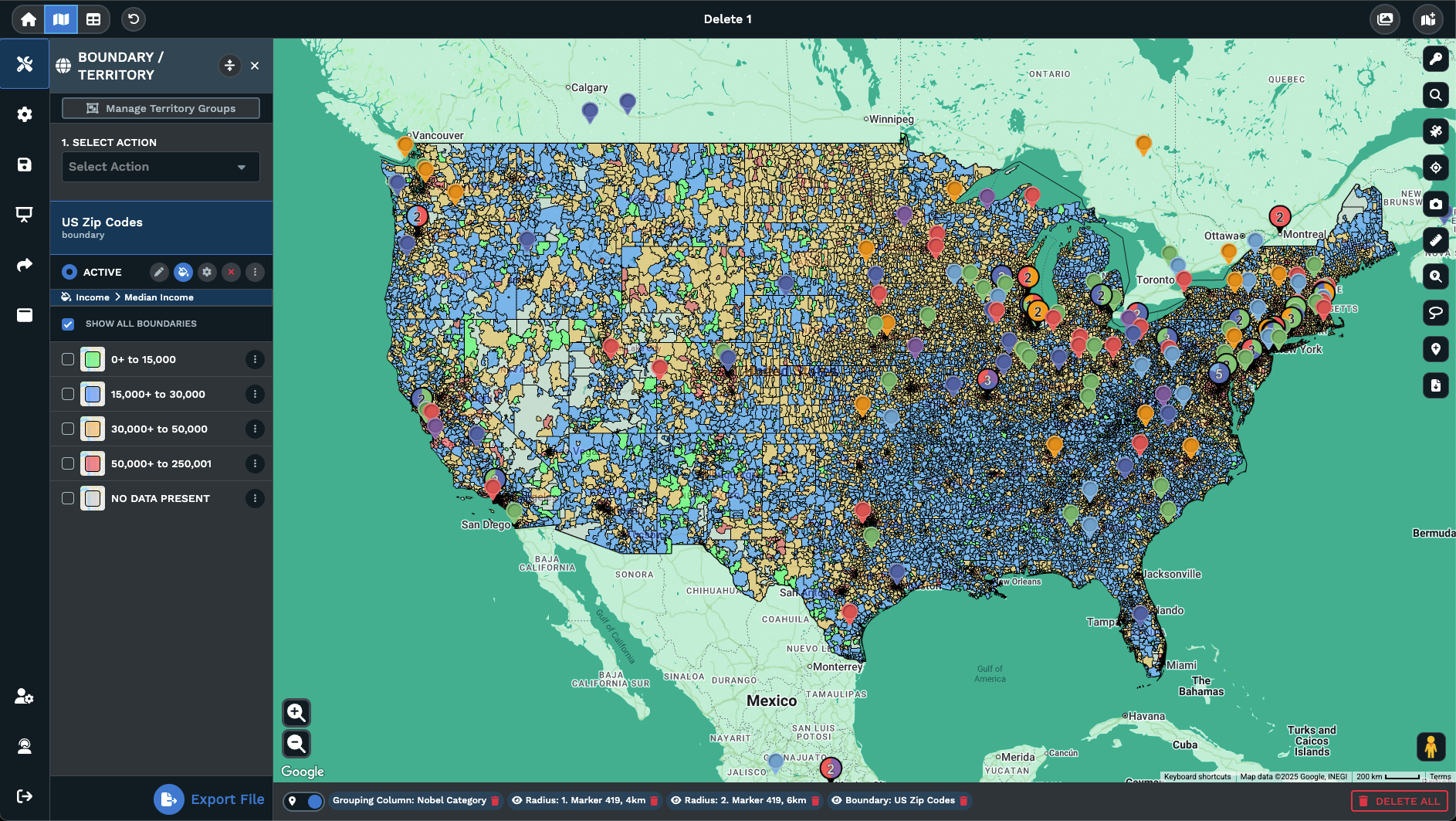
A worldwide map carries the same tool set as a US-only map, with each tool reading the columns from the header row. The Grouping Tool reads a column like Country, Region, or Stage and recolors the pins by category. Switch the tool to Numeric mode and a column like Revenue or Headcount drives bubble size. The Filter Tool runs Group, Text, Number, Attribute, and Date filters in parallel.
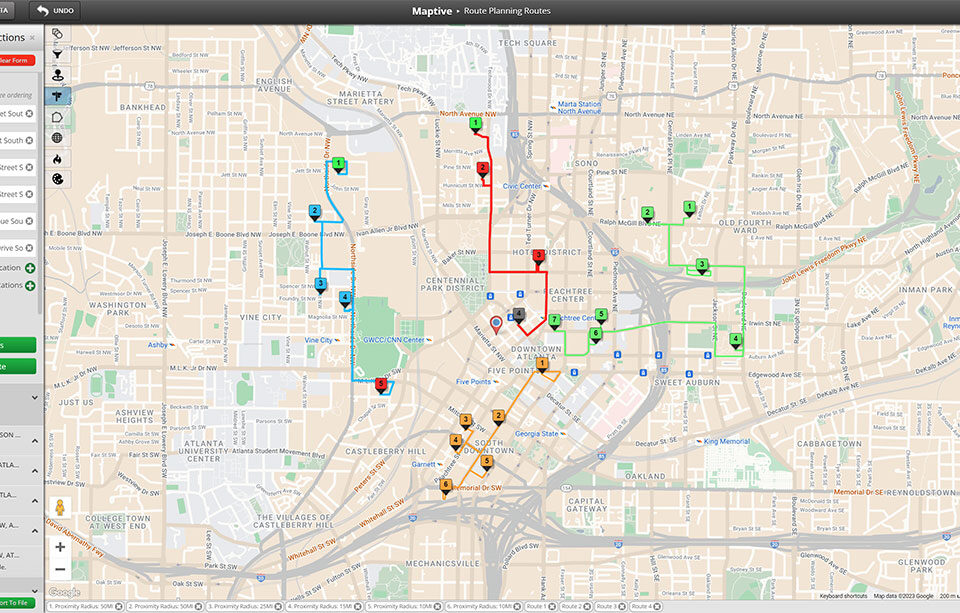
The Routing Tool reads the pins for a multi-country trip plan. Lasso the stops you want to visit, click Lasso & Fill Locations, and a single route holds multiple stops on the map. Optimize Route keeps the first and last stops fixed and reorders the rest. The Heat Mapping Tool turns the worldwide pins into a density layer, and the Demographic Overlay pulls supporting data for the regions where census data is available.
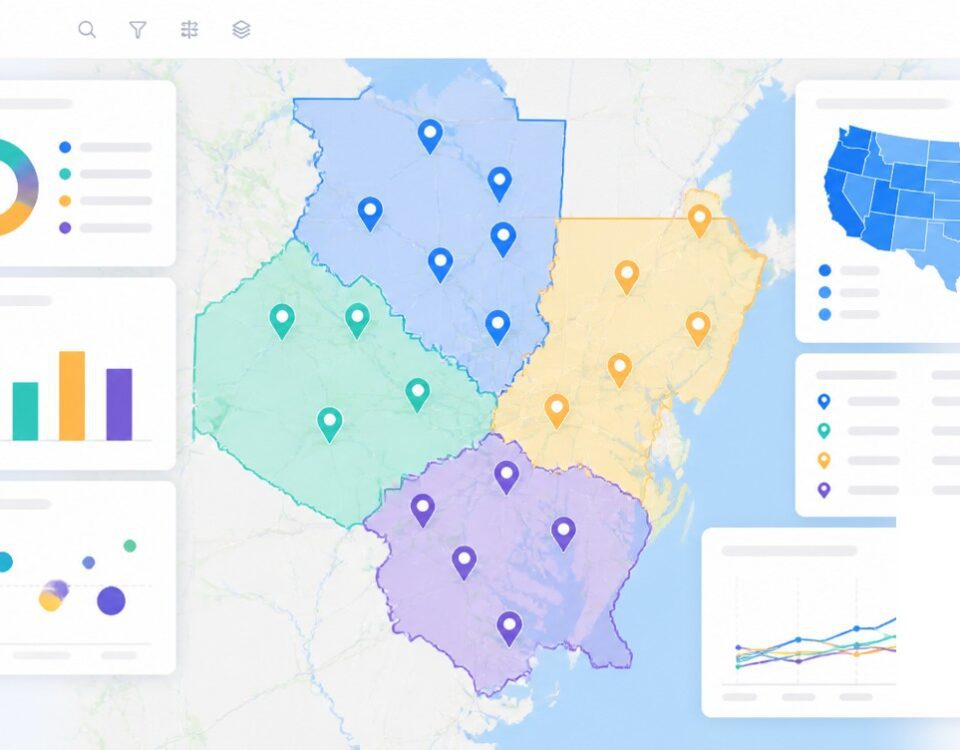
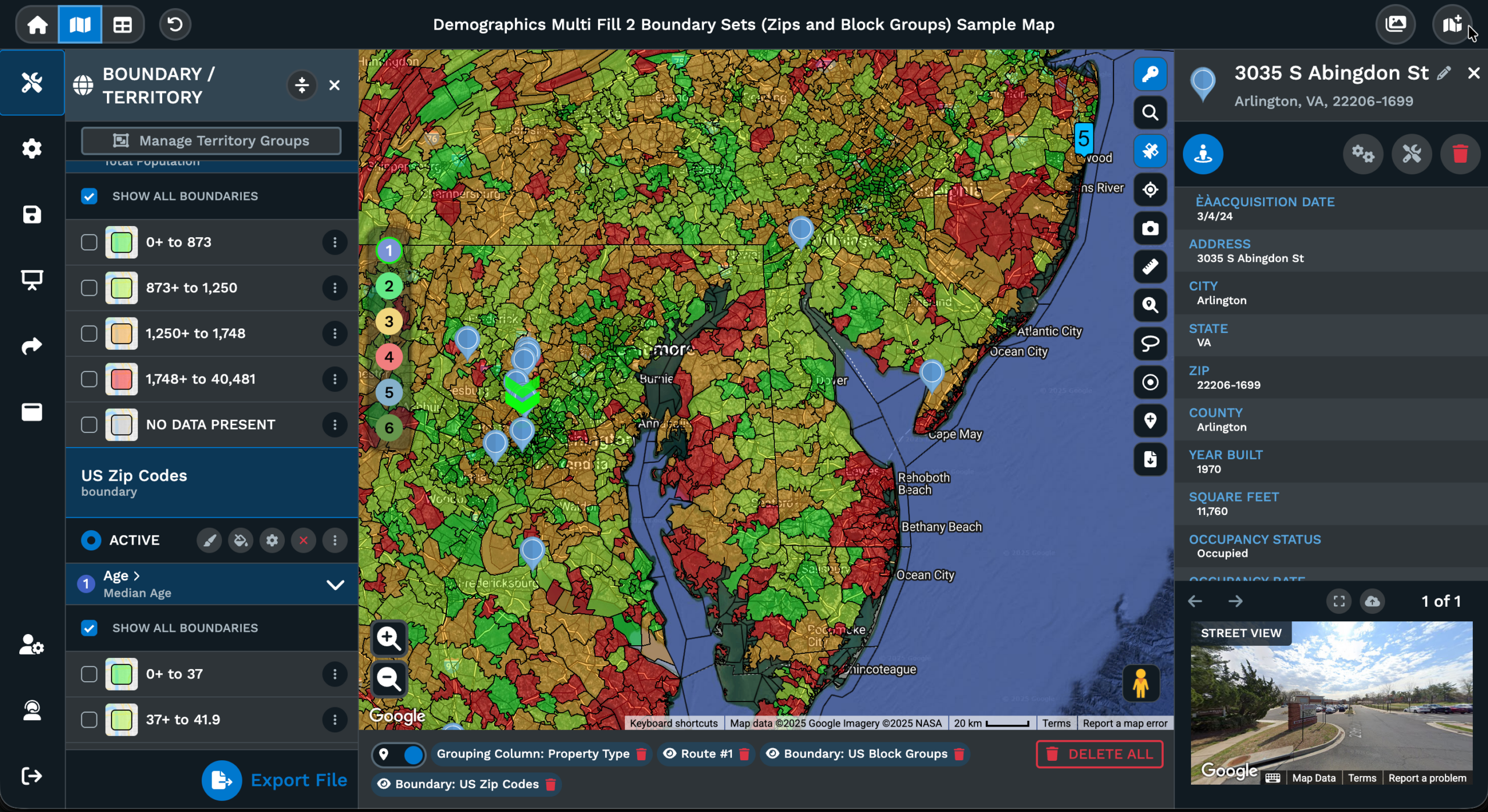
When the work on the map is done, the Share icon hands a partner or leader a copyable link or an embed code, each as Public or Password Protected. A saved view can carry a filter, a zoom, and a center point, so a leader who wants only the European cut opens the map already scoped to that region. The Export Data icon writes the worldwide rows back as a refreshed file in xlsx, csv, or tsv format.
FAQs About Best Global Coverage
What mapping software works internationally?
Maptive works with addresses from outside the US through the same import flow as a domestic file. Drop an xlsx, csv, or tsv file with header columns into Create New Map, or paste rows from a Google Sheet. The Categorize Data popup matches the address columns through Section 1, and the geocoding step runs once you click Done. Every row, regardless of country, plots as a pin on a single canvas, with the Grouping Tool, Filter Tool, Routing Tool, and Heat Mapping Tool ready on the side.
Can I geocode addresses outside the United States?
Yes. The Categorize Data popup accepts address, city, state, zip code, and country columns from any worldwide file, no matter which country the rows come from. Confirm the Section 1 matches against the headers in your spreadsheet, fix any wrong match from the pull-down arrow, then click Done. Maptive runs the geocoding step against every row in the file, and the canvas fills with 1 pin per row. The same map then supports color coding, filters, routing, and export from the side panel.
Which mapping tool has the best global coverage?
Maptive handles a worldwide spreadsheet through the same Create New Map flow it uses for a US file. Headers like Address, City, Postcode, Region, and Country all show up under the Categorize Data pull-down arrow, so the file can stay in its native format rather than being rewritten to fit a US-only template. Once Done is clicked, every row geocodes into a pin on the same canvas, and the Filter Tool, Grouping Tool, and Routing Tool all read the worldwide pin set.
How do I map UK postcodes or European addresses?
Upload the UK or European file as an xlsx, csv, or tsv, or paste the rows into the import dialog with the headers across the top. In the Categorize Data popup, confirm that the Postcode column matches the zip code field in Section 1, and that the Region column belongs in Section 2 or sits on No Match. Click Done to start geocoding. The pins appear on the same canvas as any US data on the same map, ready for filters, colors, and routes.
Does Maptive work in Canada, Europe, and Asia?
Yes. Maptive accepts a worldwide file with the address columns the Categorize Data popup recognizes, including address, city, state, zip code, and country. A Canadian list with provinces, a European list with postcodes, and an Asian list with prefectures all run through the same import dialog. After Done, each row plots as a pin on a single canvas. From there, the Grouping Tool can recolor by Country, the Filter Tool can drop the view to a region, and the Routing Tool can build a multi-country plan.
What is the best way to map a global customer list?
Export the customer list out of your CRM or spreadsheet as an xlsx, csv, or tsv file with header columns. Open Maptive, click Create New Map, and drag the file into the upload area. In the Categorize Data popup, confirm address columns sit in Section 1 and descriptive columns sit in Section 2. Click Done to begin geocoding. Once the pins load, the Grouping Tool can color by Country or Region, the Filter Tool can drop the view per market, and the Share icon hands a leader a saved view.
Can I optimize routes across multiple countries?
Yes. Once a worldwide spreadsheet is mapped, the Routing Tool reads any pin on the canvas as a potential stop. Lasso the stops that cross a country line, click Lasso & Fill Locations, and a single route can hold multiple stops on the map. Click Optimize Route to reorder the middle stops while keeping the first and last fixed. The output writes back a driveable order, and multiple route instances can sit on the same map for parallel trip plans.
How accurate is international geocoding in Maptive?
Maptive runs the same geocoding step on a worldwide file as on a US file. The accuracy of a given pin depends on the address columns provided in the upload. A full street address with city, region, and postcode resolves closer to the building, while a list of city and country alone resolves at the city center. If a row maps to the wrong place, edit the row from the Data tab, click Map Now, and the pin re-geocodes against the corrected address fields.
Can I plot a global supply chain on a single map?
Yes. Drop a spreadsheet of suppliers, ports, and warehouses into Maptive with header columns for Address, City, Country, and any supporting fields like Supplier Type or Lead Time. After the Categorize Data popup matches the address fields and Done is clicked, every node plots as a pin on the canvas. Use the Grouping Tool to color by node type, the Filter Tool to drop the view to a region or a supplier type, and the Drawing Tool to mark the corridors that carry the heaviest volume.
How do I show worldwide presence to a prospect?
Map every office, partner, or warehouse from a single spreadsheet. After the upload and Categorize Data step finish, the pins sit on a single canvas. Use Customize Map Markers to style the pins to your brand colors and icons. From there, the Share icon hands a prospect a copyable link as Public or Password Protected, or the Embed Map option drops the map into a website with a width and height. Export a static image for a deck through the Export Map icon on the right panel.