


Reassign Sales Territories Right on the Map
A rep moves on and their ZIPs need a new home? Drag them to another rep right on the map, and the change sticks.
No credit card required
- Lasso a whole cluster of markers and then move them together
- Recolor territory boundaries so each rep owns one clean area
- Drag a group of accounts from one rep straight over to another
- Batch edit the salesperson column across many stops at a time
- Move zip codes between two reps right on the map you designed
- Keep each change saved and never re-import a spreadsheet again
Trusted by teams at









Reassignment Made Easy in Maptive
It's a very intuitive tool, all of the functions within it are very clearly depicted.
Working the Change on Your Live Map
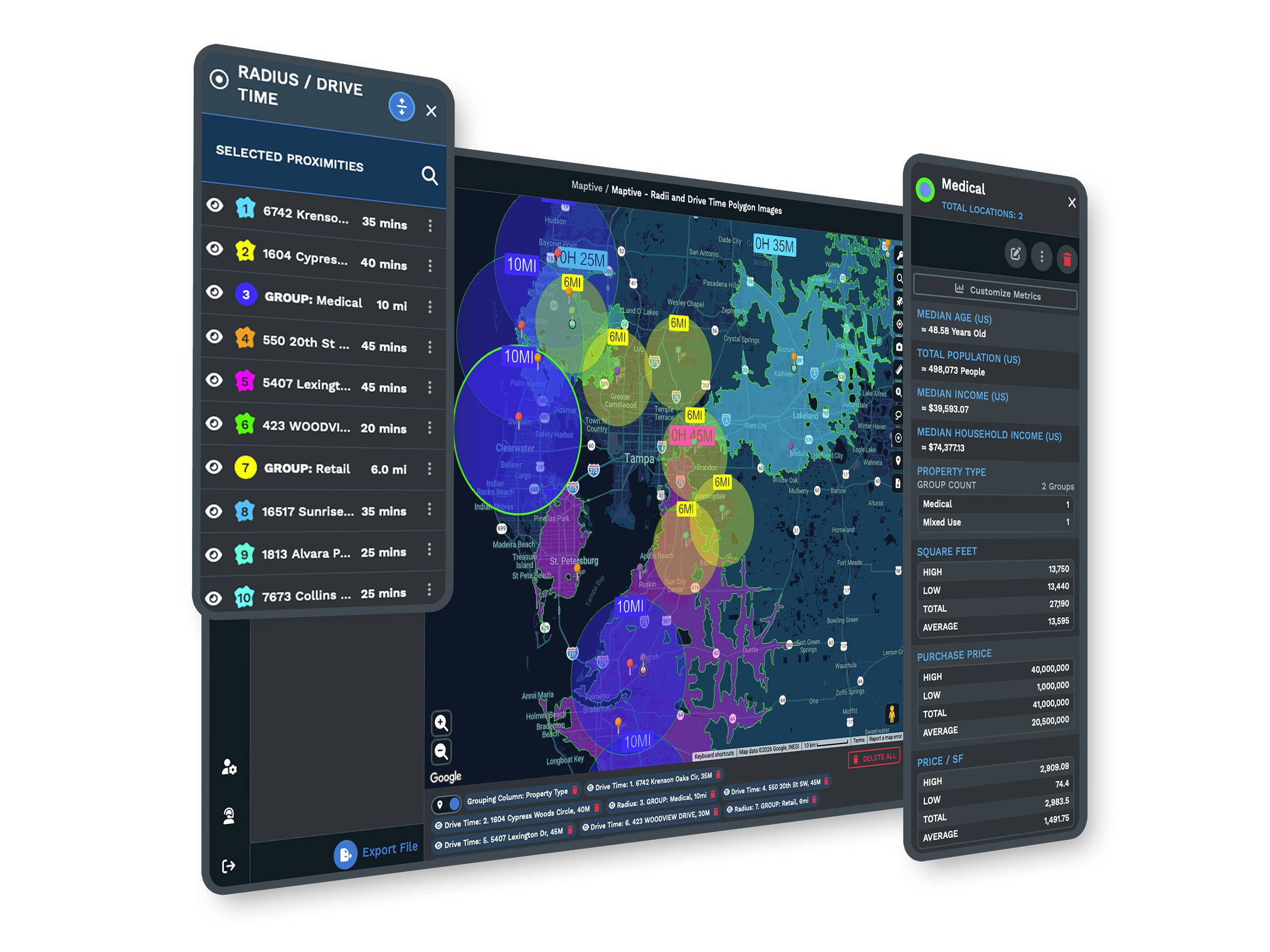
-
1
Select the Group
Draw the Lasso Tool around the markers you want to reassign.
-
2
Reassign the Rep
Batch edit the salesperson column so all of them switch owners.
-
3
Redraw the Line
Use the Boundary Tool to re-carve the territory and recolor it.
-
4
Save and Share
Send a view-only or edit link so the team sees the new coverage.
Start Reassigning Territories Today
Try Maptive free for 10 days with no credit card, and a mapping specialist can walk you through your first reassignment whenever you want a hand.
No credit card required
Frequently Asked Questions
How do I move zip codes from one salesperson to another?
Open your map, then group your markers by the salesperson column so each rep shows in a color. To reassign, draw the Lasso Tool around the zips you want to move and batch edit that column to the new rep. The color updates and the coverage belongs to the new person. If you group by zip areas with the Boundary Tool, recoloring the boundary moves those zips over the same way. Nothing goes back to a spreadsheet, and every edit saves on the map you already have, so the whole change happens in one place.
Can I redraw territories on the map?
Yes. The Boundary Tool lets you group zip codes, counties, and states into territories, then draw and drag the lines to re-carve them. When a rep takes over part of a neighboring area, you redraw the boundary and recolor it so the ownership reads clearly. You are working on the live map the whole time, so there is no separate file to update afterward. The Lasso Tool handles the same job from the marker side when you want to grab a loose cluster of accounts rather than a tidy block, then move that group to another rep.
What does the Lasso Tool do here?
The Lasso Tool lets you draw a freehand shape around a group of markers to select them all at once. That matters for reassignment because coverage rarely moves in neat squares. You circle the accounts changing hands, and they become one group you can act on. From there you batch edit the salesperson column so the whole selection switches to the new rep in a single step. It is the fastest way to grab a messy cluster of stops and hand them off without clicking each marker one at a time or touching your source spreadsheet.
How does batch editing work when I reassign?
Once you have a group selected, batch editing changes the same field across every marker in that group in one action. For reassignment, you pick the salesperson column and set it to the new rep. All of the selected accounts update together. You are not editing rows one by one or exporting anything. Because your markers are colored by that same column, the map redraws to show the new owner right away. This keeps a busy reassignment quick, and it keeps your on-map data and your view in sync without a separate cleanup pass later.
Do I have to re-import my spreadsheet to make changes?
No. Reassignments happen on the live map, and every edit saves in place. You import your Excel, CSV, or Google Sheets file once to build the map, and after that you move coverage by lassoing markers and recoloring boundaries. None of that sends you back to the source file. This is the part people notice most, since the old habit was editing a sheet and re-uploading it after each change. Here the map is the working copy, so the reassignment you make is the reassignment your team sees the next time they open the link.
Can I color markers by rep?
Yes. The Grouping Tool colors your markers by any data column, so setting it to your salesperson column gives each rep a distinct color across the map. That single view makes reassignment easy to read, since you can see where one rep ends and another begins. When you batch edit a group to a new owner, those markers change color on the spot and the new coverage reads clearly. The color is what turns a plain list of accounts into a territory picture you can manage.
How many locations can one map hold?
A single Maptive map holds up to 200,000 locations, which covers most reassignment work without splitting your accounts across files. You keep every rep and every zip on one map, so moving coverage between people never means hunting through multiple views. Because every account sits in one place, the Lasso Tool and boundary changes act on the real, full picture rather than a slice of it. That matters when a large territory gets divided, since you want to see all of the surrounding accounts while you decide which ones move and which ones stay.
Can I share the reassigned map with my team?
Yes. Maptive gives you shared map links, and you choose if each link is view-only or lets someone edit. You can password-protect a link and embed the map with an embed code if you want it inside an internal page. After you reassign territories, you send the updated link and the team sees the new coverage without you exporting anything. A view-only link keeps the map safe when you only want reps to check their own area. An edit link works when a manager needs to keep adjusting boundaries. Either way, one map stays the single source everyone opens.
Does Maptive connect to my CRM?
You can import your CRM data into Maptive from Excel, CSV, or Google Sheets, and every paid plan includes a REST API for moving data in and out. A native Salesforce and HubSpot connector is coming early 2026. For reassignment today, most teams export their account list and do the coverage changes on the map, then send the updated assignments back through the API or a fresh export. The map stays the place where you re-carve territories, and your CRM stays the system of record. That split keeps the visual work fast.
How long does it take to start reassigning?
You can start the same day. Maptive offers a 10-day free trial with no credit card, so you import your account list, color the markers by rep, and begin moving coverage right away. The reassignment tools are ready as soon as your data loads, from the Lasso Tool to batch editing to the Boundary Tool. If you want help, a mapping specialist can walk you through your first re-carve so you are confident before you touch live territories. There is no long setup, since the map is built from the file you already keep your accounts in.








