


Dealer Exclusive Areas & Lead Routing by Location
Give each dealer an exclusive area on one map, then point every inbound lead to the dealer whose territory covers it. Maptive builds the areas and finds the closest one.
No credit card required
- Draw one exclusive area per dealer by radius or grouped boundary
- Route an inbound address to the dealer whose territory covers it
- Publish a Location Finder that returns the nearest authorized dealer
- Color the pins by status so pending and inactive dealers read apart
- Read a borderline address against drawn areas instead of a ZIP rule
- Run your dealer roster at network scale on one live map
Trusted by teams at









Dealer Routing by the Numbers
Routing each lead to the covering dealer cuts first-response time by roughly 38%.
Sending leads to the closest dealer lifts conversion by about 22%.
Matching by territory drops leads sent to the wrong dealer by 28%.
The Build Behind Each Dealer's Area
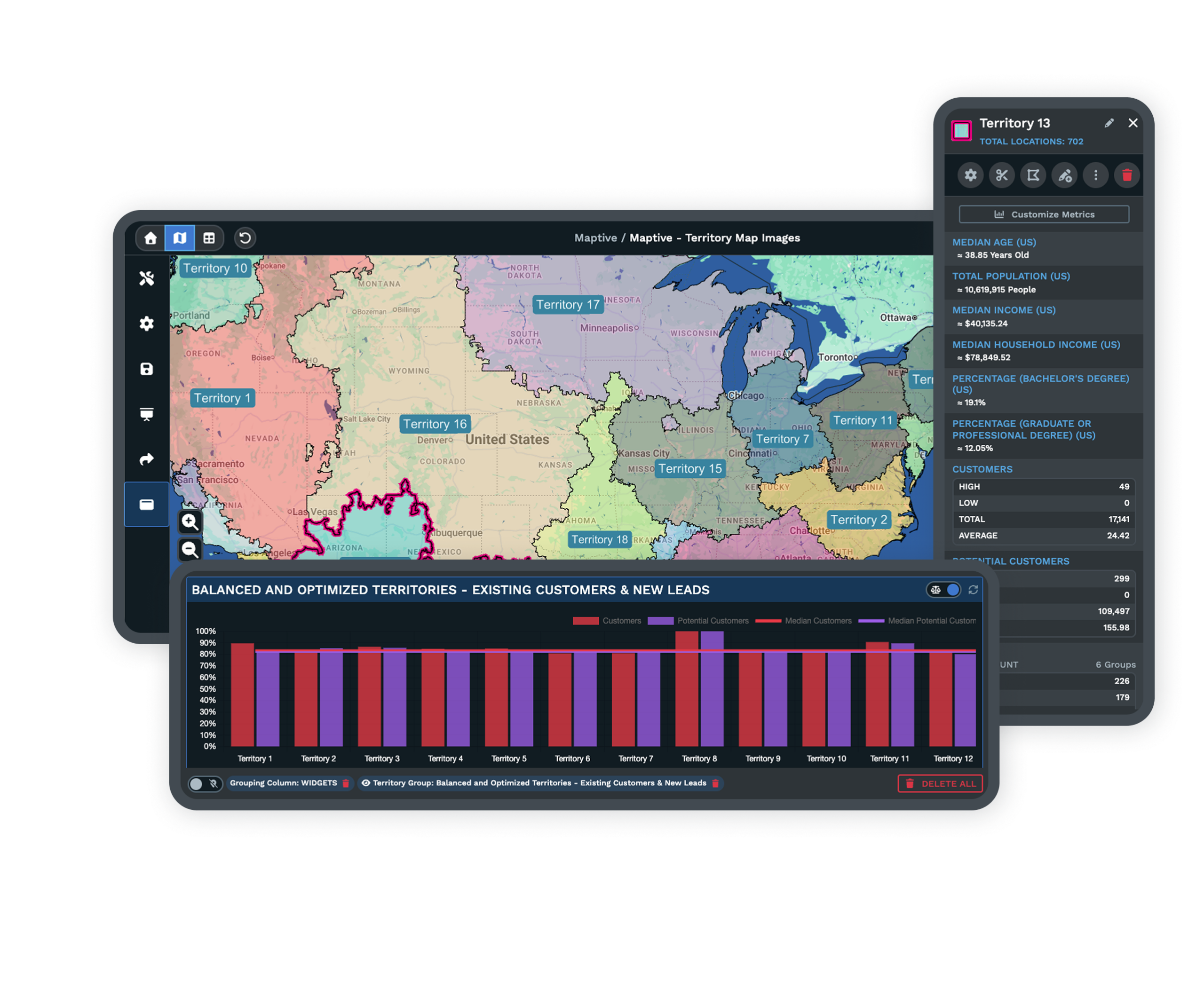
| 01 |
An Exclusive Radius by Agreed MileageThe Distance Radius Tool sets a fixed distance around a dealer point, the same radius the agreement names. Set the mileage once and repeat it across the roster so every dealer sits inside a matching band. Explore the territory tool → |
| 02 |
A Boundary Grouped From ZIPs and StatesThe Geographic Boundary Tool and Grouping Tool build an area by grouping ZIP or postal codes and US states, or by a freehand shape you drag until the edge follows the agreed line. One clean, non-overlapping area per dealer keeps ownership unambiguous. |
| 03 |
Colored Pins for Dealer StatusThe Grouping Tool colors each pin by a status column, so authorized, pending, and inactive dealers read apart at a glance. Custom markers let you drop a dealer logo in place of a dot on the network map. |
| 04 |
A Location Finder Your Customers SearchThe Location Finder Tool publishes an address search on your site through an embed code. A visitor types an address and sees the nearest authorized dealer, which is the same lookup a staffer runs to find who owns an incoming inquiry. Explore the location finder → |
The Path From an Inbound Address to One Owner
An inbound lead arrives with an address, and the job is to send it to the single dealer whose area covers it. Entry-level setups match the lead's ZIP to an owner in a spreadsheet, which breaks the moment a ZIP straddles two exclusive areas or an area follows a radius that ignores ZIP lines. On the map, you check the address against the drawn areas instead.
Type it into the Location Finder and it returns the nearest authorized dealer, or open the network map and read which territory the point falls inside. Either way, staff see where the lead came from and who the closest dealer is before anyone forwards it.
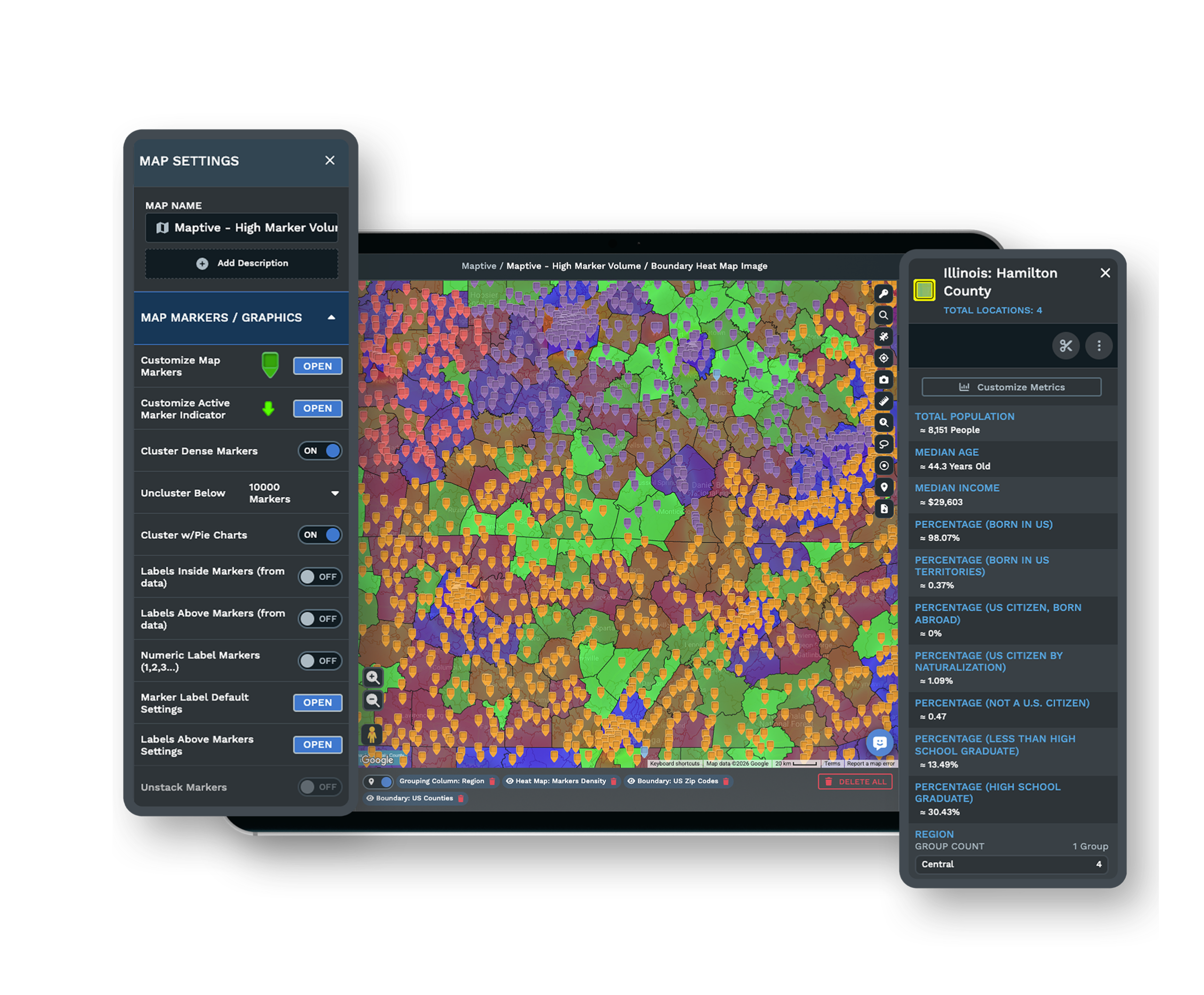
Reading a Borderline Address Without a Turf Fight
Two dealers claiming the same borderline address is the routing problem underneath most turf friction, and it traces back to areas that overlap or a ZIP split down the middle. The fix starts on the map, where you lay neighboring areas side by side and drag the shared edge until each address falls inside exactly one area.
When an inquiry lands near a seam, the Location Finder ranks the closest dealer by straight-line distance and the boundary shows which side of the line the point sits on, so the call goes to one owner rather than to both. The map removes the daily guesswork that sends the same buyer two phone calls from one brand.
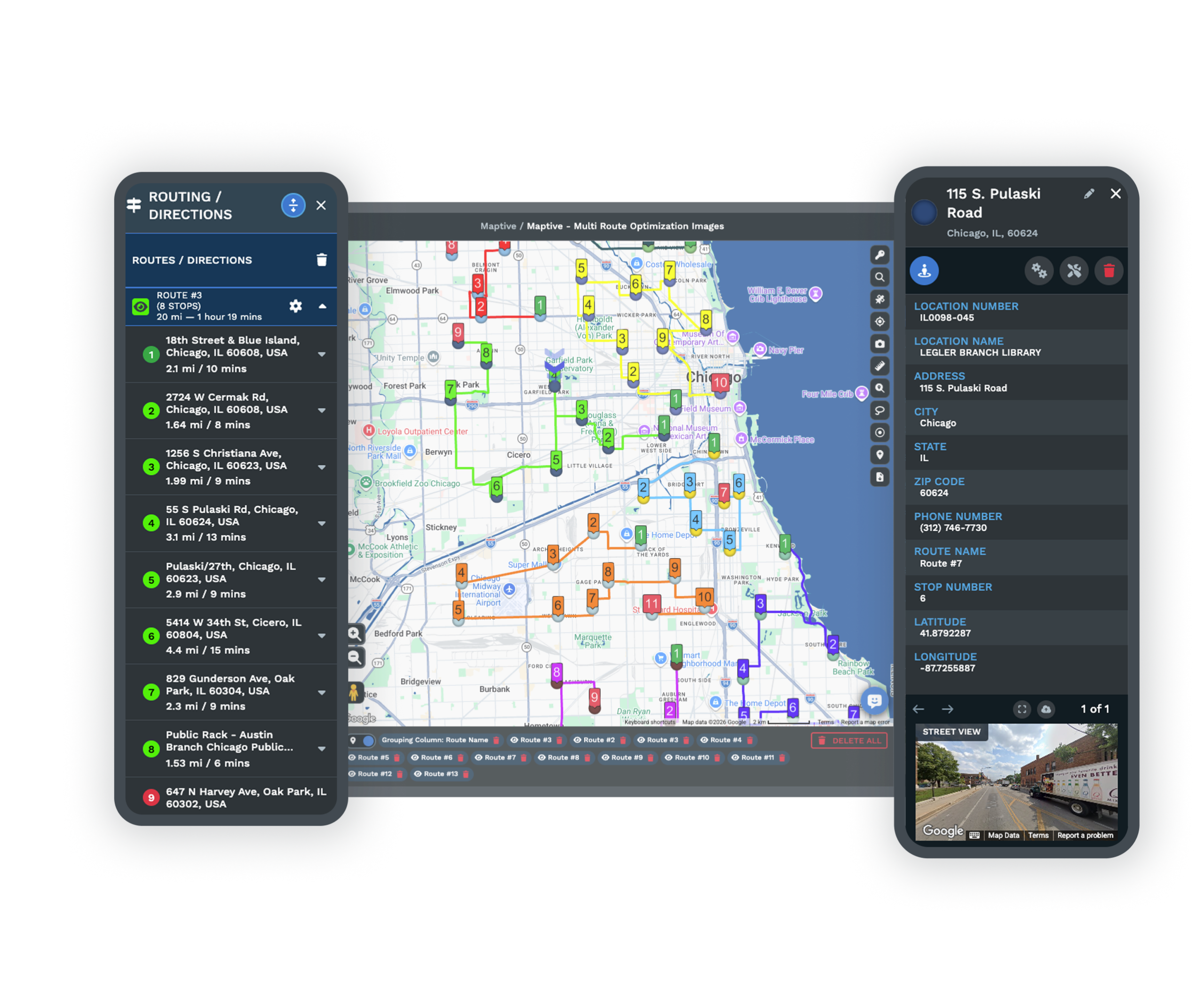
Reliable Routing Across the Network
A Roster at Scale
Companies including Coca-Cola, Hilton, Bridgestone, and Frito-Lay run multi-location networks on the platform. The same tools handle a dealer roster of any size, so the map holds up as the network adds areas and shifts boundaries.
See the territory tool →Reliable Map Access
The platform holds 99.9% uptime, so the network map and the customer-facing Location Finder stay reachable when an inbound lead needs an owner. Your team reads the same live areas the customer search runs against.
See the location finder →Setup Help Included
The onboarding team cleans your dealer data, sets up the first map, and trains your staff, so the exclusive areas and the status colors are ready before you route a real lead. You start from a working map instead of a blank canvas.
Free trial with the full platform and no credit card
Draw Your Dealer Areas Today
Start a 10-day free trial with no credit card and all 60+ tools unlocked. Upload your dealer roster, draw each exclusive area by radius or grouped boundary, color the pins by status, and publish a Location Finder that points an inbound address to the dealer who owns it.
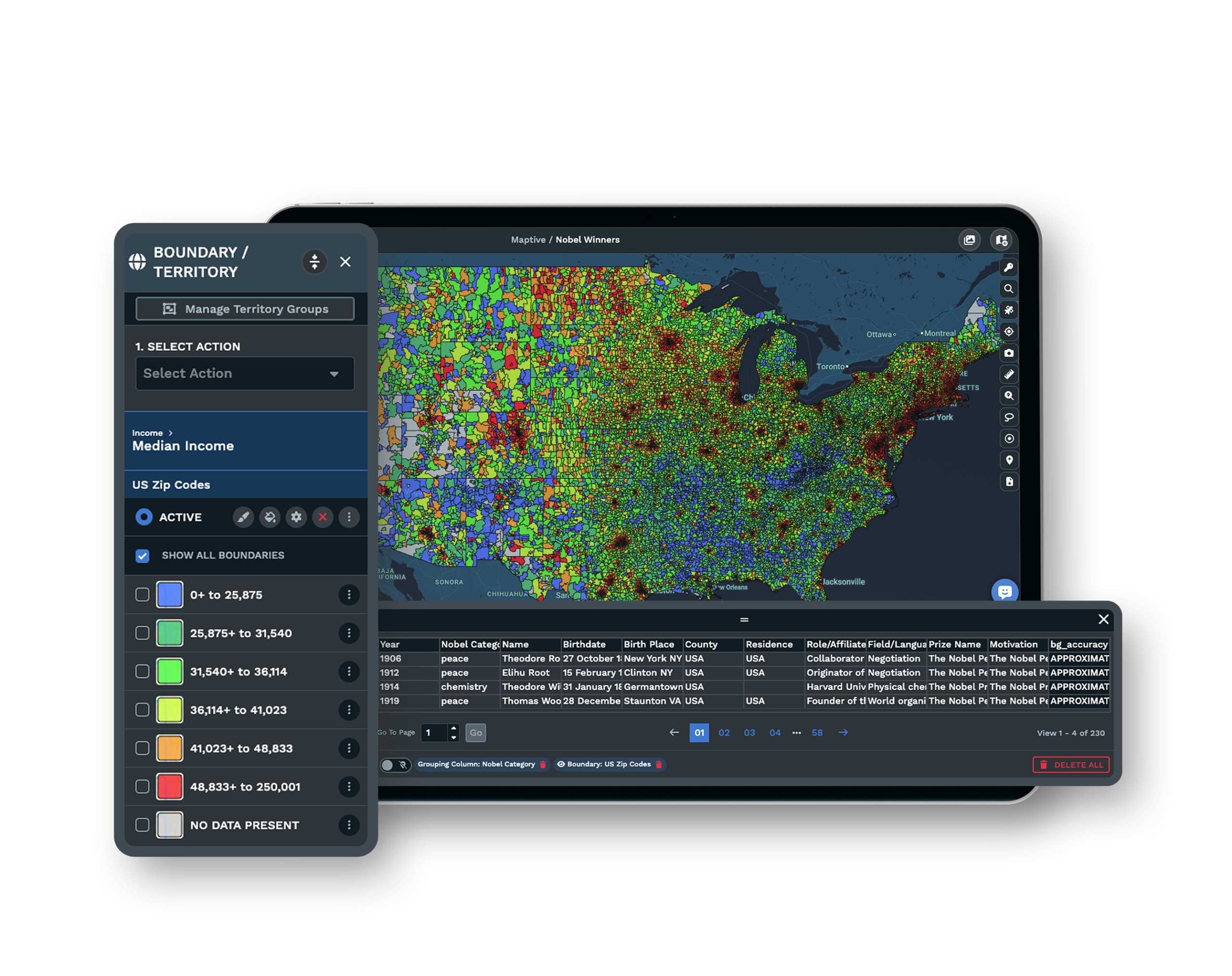
Test-Route a Lead on Your Map
If your routing runs through operations or a channel manager, a Maptive specialist will map your network with you and route a test address end to end. Bring a few borderline leads, and the session shows which dealer each one reaches and where the boundaries need to move.
Frequently Asked Questions
How do I route leads to the right dealer's territory?
Map each dealer's exclusive area on one map, then check an inbound lead's address against those areas so it reaches the dealer whose territory covers it. The Location Finder returns the nearest authorized dealer for a typed address, and the network map shows which drawn area the point falls inside. Matching the address to the drawn boundary is more accurate than a ZIP rule when an area does not follow ZIP lines.
Which dealer covers this area?
Group your dealer areas on one map, then read which area contains the address in question or run it through the Location Finder to return the nearest authorized dealer. A boundary test resolves the case a ZIP-prefix rule cannot, where a single ZIP is split between two exclusive areas. Coloring pins by dealer status keeps pending or inactive locations out of the answer.
What is an exclusive dealer territory?
An exclusive dealer territory is a defined area where one dealer operates without competition from the brand or other same-brand dealers, which gives that dealer a protected customer base. It differs from a protected area, which limits new same-brand competition but usually keeps carve-outs such as online or fleet sales for the brand. The agreement wording decides which one a dealer holds.
How do I define a dealer's exclusive area?
Draw the area by a fixed radius around the dealer, by grouping ZIP or postal codes and states, or as a freehand boundary you drag to match the agreed line. Size it so the dealer can be profitable while covering the market, and keep one clean area per dealer with no overlap into a neighbor. On the map you set the radius once and repeat it, or group codes into each area and adjust the edges.
Why do leads get routed to the wrong dealer?
The common causes are overlapping areas, ZIP codes that straddle two territories, missing or non-standardized address data, and routing logic that was never written down. Each one lets an address match more than one owner or none at all. Drawing non-overlapping areas and checking the address against the boundary rather than the ZIP removes most of the misroutes.
How do I show customers only the authorized dealer for their area?
Define each area, assign its dealer, and publish the mapping through the Location Finder so a customer search returns the authorized partner for that address. Grouping dealers by status keeps inactive or pending locations out of the result. The search updates from the same live map your team works in, so the customer sees the current owner.
What happens when a lead is sent to the wrong dealer?
The lead loses time bouncing to the correct owner, and the first dealer to respond usually wins, so the delay can cost the sale. The opposite failure is two same-brand dealers calling one buyer, which makes the network look disorganized and starts turf friction between owners. Clean, non-overlapping areas prevent both by assigning each address to a single dealer.
Can two dealers share the same area?
Under a non-exclusive or shared model the brand can place more than one dealer in a market, which raises the need for explicit routing rules so one inquiry does not reach both. On an exclusive model each address should fall inside exactly one area. Where areas are shared on purpose, a written rule for who takes which inquiry keeps the handoff clean.
How do I group dealers by status on the map?
Add a status column to your dealer list, then color the pins by that column with the Grouping Tool so authorized, pending, and inactive dealers read apart. You can swap the dot for a dealer logo with a custom marker, and filter the map to a single status. The colors carry into the Location Finder, so only the dealers you want appear in a customer search.








