


Franchise Territory Sync With Salesforce & HubSpot
Get your Salesforce or HubSpot accounts onto a map, balance them into territories, and send each assignment back so the CRM stays the system of record.
No credit card required
- Import accounts and leads from any CRM export as CSV or Excel
- Write records to the map through a REST API on every paid plan
- Geocode account addresses to points with no middleware
- Balance territories from CRM data with the optimizer
- Carry owner, stage, amount, and industry across as map columns
- Export the assignment back for the CRM to hold as record
Trusted by teams at









CRM Account Data on a Secured Map
Bring account and lead data across from the CRM to a map held to the same security bar the CRM sets for itself.
Syncing accounts both ways cuts hand-keying between the CRM and the map by about 31%.
Sending territory assignments back to the CRM drops mis-assigned accounts by 27%.
Rebalancing on the map and syncing back speeds CRM territory updates by 40%.
The Path From CRM to the Map
Bring accounts, leads, and opportunities across by export or API, then let the optimizer balance them into territories on the same data.
| 01 |
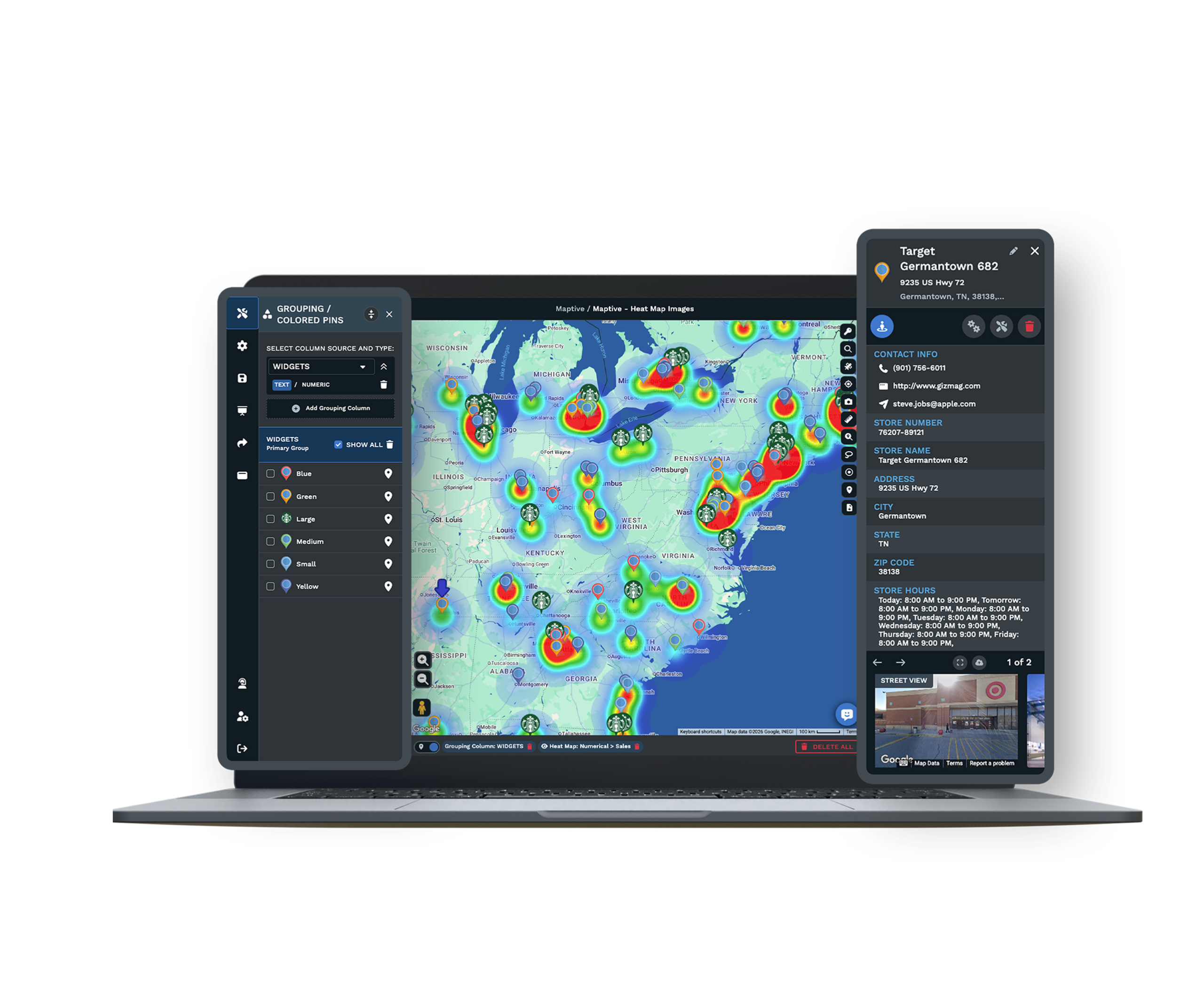
Import From Any CRM ExportExport accounts, leads, and opportunities from Salesforce, HubSpot, or any platform with an export function, then bring the file in as CSV, Excel, TSV, or a Google Sheet. The addresses geocode to points and the records plot without middleware. Explore CRM mapping → |
| 02 |
A REST API on Every Paid PlanOn a paid plan you request an API key from support and capture the map_id from the map URL, then an admin maps CRM fields to map columns with add, update, delete, and patch calls. A Salesforce admin can point a flow or an Apex job at the map_id to keep a record current on its pin. |
| 03 |
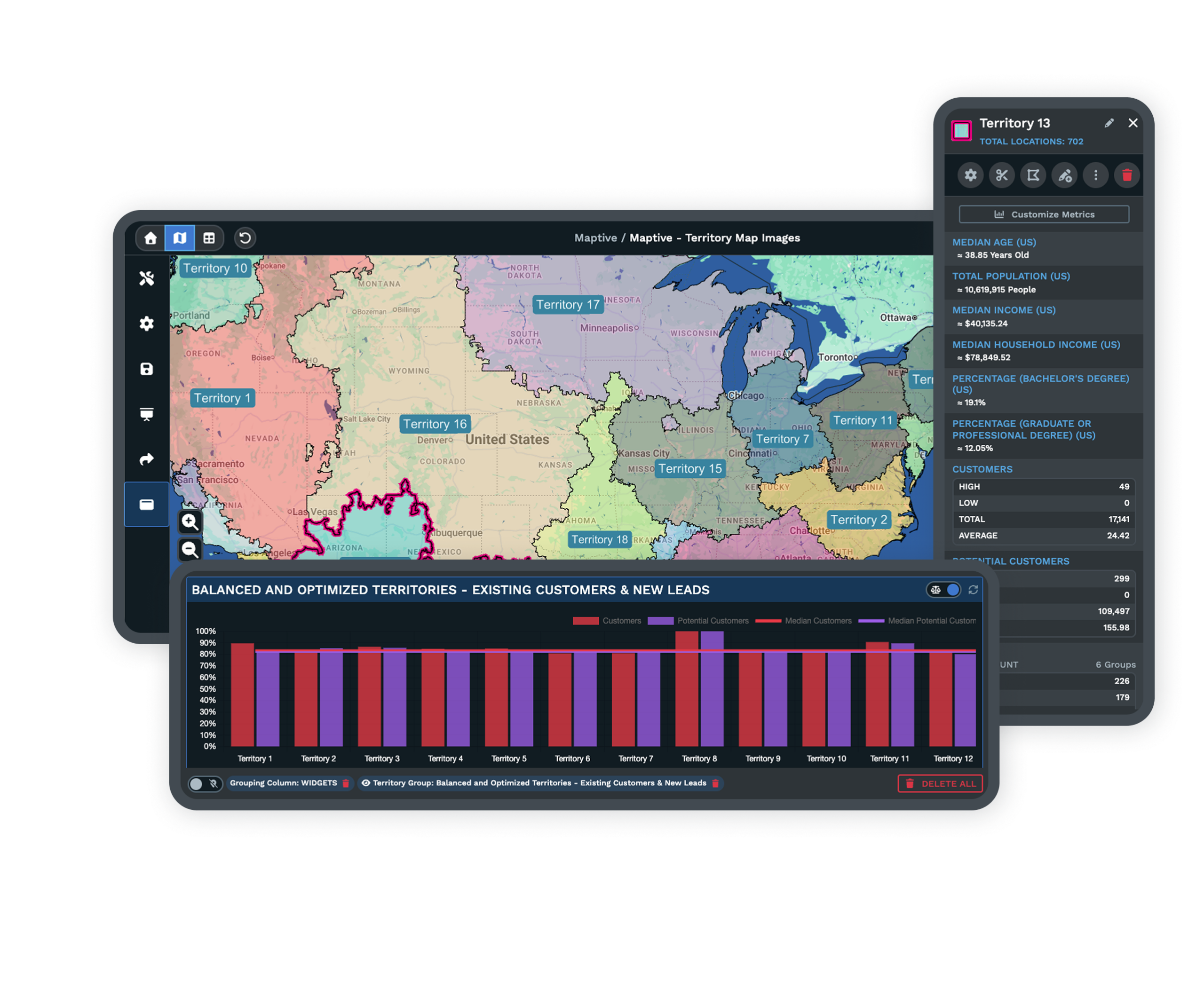
Balanced Territories From the Same DataThe Automated Territory Creator & Optimizer reads your imported CRM data plus the constraints you set and builds balanced areas, evening out rep location, customer locations, sales numbers, market potential, and drive time so coverage gaps and overlaps get smaller. See the territory tool → |
| 04 |
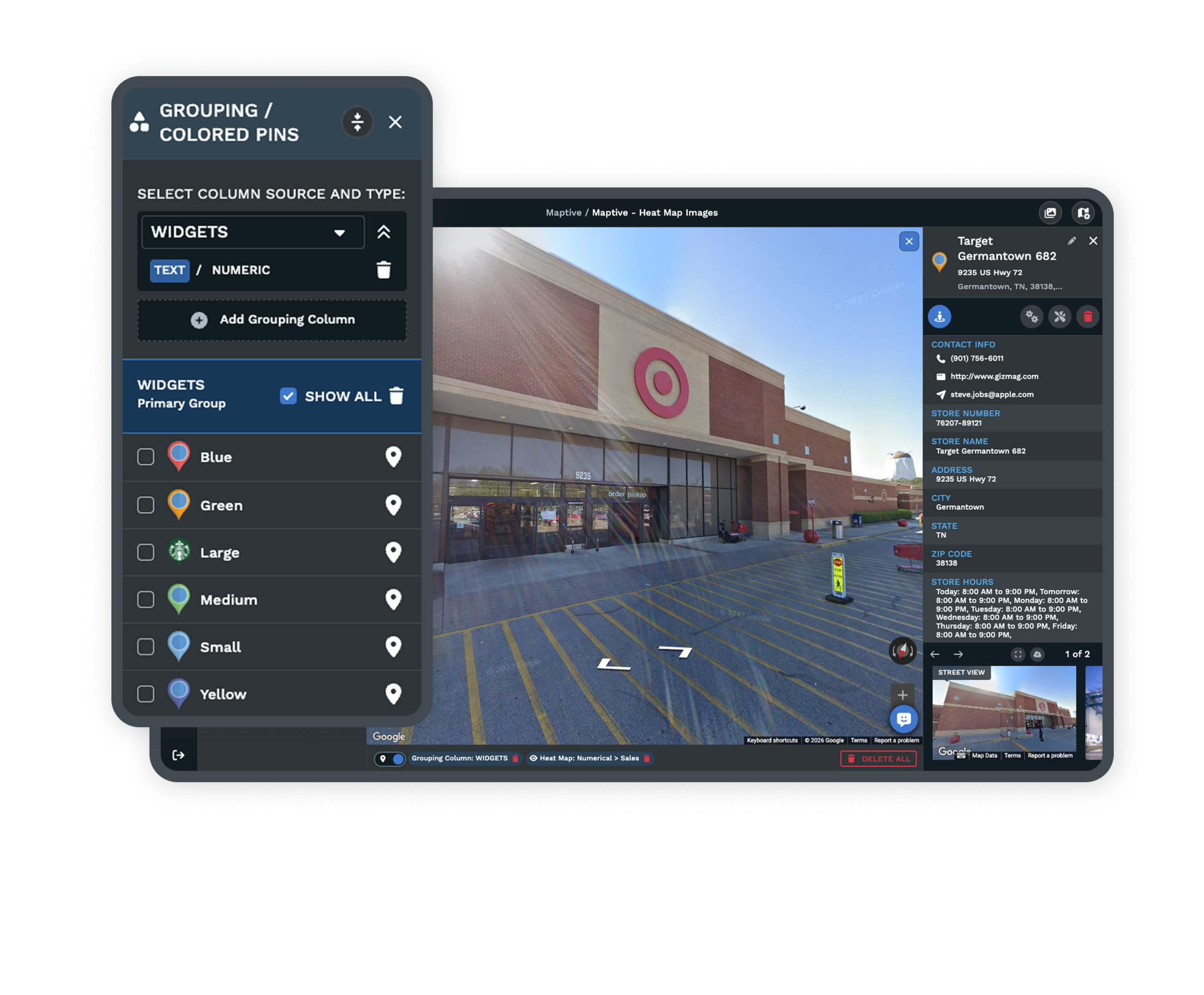
Account Fields Carried AcrossOwner, stage, amount, industry, and last activity arrive as map columns you can color and filter on, so accounts group and read on the map the way they were already categorized in the CRM. |
Getting CRM Accounts Onto the Map and Into Territories
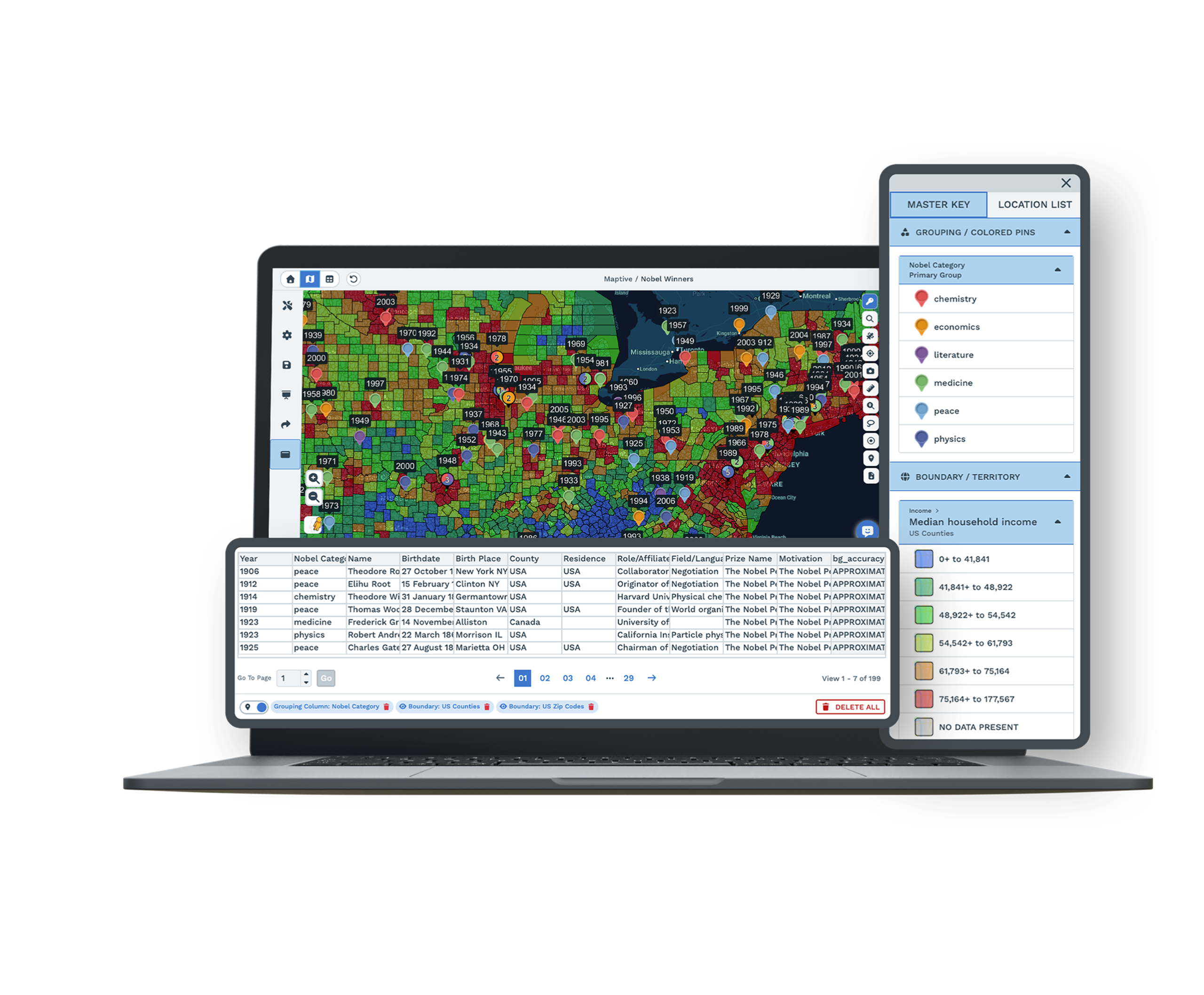
The data starts in the CRM, and the first leg gets it onto the map. Export the accounts and leads to a spreadsheet, or write them through the API, and the addresses geocode to coordinates while the fields you already keep arrive as columns you can work with. With the records placed as points, you group them into territories by ZIP code, US state, or a freehand boundary you drag to fit the area each owner should hold.
Grouping alone does not make those territories fair, so the Automated Territory Creator & Optimizer reads the same CRM data and your constraints and evens out customers and potential across reps or franchisees. This is the part an ops team is buying when they ask to sync territories to the CRM, the map handling the geographic balancing while the CRM waits to take the result.
Sending the Assignment Back to the System of Record
Getting the plan back into the CRM is the leg that makes it operational. The territory and owner each account landed in is the value the team needs there, because routing, quota, and reporting all read from that record rather than from a map kept off to the side. Today the assignment travels back by in-map export to XLS, CSV, or TSV and re-import to the CRM, or through the REST API on a paid plan.
There is no one-click two-way connector that writes back on its own yet, and the map does not update when the CRM changes on its own. The native Salesforce and HubSpot connectors are listed as coming in early 2026, so for now the path is import or API in, balance with the optimizer, and export or API back out, which keeps a territory plan from drifting out of balance a couple of quarters after it was set.
Governance Your IT Team Will Recognize
Role-Based Access and Audit Log
Role-based access sets who can open and change each map, and audit logging records the changes, so CRM data on the map carries the same governance the CRM expects of it.
Single Sign-On and Two-Factor
Single sign-on and two-factor authentication cover how people reach the account data, so the map fits the login controls your organization already runs.
Support During the Import
A US and Canada support team replies in under 15 minutes, which matters when you are partway through an import or waiting on an API key and cannot afford the work to stall.
Free trial with the full platform and no credit card
Import Your CRM and Map It
Export a list of accounts from Salesforce or HubSpot, import it, and group the records into balanced territories, then send the assignment back out. A real extract makes the full round trip on the 10-day free trial, every feature open and no credit card asked for.
Plan the API Setup With a Specialist
An API setup your IT team will want to review goes faster with someone alongside you. A Maptive specialist can walk through requesting a key, capturing the map_id, and mapping your CRM fields to map columns, then show how the finished assignment exports back to the CRM for routing.
Frequently Asked Questions
Does it integrate with Salesforce?
Salesforce data works two ways today. You export accounts and leads to CSV or Excel and import them to the map, or you use the REST API on a paid plan to write records programmatically, and a Salesforce admin can point flows or Apex jobs at the map_id. A native Salesforce connector is listed as coming in early 2026, so there is no one-click sync yet.
Can it send territory assignments back to our CRM via API?
The territory and owner each account falls into can be written back through the REST API on a paid plan, or exported from the map to a spreadsheet and re-imported to the CRM. This is not an automatic two-way writeback that fires on its own, so you send assignments back on your own trigger through the API or the export, and the CRM then holds them for routing and reporting.
Can I map my Salesforce accounts on a territory map?
Yes. Export Salesforce accounts with their addresses to CSV or Excel and import them, or use the API to write account, contact, and opportunity records onto a map. The addresses geocode to points, and from there you group them into territories by ZIP code, US state, or a freehand boundary.
How do I sync territories with HubSpot?
HubSpot has no native geographic map, so teams export HubSpot company and contact data and map it, or feed it through the API. Territory and owner assignments are then maintained in HubSpot with workflows on region properties once the balanced areas come back from the map.
How do I get my CRM accounts onto a map?
Plot them with CRM mapping software, which reads the names and addresses stored in the CRM and geocodes them into points on an interactive map. You see customers by region instead of reading down a list, and the account fields you keep come along as columns.
What CRM fields come across when I import to a map?
Address fields geocode to place the pin, and fields like Owner, stage, amount, industry, and last activity arrive as map columns you can color-code and filter on. That lets the map group and read accounts the way the CRM already categorizes them.
Do I need a developer to connect my CRM via API?
API setup is light but technical. On a paid plan you request an API key from support, capture the map_id from the map URL, and an admin maps CRM fields to map columns with add, update, delete, and patch calls. Teams that would rather skip code use CSV or Excel export instead.
Can I automatically balance territories from my CRM data?
Yes. The Automated Territory Creator & Optimizer uses your CRM data plus the constraints you set to build balanced territories, evening out metrics like rep location, customer locations, sales numbers, market potential, and drive time. The result is coverage you then send back to the CRM.
What if my CRM isn’t Salesforce or HubSpot?
Any CRM with an export function works. Export to CSV, Excel, TSV, or a Google Sheet from Zoho, Dynamics, Pipedrive, Keap, or another platform and import it to the map without middleware.








