


Run a Ring Study Around Any Listing or Acquisition
Maptive draws 1, 3 and 5 mile rings or a drive-time area around any property, reads the population, income and households inside, then counts the competing properties within reach.
No credit card required
- Put several circles on the same address so each ring in the OM table gets its own totals.
- Use a drive-time area instead of a ring when a highway or river cuts across the trade area.
- Read census population and median household income inside each ring you draw around the property.
- Add five-year projections to see how population and income around the property are expected to grow.
- Total the units in competing properties inside a drive time to see nearby supply as one number.
- Export the competing properties inside a ring, along with how far each is from the subject, for your underwriting model.
Trusted by teams at









Measure the Market a Buyer Will Ask About
I can finally visualize my business geographically and make sense of my data in different ways. There is a variety of tools and it is easy to use.
From Address to OM Table in Maptive
- 1
Plot Subject and Competitors
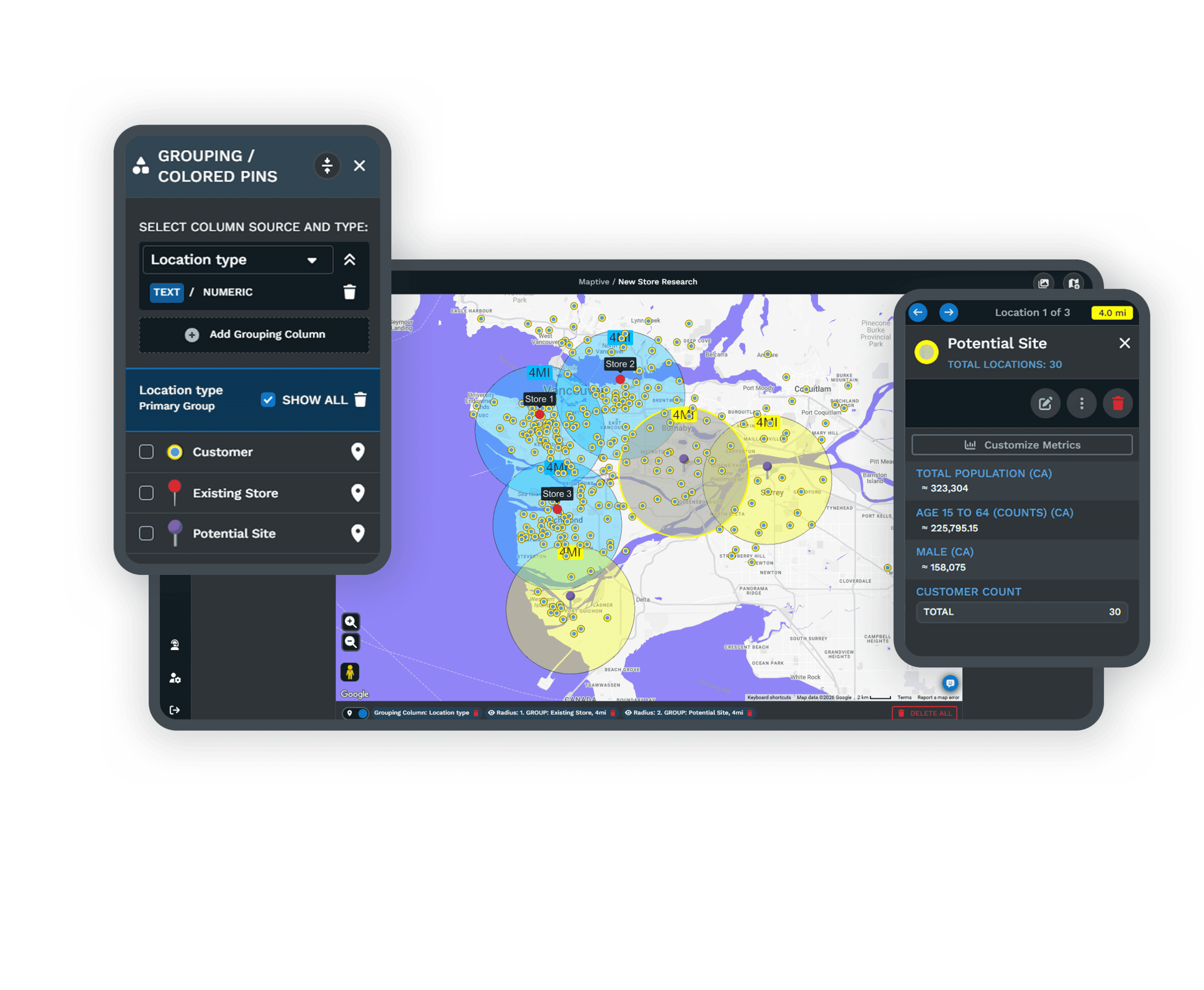
Upload an Excel file, CSV or Google Sheet that lists the subject property and its competitors. Include a type column and a units or square footage column. Open the Grouping Tool, group by the type column and click Group Now. Then give the subject its own icon in Custom Map Markers so it’s easy to find on the map.
- 2
Draw Three Circles
Open Distance Radius Circles, type the subject address, set Proximity Within to 1 mile and click Add Proximity Radius. Do the same at 3 miles and at 5 miles on the same address. For a suburban retail or apartment site, add a Drive Time Polygon centered on that address so you can compare the drive area with the rings.
- 3
Add Census and Growth Figures
Click a ring and open Customize Metrics. Set the region under Demographic Data. Pick a metric such as population or median household income and select Add to Proximity Details. For growth, add the projection metrics from the market data library. Repeat this for each ring and copy the totals into the OM table.
- 4
Total Nearby Units
In the same pop-out, open Spreadsheet Data. Add a Group Count of the competitor group and a sum of the Units or square footage column, and you have the number of competing buildings and the space they hold inside each ring. Use Export Locations on the drive-time polygon to save that list to xlsx or csv with driving distance from the subject.
Test It on Your Next Deal Free
Try Maptive free for 10 days with no credit card. Upload one property and the competing buildings you track, then draw the rings. If you’d like help with the first one, book a demo with a Maptive specialist.
No credit card required
Frequently Asked Questions
Why do ring studies use 1, 3 and 5 miles?
Those three distances are an industry habit, not a rule. Most OM demographic pages use those distances, so buyers can compare one property with another on the same terms. Rural and highway sites often use wider rings of 5 and 10 miles, and dense urban sites use smaller ones. If your buyer or tenant has its own site criteria, use their distances instead. Maptive lets you set any distance in miles or kilometers for each circle you draw.
Should I use a radius or a drive time for a property analysis?
Use rings for the OM and a drive time for your own read of the site. Buyers expect rings because most OMs use them, which makes properties easy to compare. A drive time shows who can reach the site by road, and that matters when a river or a limited-access highway cuts across a ring. Maptive draws the Drive Time Polygon under perfect driving conditions, without live traffic, so the area comes out the same each time you draw it and your numbers stay consistent from one draft of the package to the next.
Are the ring numbers cumulative?
Yes. Each ring counts everything inside it, so the 5-mile figure includes the people in the 1-mile and 3-mile rings. OM tables are built this way, and Maptive reads circles that share a center the same way. To get the people between 3 and 5 miles only, subtract the 3-mile total from the 5-mile total. Keep in mind that a 5-mile ring is 10 miles across. Label the table with the word radius so nobody reads the distances as diameters.
How many competitors are within a 5-mile radius of this property?
Maptive counts them once you decide what a competitor is and plot that list. For an apartment deal, that’s usually communities of a similar class and age. For retail, it’s centers with similar tenants, and for office it’s buildings of the same class with space available. Mark each row as subject or competitor and draw the 5-mile circle, and its pop-out returns the count. Add the units or square footage total too, because the number of buildings alone doesn’t tell you how much space competes with yours.
What demographics fall inside a 15-minute drive time?
A 15-minute drive area gives you census population, households, income, age and education, with detail down to the block group. The built-in market data adds projections and consumer spending. Fifteen minutes suits a grocery-anchored center or a suburban apartment community. A convenience store or quick-service pad usually needs a shorter drive, about 5 minutes, while a regional destination can justify a longer one. When you change the minutes on the polygon, every total updates to match the new area.
How do I count units within a drive time for a multifamily deal?
Sum the Units column of your competing communities inside a drive-time area. Give each community a row with its unit count and a status column that separates stabilized properties from those in lease-up or under construction. Then read the statuses apart instead of as one total. Properties in lease-up offer concessions that affect your effective rent, and units under construction will compete with your own lease-up. Renters compare apartments by commute more than by straight-line distance, so a drive time fits this count better than a ring.
Which demographics matter most for an acquisition?
It depends on the property type, so start with what your exit buyer and lender will check. Retail buyers look at households and consumer spending in the trade area. For multifamily, look at population growth and at income compared with the rents in your pro forma, since many owners screen applicants at about three times the monthly rent. Office buyers care more about business and employee counts by industry than about residents. In every case, compare projected household growth with the units being built nearby.
Can I run the same rings around every property in a portfolio?
Yes. On Distance Radius Circles, set Apply To Group and pick the column value that marks your properties, and Maptive draws a ring of the same size around each one. Add a second distance if you want two rings per property. Each ring reports its own demographics and competing supply, which means every property is measured the same way when you screen a seller’s portfolio or a list of on-market deals before you underwrite any of them in detail. That saves time.
Can I put the ring study into an OM or a client report?
Yes. Use Export Map Image to save the map for the OM page as a PNG or PDF, up to 2048 by 2048 pixels with the poster option. You type the totals from each ring’s pop-out into the OM table. The competing properties export to a spreadsheet with their distance from the subject. If a client wants to look around the area on their own, share the interactive map behind a password instead of a static image.
Where does the demographic data come from, and do I need my own?
You don’t need your own demographics. US Census data at the block group level and Canadian census data are included on every plan. On top of that, a licensed market data library has current-year estimates and five-year projections, along with consumer spending, business counts, crime risk and natural hazard scores. You bring the subject and the competing buildings from CoStar or your own spreadsheet. Maptive doesn’t supply listings or parcel data, so those always come from your files.








