


Put Your Listings on an Interactive Map Inside Your Own Website
Maptive turns your listings spreadsheet into a branded map with popups for size, rate and a link to each listing, then gives you one embed code for any page on your site.
No credit card required
- Enter coordinates for land or pad sites that don’t have a street address yet.
- Use your logo as the pin through Custom Markers, with one color for sale and another for lease.
- Put the size and asking terms in each popup, with a link to the full listing page.
- Turn on the Filter Tool for the public map so visitors can show one property type.
- Hide internal columns such as owner contact from the popup before the map goes public.
- Size the embed to your page layout and paste the code into a custom HTML block.
Trusted by teams at









Answer the Location Question Before the First Call
I have used several mapping tools, and Maptive is by far the most user-friendly and most comprehensive available.
From Inventory Sheet to Live Page in Maptive
- 1
Bring In Active Deals
Export your active listings to a spreadsheet with one row per property. Include the property name, address, type, status, size, price or rent and the listing page URL. Upload the file and Maptive puts a pin at each address. Then open Categorize Data in the Data tab and match the property name to Location Name / Title and the URL to Website.
- 2
Color and Brand the Pins
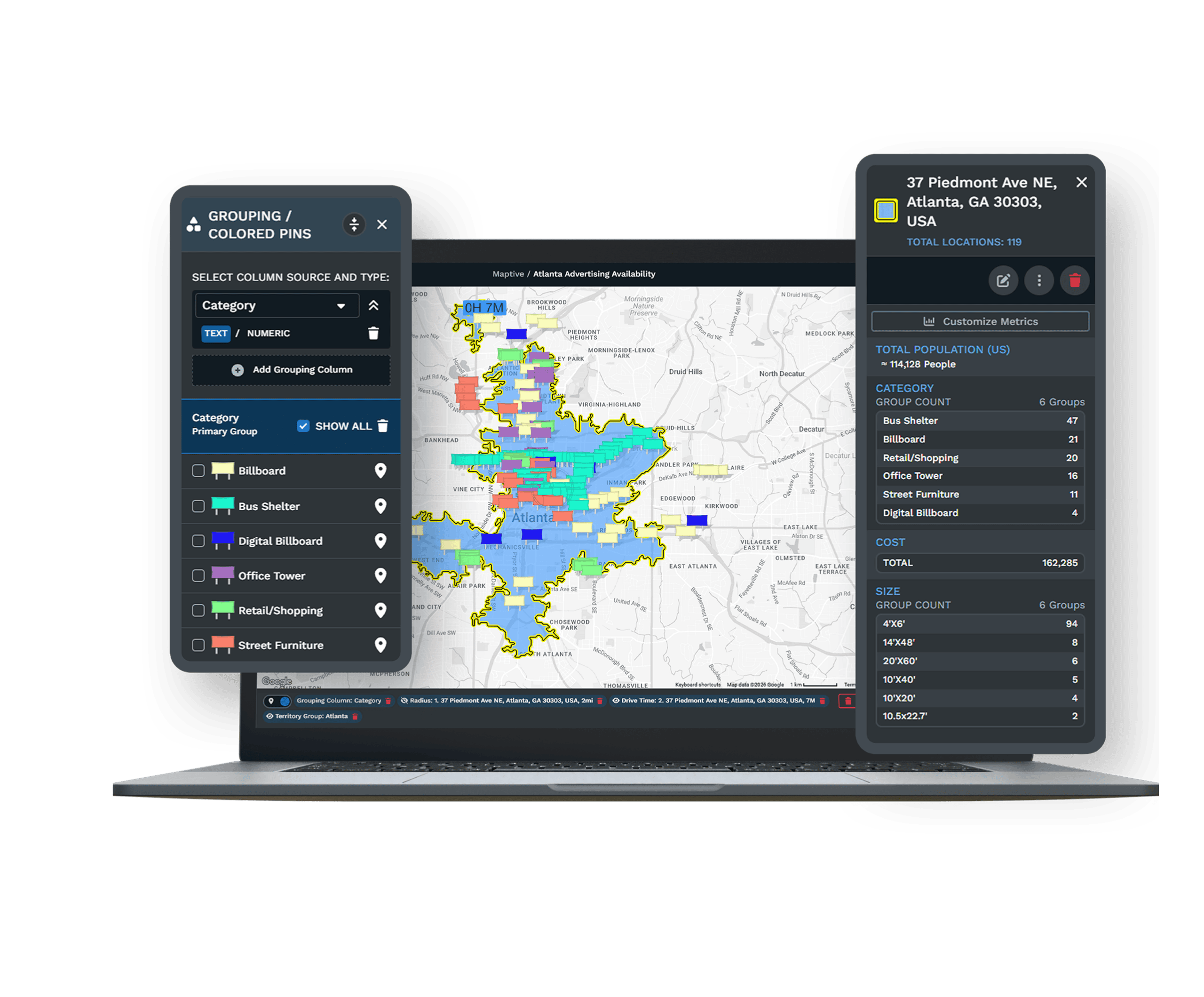
Group by the Status column in the Grouping Tool so For Lease and For Sale listings show in different colors with a legend. Click the pin icon beside a group to open Group Marker Settings, where you can change the color or add your logo with Upload Custom Marker. Then pick a Base Map Theme that suits your site’s colors.
- 3
Choose What Visitors See
In Map Settings, open Shared/Presentation Maps. Turn on the Filter Tool and the legend so visitors can narrow the listings, and turn off controls they won’t need, such as the distance calculator. Then hide the popup columns that should stay internal, such as owner contact. Visitors see only what you leave switched on.
- 4
Publish the Embed Code
Click the Settings icon and choose Shared/Display Maps. Next to Embed Map, click Open. Pick Public for an open listings page or Password Protected for a client portal, then set the width and height to fit your layout and copy the code into the page. The embed stays linked to the map in Maptive, so later edits show up without new code.
Start With the Spreadsheet You Have
Build the map from your availability list during a free 10-day trial with no credit card. A Maptive specialist can help with popup fields, logo pins and password settings on a demo.
No credit card required
Frequently Asked Questions
How do I add a listings map to my real estate website?
Copy the embed code from the map’s sharing settings in Maptive and paste it into your site the way you’d add a video. In WordPress that’s a Custom HTML block, and most site builders have an embed or code element that takes it. Set the map height close to a laptop screen so visitors can pan without scrolling the page, and after you publish, open the page on a phone to check that the pins are easy to tap.
What should a property popup show on a brokerage website?
Show the few facts a prospect needs to decide if a listing is worth a closer look, and link to the rest. For a lease listing that means the property type and space available, plus the asking rent on an NNN or gross basis and the date the space is free. For a sale listing it’s the price and building size, plus the cap rate on an investment sale. Add the listing page link and the broker’s name, and keep the long description on your site.
Should confidential or off-market listings go on the public map?
No. Listings marketed under a confidentiality agreement, and any listing the owner hasn’t approved for public marketing, belong on a separate map. Set that map to Password Protected and share it only with buyers who have signed the agreement. The public embed then shows open listings only. A Marketing column in your sheet that marks each row Public or Confidential makes it easy to split the rows when you build each map and keeps a private deal off your website.
Does the embedded map update when a listing leases or sells?
Yes. The website map is connected to the source map in Maptive, so when you edit or delete a row, your website shows the change without new code. Change the status to Leased or Sold in the Data tab, and the pin moves into that color group. If the map is built from a linked Google Sheet, edits in the sheet reach the map too. Some firms keep closed deals on a separate track record map instead of deleting them.
What listing data do I need before building the map?
Each row needs an address or coordinates, a property name, a type and a status. Most brokerages also add size and price or rent, plus a link to the listing page. Decide on formats before you start, for example rent as a plain number with the structure in its own column. That way every popup and filter reads the same way. If your listings come from a CRM or a listing platform, export them on a set schedule so the map stays current.
Can visitors narrow the map to one property type?
Yes, once the Filter Tool is switched on for shared and embedded maps under Shared/Presentation Maps. Visitors can then pick a value such as Industrial, or a status like For Lease, and the map hides the rest. Most people already know how a filter works, so it’s easier for website visitors than the grouping controls. Leave the option to open all filter menus turned off, so visitors pick the filter they want without scrolling past every column.
Can I use my brokerage logo as the map pin?
Yes. Upload Custom Marker swaps the default pin for your own image in any color group. Many brokerages use a sale version and a lease version of the logo, so visitors can tell them apart without opening a popup. Keep the artwork simple and close to square, and make the markers smaller where listings are close together so nearby pins stay readable. Check how the logo looks at pin size before you publish.
Should a landlord’s website map show available suites or whole buildings?
Map the buildings and list the available suites inside each popup. One pin per building keeps a multi-suite property from stacking pins on top of each other, which makes the map hard to tap on a phone. Put suite sizes and rates in columns, or show the total available square feet and the range of suite sizes, and link the popup to the building’s own page so prospects can see floor plans and photos there.
Can we limit who sees the embedded map?
Yes. Choose Password Protected when you create the embed code. Visitors then have to enter the password before the map loads. That suits a client portal or a broker-only page. Anyone who reaches the page can see a Public map. Public map views also count toward the usage limits on your plan, which are shown on the Maptive home screen, so check them before you put the map on a busy page.
Do visitors need a Maptive account to use the map?
No. Visitors can move around a public embed and open pins without signing in, and a password-protected map asks only for the password you set. They see only the tools you switched on under Shared/Presentation Maps, so your editing controls and hidden columns stay private. Test the embed on a phone before launch, because many prospects open listings pages from links in emails or on listing sites. Tap a few pins to make sure the popups open.








