


Lasso Tool
Draw an area on a map to quickly edit, export, or delete every marker inside the lasso. You can also route the markers or pull the boundaries, such as zip or postal codes, that fall inside the area.
No credit card required
- Export selected rows
- Batch-edit a column
- Build an optimized route
- Export boundaries
- Delete markers in bulk
- Reuse the same selection
Trusted by teams at
















What You Can Do With the Lasso Tool
Draw a polygon on your map and a popup opens with five actions on every marker or boundary inside, plus a selection that stays put until you toggle it off.
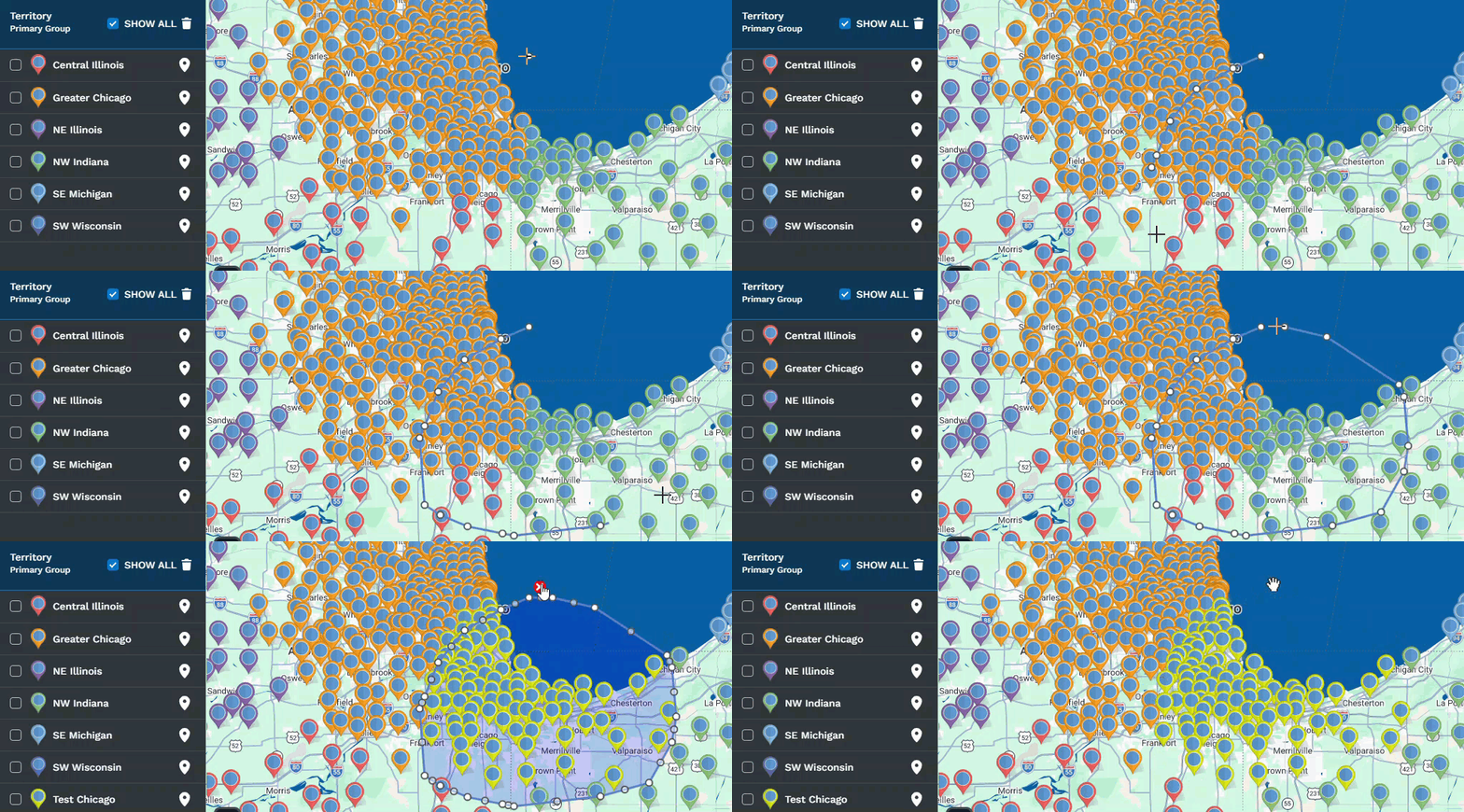
Export Location Data
Pull the rows inside your lasso into a file in any format, or copy them to your clipboard.
Edit Data as a Group
Tick Batch Edit on a column, type a new value, and every marker inside updates at once.
Optimized Driving Route
Send the lassoed markers into the Routing tool to build an optimized driving route.
Export Boundaries
Pull every zip code, city, or boundary inside, including territories you already built.
Batch Delete Markers
Remove every lassoed marker from the map and data tab in one permanent action.
Reusable Selection
The polygon stays put until you toggle it off, and clicking inside reopens the popup.
Lasso a Selection in Three Steps
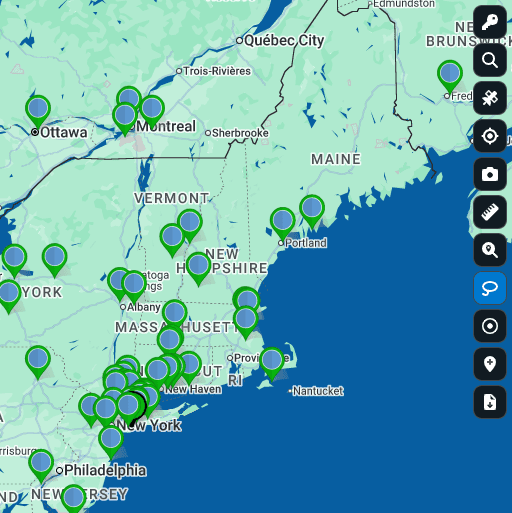
Click the Lasso
Click the lasso icon on the right side of your map. It highlights blue once it is ready for input.
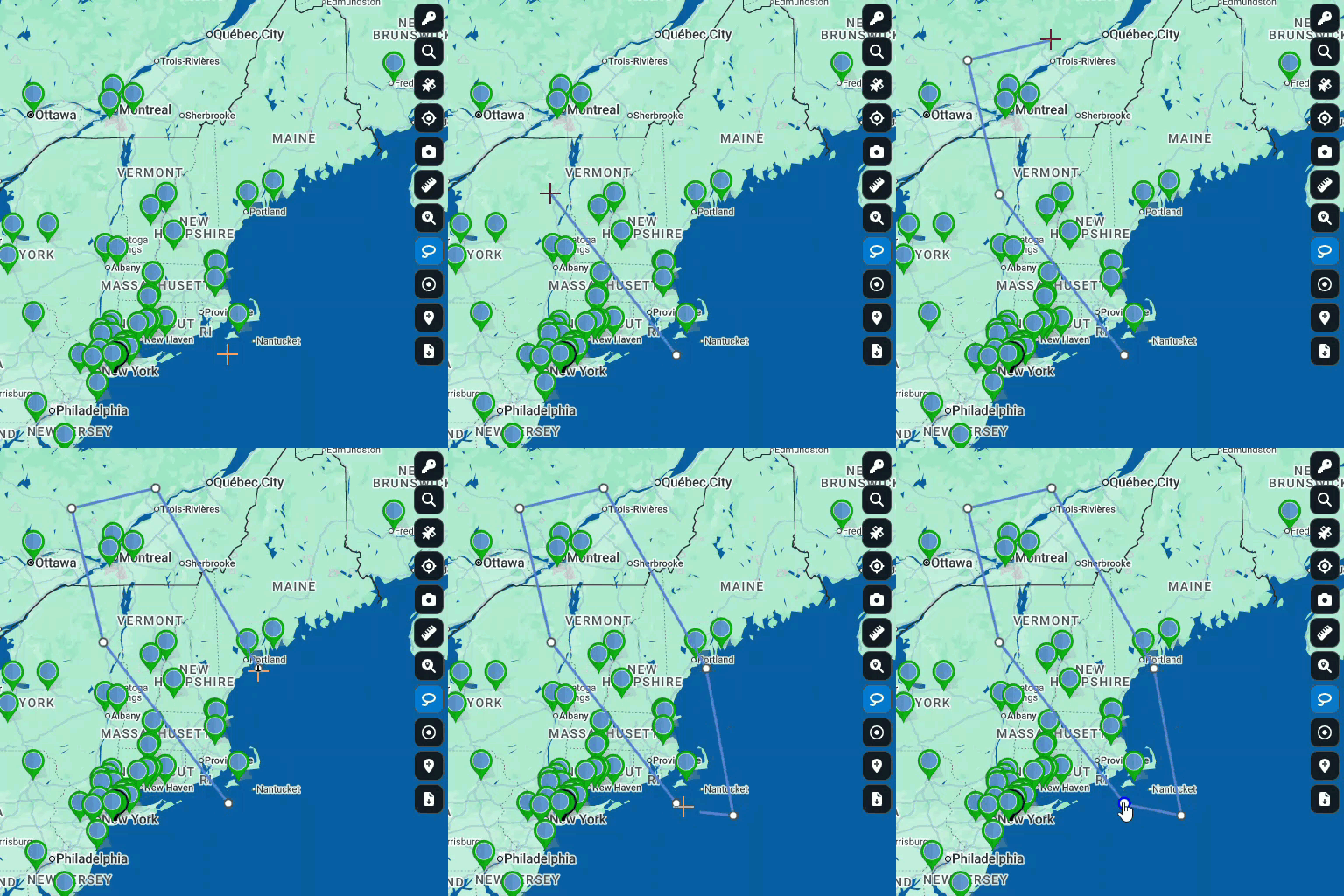
Outline the Area
Click points around the area you want, then close the polygon by clicking the start point or double-clicking.
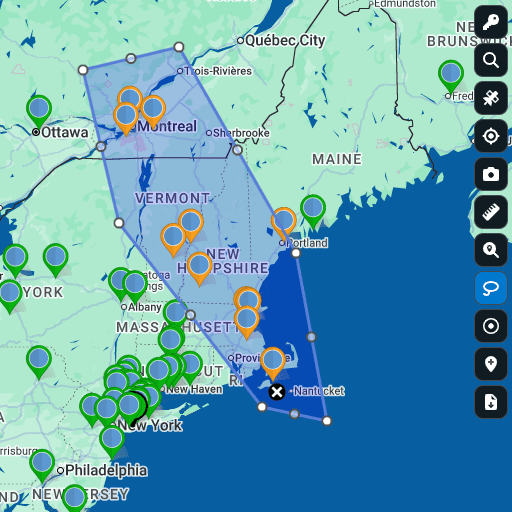
View the Results
Your chosen action runs on every marker inside the polygon at once, written to your data tab in real time.
Real Work the Lasso Tool Speeds Up
Anywhere you would otherwise filter, sort, copy, and paste a subset of locations by hand.
Bulk Edits in Seconds
A column needs the same value across hundreds of pins. Outline them, tick Batch Edit, type the value once, and every marker updates, written to your data tab right away.
Filtered Hand-Off Lists
Outline an area and pick Export Location Data to ship the rows inside as a file or to your clipboard. Your master spreadsheet stays untouched between requests.
Same-Day Route Building
Outline the stops, pick the optimized route option, and the Routing tool builds a driving route across only the picks you lassoed, from a starting point you set.
Visual Team Reassignment
Outline the moved accounts, tick Batch Edit on the owner or region column, type the new value, and the whole pool updates the same moment, no second pass.
Custom Territory Rosters
Outline the area, pick Export Boundaries, and pull every zip code or city inside, including territories you already built. The list is ready for ops without lookup.
Map Database Hygiene
Outline the cluster of stale or duplicate pins, pick Batch Deletion, and Maptive clears every marker from the map and the data tab in one action. Fast and final.
How the Lasso Tool Works
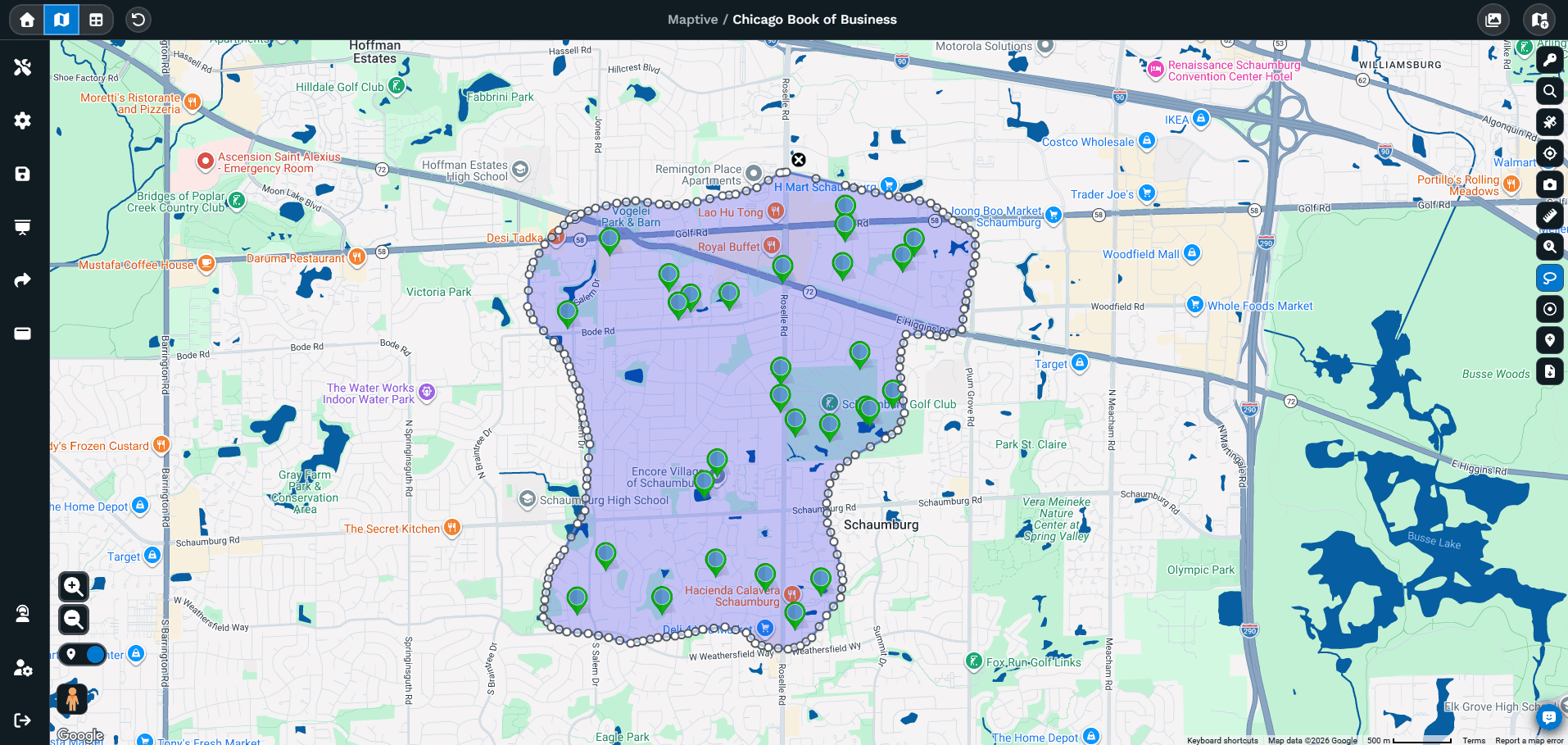
From spreadsheet scrolling to a polygon
Picking a subset by hand means sorting a spreadsheet, then copying rows into a new tab. That holds up at 20 rows and falls apart at hundreds.
- Pins on a Maptive map reveal clusters and natural groups a filter dropdown hides
- Click the lasso icon, then drop points around the area to close the polygon
- One popup gives five actions on every marker inside
Bulk work without the row-by-row grind
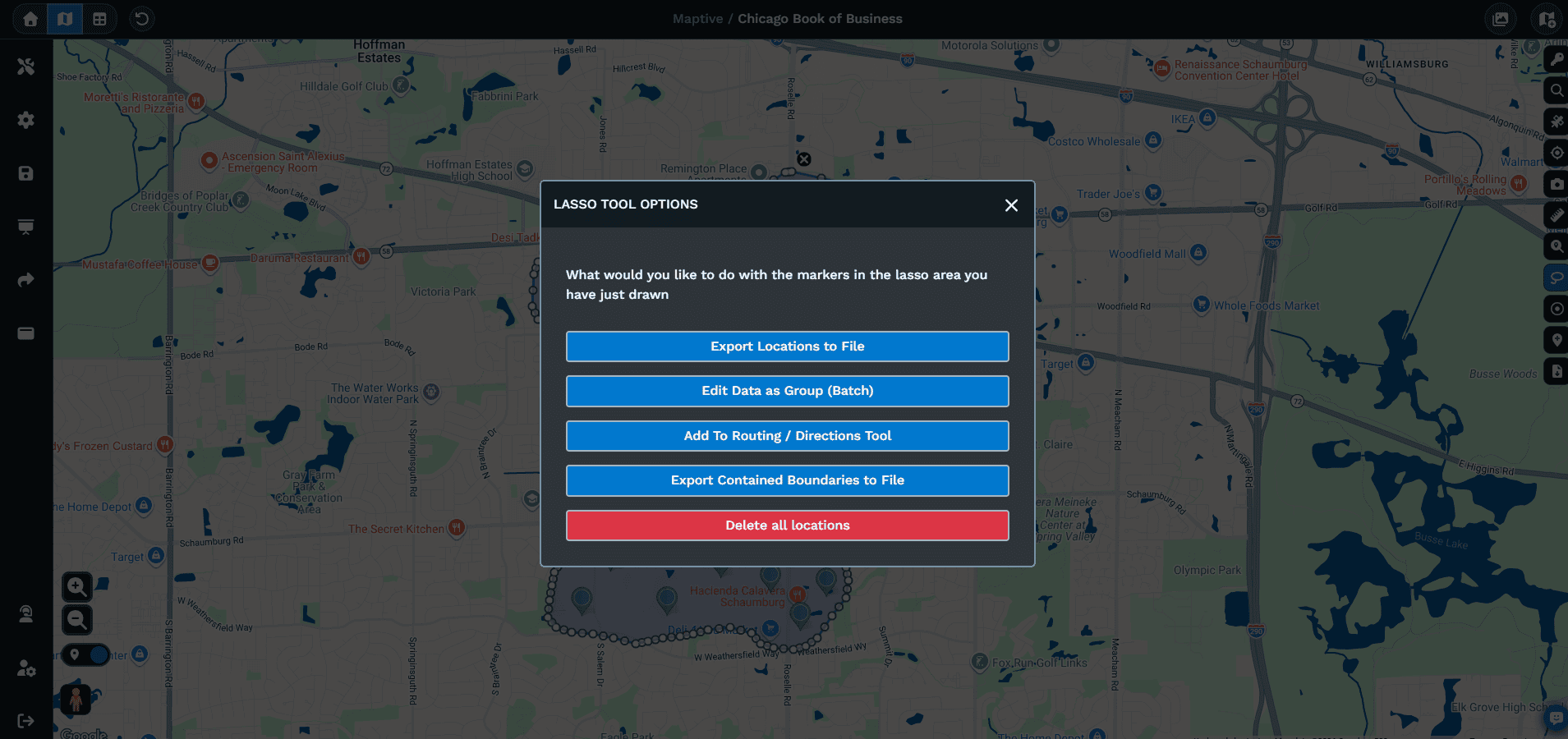
A region changes hands, or a status needs updating across hundreds of accounts. Handled row by row, the cost climbs with the size of your data.
- Outline the affected pins and choose one action from the menu
- Export, Edit as a Group, Optimized Route, Export Boundaries, or Batch Delete
- Edit as a Group uses a Batch Edit checkbox per column, so tick only the one you mean
- The same polygon stays drawn for your next action
Lasso, radius, and drive time
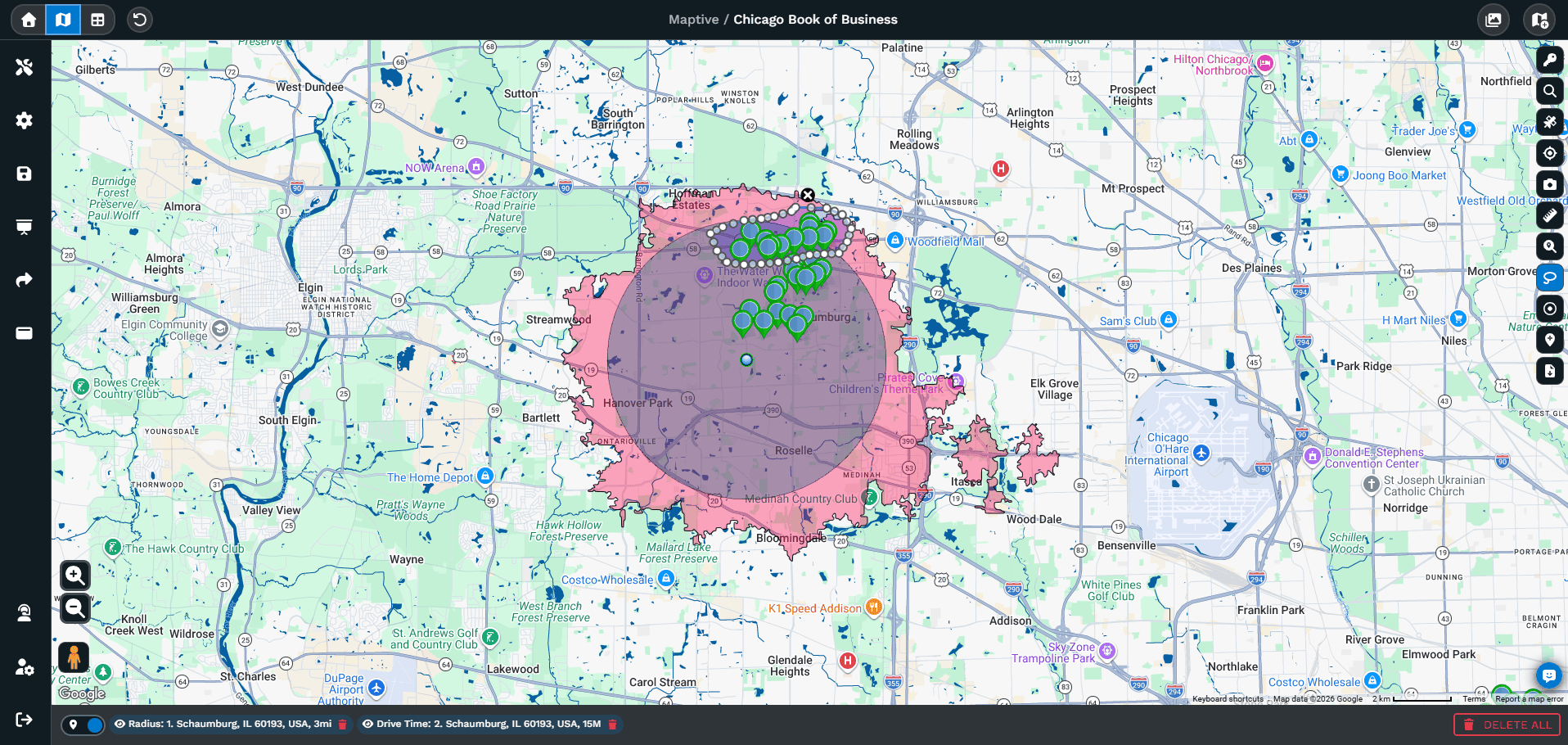
Maptive gives you several ways to pick a group of pins, and each fits a different question.
- Radius rings frame a symmetric area around a hub when distance is the answer
- Drive-time polygons frame coverage by minutes from a location
- The lasso fits an area no circle or postal boundary matches
- Frame a region with radius or drive time, then lasso the exact pins to act on
Related Features
The tools teams reach for alongside the Lasso Tool.
Lasso Tool FAQs
What is the Lasso Tool in Maptive?
How do I draw a lasso on my map?
How do I edit data for a group of markers at once?
How do I export only the markers inside my lasso?
Can I build a driving route from the markers I lassoed?
How do I get the zip codes inside a custom area?
How do I delete a batch of markers at once?
Does my lasso stay on the map after I act on it?
Can I run another action on the same lasso area?
How is the Lasso Tool different from a radius circle?
Free trial, every tool, no credit card
Put the Lasso Tool to Work on Your Map
Start a 10-day free trial with no credit card and every tool unlocked, or book a demo to see Maptive on your own data.








