


Split Your Rental Portfolio Into Balanced Manager Territories
Maptive plots every property you manage and groups them into manager territories balanced by units, stops and drive time.
No credit card required
- Plot every property from your rent roll with a units column, so each building shows its real size on the map.
- Shade the area each manager can reach by road from their office or home with a Drive Time Polygon.
- Build territories that even out units and address count across the number of managers you have.
- Divide a dense cluster by census tract or block group when one ZIP code holds most of your buildings.
- Add new acquisitions and rebalance only the areas that fall out of range, so most owners keep their manager.
- Export each manager’s property list to a spreadsheet and share a view-only map for quick lookups.
Trusted by teams at









Weigh Units, Stops and Windshield Time Together
It has saved me hundreds of hours across account-manager territories and warehouse routing, and it is easy to use.
Laying Out Service Areas From Your Rent Roll
- 1
Map Properties With Workload
Bring your property list into Maptive as a spreadsheet with each address on its own row. Add a units column and a column of 1s, so every address counts as one stop. If you track another workload figure, like open work orders, add that column too. Then color the markers by a property type column to tell apartment communities apart from single-family homes.
- 2
Check Reach From Each Base
Open Map Tools and choose Drive Time Polygon. Enter a manager’s office or home address and set the drive time in minutes before you click Add Drive Time Polygon. The shaded area follows the road network, so the properties inside it are the ones that manager can reach in that time. Repeat this for each manager. Properties outside every polygon show where coverage is thin.
- 3
Generate a First Draft
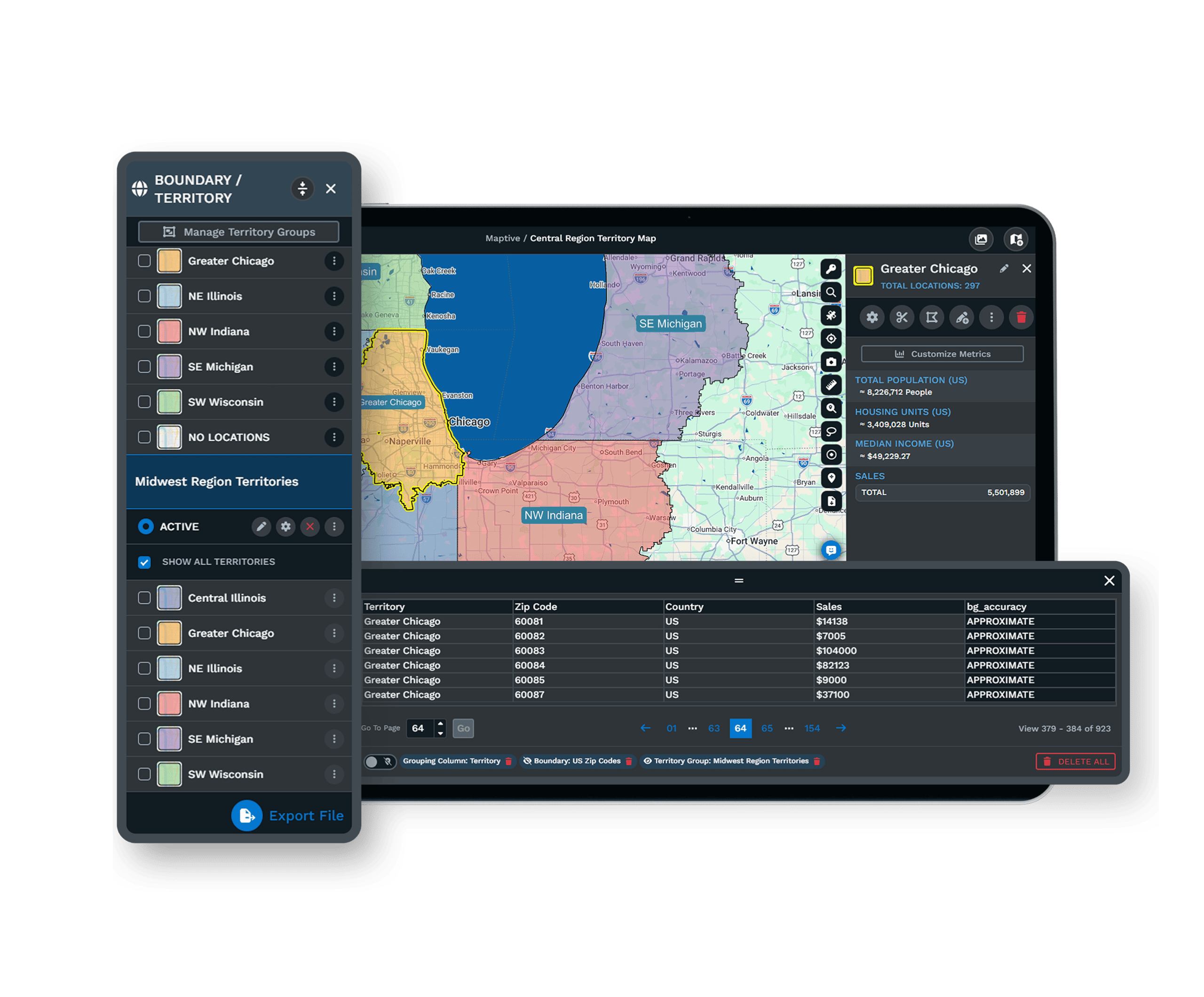
In Map Tools, open Territories and pick the Auto Territory Builder. For a spread-out portfolio, choose ZIP codes as the boundary type. Tick the units and stops columns under Data Metrics and weight them with the importance slider. Set the number of managers, or use Optimize with Constraints to keep every area inside a unit range you choose, then click Generate Territory.
- 4
Hand-Tune and Share
For a tight cluster, switch to Create Territories Manually and trace each area by hand so no building is split between two managers. Click a territory to see its totals. To record assignments, lasso a group of homes and tick Batch Edit on the manager column. When the split looks right, export each manager’s list and send the team a view-only link.
Test It on a Dense Cluster First
Try it on your own property list with a free 10-day trial. No credit card is needed. A Maptive specialist can help you set up drive-time bases and a first territory draft on a demo.
No credit card required
Frequently Asked Questions
How do I split tightly clustered properties into territories?
Use boundaries smaller than ZIP codes. If most of your buildings are inside one or two ZIP codes, territories built from ZIPs come out lopsided. Load census tracts or block groups in the Boundary Tool instead, or draw each area by hand with the Territory Drawing Tool. Keep every building whole so one manager has all of its units, and balance on the units column. Areas drawn this way can have uneven address counts and still hold about the same number of units.
How many units should one property manager handle?
There isn’t one standard number. Published ratios vary with who gets counted, from all staff down to licensed managers only. Property type changes the answer too, because an apartment community is one address with an on-site office, while the same number of single-family homes means many separate stops. The most useful benchmark is your own team. Total the units and stops each current manager handles and note who is stretched. Use that as your range in Optimize with Constraints, and every territory is sized to fit inside it.
Should I balance territories by unit count or by number of properties?
Use both, weighted to match how your managers spend the day. Unit count follows rent collection and resident calls, while address count follows driving and site visits. A territory balanced on units alone can leave one manager with far more stops than another. Add a column of 1s to your property list so each address counts as one stop. Then tick both columns under Data Metrics in the Auto Territory Builder and set the importance slider to match your priorities. Some teams add open work orders as a third column.
How do I draw property management service areas by drive time?
Measure from where each manager starts the day, using home addresses for people who work from home and the office address for everyone else. Put those addresses on a separate map, and the Auto Territory Builder can center one territory on each person while it balances the units you pick. Properties outside every manager’s reach show where a new hire or field office would help most. Drive-time polygons assume steady driving without live traffic, so leave some slack in markets with heavy rush hours.
Can I rebalance service areas as my rental portfolio grows?
Yes, without reshuffling everyone. Add the new acquisitions to your property list, open the Auto Territory Builder again, and turn on Respect Previous Territories before you generate. The tool starts from your current layout and changes only the territories that fall outside the range you set. Owners and residents know their manager by name, so keeping most assignments in place saves everyone a round of introductions. When one area grows past your limit, split it by hand and give the new part to another manager.
What drive time should a scattered-site manager’s territory cover?
Base it on the field work each manager does in a normal day. Inspections and showings happen at the property, and in a scattered portfolio homes can be 10 to 40 minutes apart. Draw two polygons with different drive times from the same base and count the homes inside each one. If the shorter drive time already holds a full workload, keep the territory tight and give the rest to the next manager. Homes in rural areas may need a wider reach and a smaller home count to stay fair.
Should maintenance techs and leasing agents share the manager territories?
Not always, because each role has its own workload. Managers handle units and the people tied to them. Maintenance techs work from a queue of work orders, and leasing agents follow vacancies and showings. A tech area copied from manager boundaries can end up uneven on work orders even when units are balanced. In Maptive you can keep several territory groups on the same map, each balanced on its own column, so you can compare the manager split with the tech split without mixing them.
Can I use census tracts or block groups instead of ZIP codes?
Yes. The Boundary Tool offers US states, counties, ZIP codes, census tracts and block groups, so you can pick a boundary size that fits how tight your portfolio is. Tracts and block groups are much smaller than ZIPs, which makes them a better base for a dense cluster. Choose the My Numerical Data fill and total your units column, and the blocks with the most units shade darkest. Then use Create Territories Manually with On Click, On Hover or the Lasso Tool to group the blocks into manager areas. Click a finished area to check its totals.
How do I give each manager a list of their properties?
Draw the Lasso Tool around a manager’s territory and pick Export Location Data. That saves every property inside as a file, or copies the rows to your clipboard. Send the file to the manager as their starting list, with whatever columns you uploaded. If your property management software assigns a manager to each property, import the same list there so work orders reach the right person. Keep a property ID column in your upload so the rows match up cleanly when they go back in.
Do all my property managers need to edit the territory map?
No. Most managers only need to look things up, and a view-only shared link covers that. They can open the map in a browser and check which territory a property belongs to without changing anything. You can password-protect the link for an internal portfolio. Edit access and permissions are set per user, so the people who maintain territories can change them while everyone else views. After a rebalance, the same link shows the new territories the next time someone opens it.








