


Keep Your Portfolio Map Current for Every LP Update
Maptive keeps your owned buildings, pipeline deals and nearby competitors together, colored by status and updated from your spreadsheet for each investor report.
No credit card required
- Color owned, pipeline and competitor properties from one Status column with the Grouping Tool.
- Mark the quarter’s acquisitions and sales with their own marker style on top of the status colors.
- Hide pipeline pins before the LP version goes out, since many LOIs come with confidentiality terms.
- Total owned square feet or invested equity by state in the Boundary Tool and see where exposure is concentrated.
- Save the map view and zoom so this quarter’s export frames the same markets as last quarter’s slide.
- Export a PNG or PDF for the deck, or share a password-protected link investors can open but not edit.
Trusted by teams at









What Changes Between One Report and the Next
It has saved me hundreds of hours across account-manager territories and warehouse routing, and it is easy to use.
Building the Investor Slide in Maptive
- 1
Structure the Master Sheet
Give every property one row with its address, the fund that holds it, square feet, a closing date and a Status column. Typical status values are Owned, Under Contract, LOI, Target, Competitor and Sold. Upload the asset list the fund already keeps, or the export from your deal tracker, and geocoding places each row. Competitor rows can come from a CoStar export if the headers match yours.
- 2
Color by Status and Fund
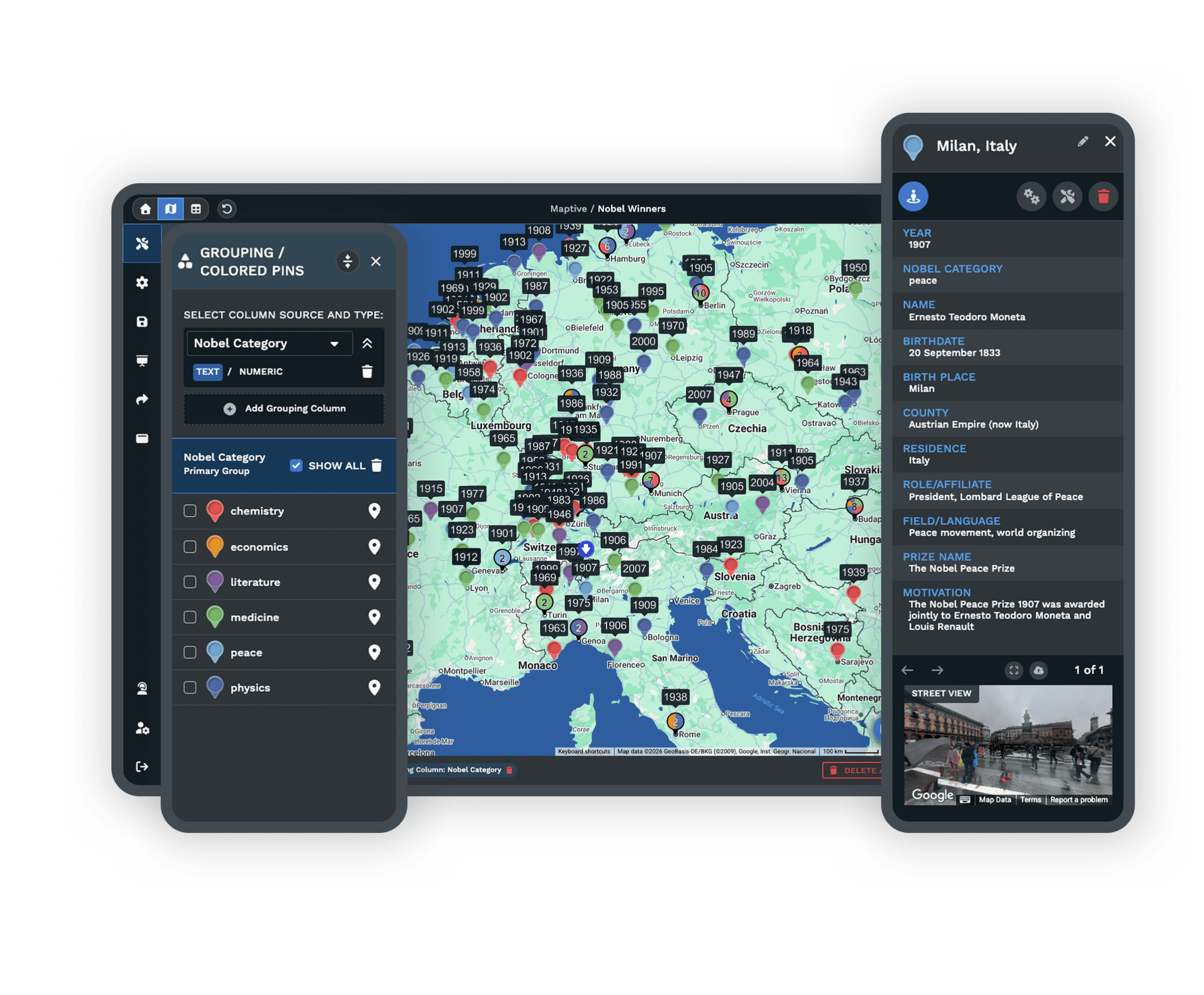
In Map Tools, pick the Grouping Tool, choose Status as the group and click Group Now. Use the small white icon beside each group to set its color, so owned assets use your firm’s primary color and competitors take a gray. When one map covers several vehicles, add Fund as a secondary group. Custom Markers lets you upload a logo pin if your deck uses one.
- 3
Pick the Reporting Date
In the Filter Tool, add a Date filter on the closing date and end the range on the last day of the quarter, then deselect the Sold group. Filters reset when the page refreshes, so save this as a map view at the zoom you used last quarter. Next quarter you change one date instead of rebuilding the slide from scratch.
- 4
Export Two Versions
Deselect the Target and LOI groups for the LP version, then open Export Map Image and save a PNG or PDF, choosing the poster size when the map goes into a printed book. Turn the pipeline groups back on for the investment committee and send that version as a password-protected link that committee members can open but not change.
Start With This Quarter’s Holdings
Upload your asset list and see it mapped during a free 10-day trial with no credit card. A Maptive specialist can help you set up status colors and report versions on a demo.
No credit card required
Frequently Asked Questions
How do I put my property portfolio on a map for a slide deck?
Use a plain base map, such as the black-and-white style, so your status colors are the brightest thing on the slide. Before you export, frame the view to the slide’s shape with room left for the legend, and keep to five colors or fewer so each one is easy to tell apart when the deck is projected. If a few assets need extra attention, give them a distinct pin through Custom Markers. The exported PNG pastes into PowerPoint or Keynote like any other image.
How can I show owned, target and competitor sites on one map?
Add a Status column and give every row a single value, like Owned or Competitor. Make that column the primary group in the Grouping Tool, and Maptive assigns one marker color per status and lists each status in the map key. You can choose the exact color for each group, so owned assets show in your brand color and competitors in a muted gray. Clicking a group in the key hides or shows it, which lets you build the full internal view and a trimmed investor view from one map.
What should a portfolio map in a quarterly LP report show?
It should show what the fund held on the reporting date, with that period’s purchases and sales marked. Most managers color by property type or strategy, and some add the fund vehicle when one deck covers several funds. Use the same map extent every time so an LP can compare this slide with the last one. The map supports the operating figures elsewhere in the report, such as occupancy and NOI, so keep it simple and leave the financial detail to the asset table.
Should pipeline deals appear on an investor map?
Usually not as named pins. Many letters of intent and purchase agreements include confidentiality or exclusivity terms, and a deal can still fall apart after the report goes out. A safer approach is to describe the pipeline in words or as a count by market in the LP report, and keep the pinned pipeline for the investment committee. In Maptive that means one map with two saved views, where the LP version has the LOI and target groups switched off before you export the image.
How should sold properties appear on the map?
Keep them in the master sheet with a Sold status and a sale date rather than deleting the rows. The sold rows become your track record, which you’ll want on a map when the team raises its next fund. Watch the timing on the quarterly slide. A building sold after quarter-end but before the report goes out was still owned on the reporting date, so it belongs on that slide as owned, with the sale noted as a subsequent event.
How do I show geographic concentration across the fund?
Fund documents commonly set limits on how much capital can go into one market or region, and LPs ask about it. Add a numeric column for square feet or invested equity, then use the Boundary Tool to total that column by state or county. Click Load Boundaries. Each area shades by its total, using the range colors you pick in Fill Settings. The result shows exposure by area on the same map as the property pins, which is easier to read than a percentage table.
Can the map update when our spreadsheet changes?
Yes, if you build it from a connected Google Sheet. A status changed from LOI to Owned in that sheet changes the pin’s color on the map with no new upload. Keep the column headers the same each quarter so your groups and filters still match. If your team works in Excel, upload the new file at quarter-end. For a CRM or deal-tracking system, export the list as a CSV, or connect it through Maptive’s REST API, which is part of every paid plan.
Where do competitor properties come from?
From your own research, since Maptive doesn’t supply property listings or ownership records. Most teams export competing buildings from CoStar or a similar database, or keep a list their brokers update, and add those rows to the master sheet with a Competitor status and an Owner column. Ownership changes, so give each competitor row an As Of date, since an outdated competitor pin is easy to miss in a deck. The Grouping Tool then gives competitors their own color, and a Group filter can show one owner’s buildings alone.
Can several funds share one map without mixing them up?
Yes. Give every row a Fund column, then use a Group filter on it so the map shows one vehicle at a time, and save a view for each fund. LPs normally receive reporting only for the funds they’re invested in, so send each fund’s slide and link on its own. Internally, turning every fund back on shows where two vehicles own in the same submarket, which matters for your allocation policy and for any conflicts between funds.
Can investors open the map instead of looking at a screenshot?
Yes. Send a password-protected link with read-only permission, and an LP can move around the map and click a property to read the fields you chose to show. On a shared map you can hide data columns, which keeps cost basis or internal notes out of view. For an annual meeting, presentation mode opens the same map full screen for a live walkthrough. Keep a PNG or PDF in the written report too, since not every reader will open a link.








