


Compare Candidate Sites by Traffic Counts and Demographics
Maptive puts the traffic counts you bring from a state DOT or data provider next to built-in census demographics for every site on your shortlist.
No credit card required
- Plot traffic count stations from a DOT download or your provider’s file, with AADT and count year on each row.
- Size each station by vehicles per day so the busiest roads near your sites are easy to spot.
- Filter out stations below your tenant’s minimum daily count and see which sites still qualify.
- Shade block groups or ZIP codes by median household income under the traffic stations.
- Read the households and income inside a short drive time around each candidate site.
- List the count stations nearest a pad site with Location Finder, ranked by distance.
Trusted by teams at









See Who Drives Past and Who Shops Nearby
I love the heat map, and the sharing capability is very efficient. The initial data upload is easy and the settings are intuitive.
Putting the Screening Map Together in Maptive
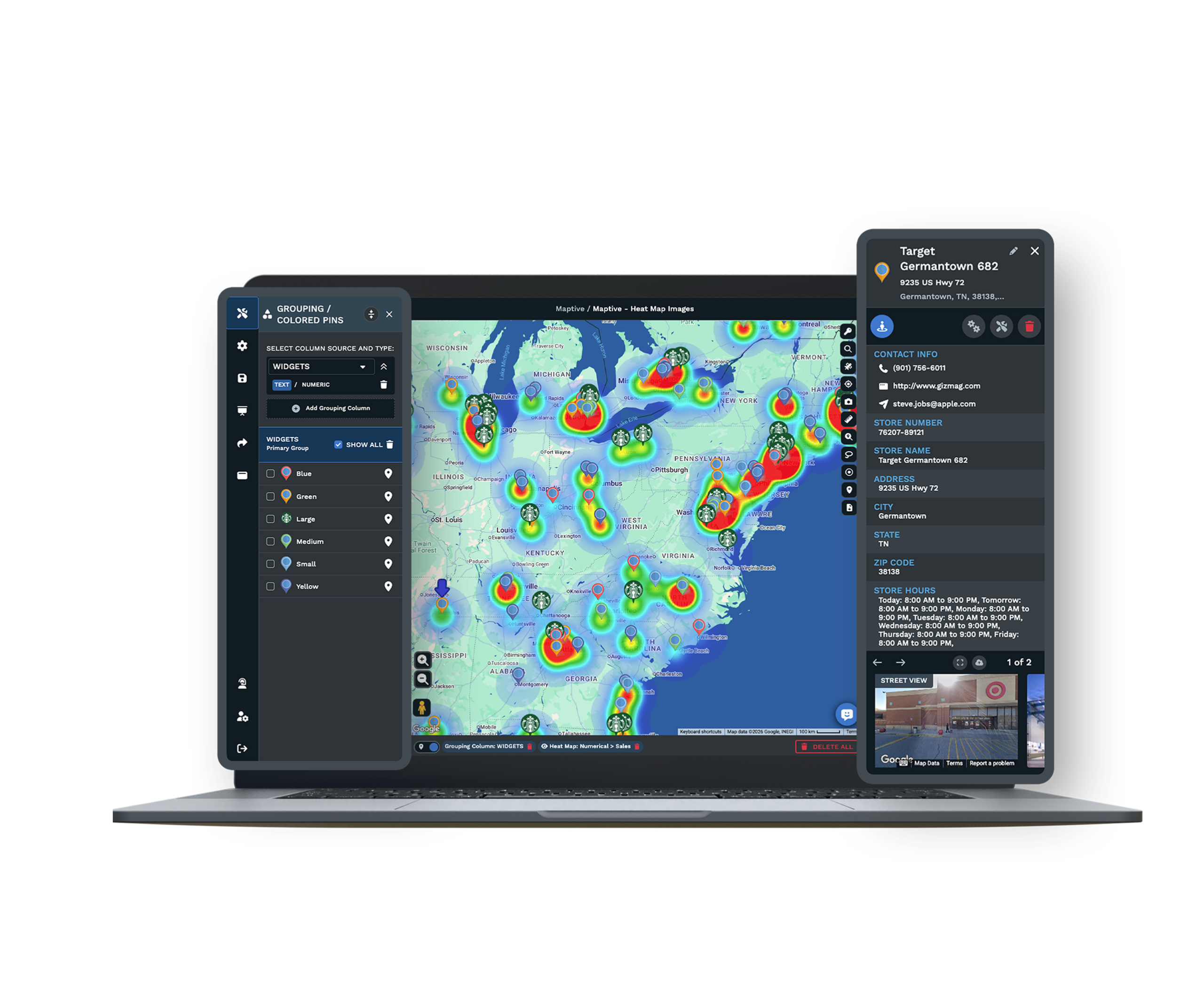
- 1
Bring In the DOT Download
Download the count stations for your market from the state DOT portal or your data provider. Keep the latitude, longitude, AADT, count year and road name for each station. Add the sites on your shortlist as extra rows with a Record value of Site, so one upload holds both. Maptive places each row by its coordinates or address.
- 2
Weight the Stations by Volume
Open the Grouping Tool and pick the AADT column. Set it to numeric and choose number ranges with a growing pin, so busier stations show larger. If you want a gradient instead, open the Heat Mapping Tool, choose Represents Numerical Data and point it at AADT. Then use the Filter Tool to hide counts older than your cutoff year or below your tenant’s minimum.
- 3
Shade Income Under the Pins
Open the Boundary Tool and pick block groups or ZIP codes. Choose Demographic Census Data as the fill, with a metric such as median household income. Click Load Boundaries. Turn on Ignore Filters so the shading stays in place while you filter stations, and lower the fill opacity so the traffic pins on top stay easy to read.
- 4
Size Each Pad’s Trade Area
Add a Drive Time Polygon on each candidate site and click it. A convenience use usually calls for a short drive of about 5 minutes, and a destination tenant for a longer one. Customize Metrics shows the households and income inside. Then use Location Finder from the site to list the nearest count stations by distance, and export the map image for the site package.
Try It on One Market First
Start a free 10-day trial with no credit card and upload a traffic count file with your candidate sites. A Maptive specialist can help you format the DOT download on a demo.
No credit card required
Frequently Asked Questions
How do I overlay traffic counts on potential retail sites?
Upload the count stations and your candidate sites together, then group the map by record type so sites and stations look different. Get the stations from your state DOT’s portal or your data provider. Each row needs the AADT and coordinates. Size the stations by AADT so the volume on each road is easy to read. Click a station near a pad to see its road and count year, and check which road segment it measures. The nearest station may be on the other side of an intersection from your frontage.
Can I layer average daily traffic and demographics over candidate locations?
Yes. Plot the traffic stations and your sites, then shade the census areas underneath by a metric such as household income or population density. Block groups give the most detail around a single pad, and ZIP codes are better for a first pass across a market. Traffic tells you about visibility and passing trade. The shading tells you about the customers within a short drive who come back again. Hide either layer with its eye icon when the map gets busy.
What’s the difference between ADT and AADT?
ADT is the average daily traffic over the days a counter was out, usually a 48-hour count. AADT is the annual average, the year’s total volume divided by 365. DOTs estimate it by adjusting short counts for the day of the week, the season and the share of trucks. Most site criteria and OMs quote AADT. Use the same measure on every road you compare, and check if a figure counts both directions or one, because a divided highway may report each side separately.
How old can a traffic count be before I stop trusting it?
Check the count year on every station before you quote it. Many state DOTs count only part of their stations each year and estimate the rest, and some portals flag which figures are estimated. An old count can miss a new interchange or a widened road. Keep the count year as a column and filter to recent years in Maptive. If a deal depends on traffic, think about ordering a new count or buying a modeled estimate from a data provider.
Is a high traffic count enough to pick a retail site?
No. A count tells you how many cars pass, and drivers still have to see the site and be able to turn in. Fast highway traffic gives visibility but fewer stops than a slower road with fewer cars. Check access, such as median breaks and signals, and which side of the road the commute uses. Then look at the number of households within a short drive, because those are the customers who come back to the site week after week.
What traffic count do retail tenants look for?
It depends on the tenant, so ask for their current site criteria. Drive-thru restaurants and convenience stores usually list a minimum daily traffic count in their development materials, along with a population minimum inside a short drive and spacing from their own stores. Once you have those numbers, set them as Filter Tool ranges in Maptive. The map then shows which candidate sites pass both the traffic test and the trade area test, so you can drop the rest early.
Where do I get traffic counts, and does Maptive include them?
Maptive doesn’t include traffic counts, so you bring them in. Most state DOTs publish free count data in a map viewer, and many let you download the stations with coordinates, AADT and count year. Cities and regional planning agencies post counts for local roads, and commercial providers sell newer or modeled counts. Bring in whichever source you use as a spreadsheet, and Maptive plots the stations next to its built-in census and market data.
Can I make a heat map of traffic volume?
Yes. Weight a heat map by AADT and it shows which corridors have the heaviest traffic across a market. That helps when a tenant wants to know which part of town to focus on before you look at pads. Adjust the radius and intensity so a single interstate station doesn’t drown out the arterials, or filter interstate stations out first, since freeway traffic seldom turns into visits for a pad site. Turn on Hide Map Markers to see the gradient alone.
Can I compare several candidate sites at once?
Yes. Set Apply To Group on Distance Radius Circles to draw the same ring around every candidate at once. Each ring reports its own population and income. Under Spreadsheet Data, a Group Count of the traffic stations inside each ring shows how many counted roads are near the site. For your finalists, add a Drive Time Polygon to each one for a road-based trade area, then copy each site’s figures into a comparison table for the client.
Can I share the site analysis with a client or tenant?
Yes. Export Map Image saves the map with its traffic stations and demographic shading as a PNG or PDF for a site package or lease proposal. If a client wants to explore, send the interactive version behind a password and limit what viewers can open, so internal notes stay with your team. Presentation mode gives you a full-screen view for a site review meeting, and everyone sees the same counts and demographics you used.








