


Match Buyers and Tenants to Properties Near Their Address
Maptive rings the address your client cares about, filters your available properties to their size, price and move-in date, then exports the matches with their distance.
No credit card required
- Ring the client’s key address in miles, or use a drive-time area when travel time matters more than distance.
- Set slider filters on square feet and on asking rent or price, using the ranges in the requirement.
- Add a date filter on availability so spaces that open too late for the client leave the map.
- Plot your buyers next to your listings and give each buyer type its own pin color.
- Export the qualifying spaces inside the ring to xlsx or csv as the starting table for your survey.
- Share a view-only map so the client can click each space and read the details you uploaded.
Trusted by teams at









Turn a Buy Box Into a Shortlist Worth Sending
Maptive helped us go beyond geography. The flexible analysis tools help us manage in ways beyond getting from point to point.
Filtering Your Inventory to the Brief in Maptive
- 1
Load Listings and Buyers
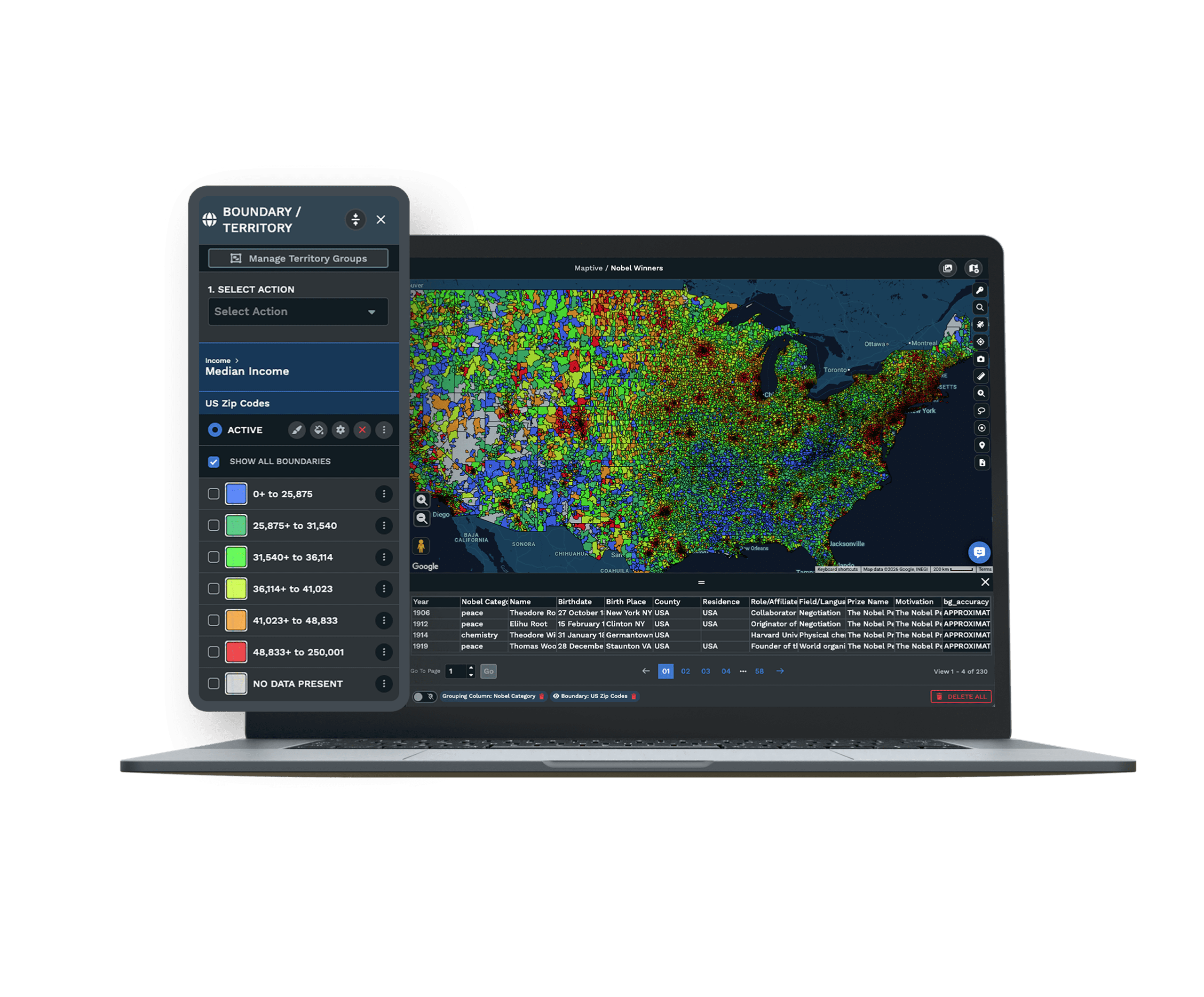
Upload the availability report you keep for the market. Give it a column for each thing the requirement asks about, such as square feet, rent, property type and available date. Add buyers to the same file and mark each row as a listing or a buyer in a Record Type column. Maptive geocodes the addresses or reads latitude and longitude, and a connected Google Sheet keeps the map current.
- 2
Ring the Address That Matters
Open Map Tools and choose Distance Radius Circles. Type the address the search is built around, like the tenant’s current office or a building the investor owns. Set Proximity Within to the distance in the brief and click Add Proximity Radius. If drive time matters more than distance, center a Drive Time Polygon on that address instead.
- 3
Filter by Size and Price
In the Filter Tool, click Create Filters. Give square feet a Number slider set to the client’s range, then do the same for rent or price. A Group filter on property type and a Date filter on the available date cover the rest of the brief. Listings outside any of those settings hide, so the spaces left inside the ring are the ones that fit.
- 4
Export and Send the Results
Open the ring’s kebab menu and choose Export Locations. Save the file as xlsx or csv and include straight-line distance or driving time and distance. You can also limit the export to the closest results when the client only wants a short list. Before you share the map with the client, hide the buyer group so they see only properties.
See What Fits Your Client’s Next Deal
Enter a client’s requirement and your available properties during a free 10-day trial. No credit card is needed. A Maptive specialist can help you set up saved filters on a demo.
No credit card required
Frequently Asked Questions
How do I find every property within a mile of a specific address?
Put a one-mile ring on the address with Distance Radius Circles. Upload your property list first, then open the tool in Map Tools and type the address as the center. Set Proximity Within to one mile and click Add Proximity Radius. Every property inside the ring shows on the map. You can add more rings at two and five miles from the same address to see how the count grows. To get the list itself, use Export Locations on that ring, which saves the rows inside with their distance from the address.
How do I find buyers near a property address?
Plot each buyer at the address of a property they already own, then ring the deal address. Buyers inside the ring own nearby, so they know the submarket and can price a deal there quickly. Give the buyer-type column its own colors in the Marker Grouping Tool so flippers and landlords show in different colors on the map. Then export the buyers inside the ring from its kebab menu, and you have a call list for that deal.
What should a tenant requirement include before I start searching?
It should include a size range, the use, a budget per square foot, the lease term, the latest move-in date and the one address the client wants to stay close to. Ask for the size in rentable square feet so you and the client mean the same number. Office requirements also need a parking ratio and expected headcount growth. Industrial requirements need dock doors and power. Each item becomes a column or a filter on the map, so a complete brief gives you a tighter match.
What is a buy box, and how do I match listings to one?
A buy box is the set of criteria an investor uses to decide which deals to look at. It usually covers asset type, price range, size or unit count, target return and location. To match listings to it, give your sheet the same fields the buy box uses. Then set the Filter Tool sliders to the investor’s ranges and ring the area they want. Use one property-type list for buyers and listings, because a match only works when both sides use the same categories.
How big should the search radius be for a requirement?
Size the ring to how the client uses the location. Urban office and retail searches usually stay within a mile or two of the client’s current block. Suburban office searches often go out three to five miles. Industrial users care more about highway access, so a 20 to 30 minute drive time is a better fit for them than a ring. Start with a tight ring and widen it only if too few spaces come back, since a wide ring returns buildings the client won’t consider.
What if nothing inside the ring fits the requirement?
Widen one setting at a time, so the client can see what changed. Add a mile to the ring, or switch to a Drive Time Polygon if a highway brings farther buildings within the same drive. After that, loosen the size or price slider a little. You can also ask owners inside the original ring who aren’t marketing space if they would consider a lease or a sale. Tell the client which setting you changed for each new option you send.
How do I help a 1031 buyer find replacement property inside the 45-day window?
A 1031 exchanger has 45 days after selling to identify replacement property in writing and 180 days to close. Most identify up to three properties. Because the window is short, ring the areas the buyer wants to own in, filter your listings to their price and asset type, and export the results with distance so they can compare them in one sitting. Keep the status column up to date so you don’t send them properties that are already under contract.
Can I match a buyer who wants several property types?
Yes. Put all the types the buyer wants in one cell, separated by semicolons, and set that column to an Attribute filter in the Filter Tool. Maptive splits the cell into separate values. When you check a type in the filter, every listing tagged with it stays on the map. Listings with more than one use work the same way, so a building tagged as both flex and industrial matches a buyer looking for either one.
How do I keep leased or sold listings out of my matches?
Add a status column with values such as available or under contract, and set it to a Group filter with only the available rows checked. Leased and sold spaces then hide from the map and from every export. If your inventory is in a Google Sheet, the map updates when the sheet changes. When a broker sets a space to leased in the sheet, it leaves the map for everyone, so the next shortlist only lists spaces you can still show.
Can my client see the matches without a Maptive account?
Yes. Share the map by link as view-only, and add a password if the deal is confidential. The client opens it in a browser and clicks any marker to read the fields you uploaded, such as size and rent. Hide the buyer group before you share so only properties show. The link always opens the current map, so when the shortlist changes you don’t need to send a new file or a new screenshot to the client.








