


Map Your Comps and Listings Around the Subject Property
Maptive puts your sale comps, lease comps and on-market listings on one map around the subject property, each type in its own color with its price and dates one click away.
No credit card required
- Give the subject property its own star or logo pin so it’s easy to find among the comps.
- Color closed sales, signed leases and current listings apart by a Type column with the Grouping Tool.
- Draw 1-mile and 3-mile circles on the subject to show how far you searched for comps.
- Size comp pins by price per square foot so the highest and lowest trades are easy to pick out.
- Filter out sales older than your cutoff year before you start building the comp grid.
- Connect a Google Sheet so new listings and closed deals your team adds show up on the map.
Trusted by teams at









Show the Evidence Behind Your Pricing
The seamless integration with Google Maps makes the customization totally efficient and the output familiar and easily presentable.
How the BOV Page Comes Together in Maptive
- 1
Merge Sources Into One Sheet
Combine your CoStar export and internal deal records into one Excel file or Google Sheet, and remove duplicate records of the same deal. Give each row a Type value and a Source value, plus the fields you plan to quote, such as price per square foot, rent, lease type and close date. Add the subject as its own row and upload the file.
- 2
Tell Each Record Type Apart
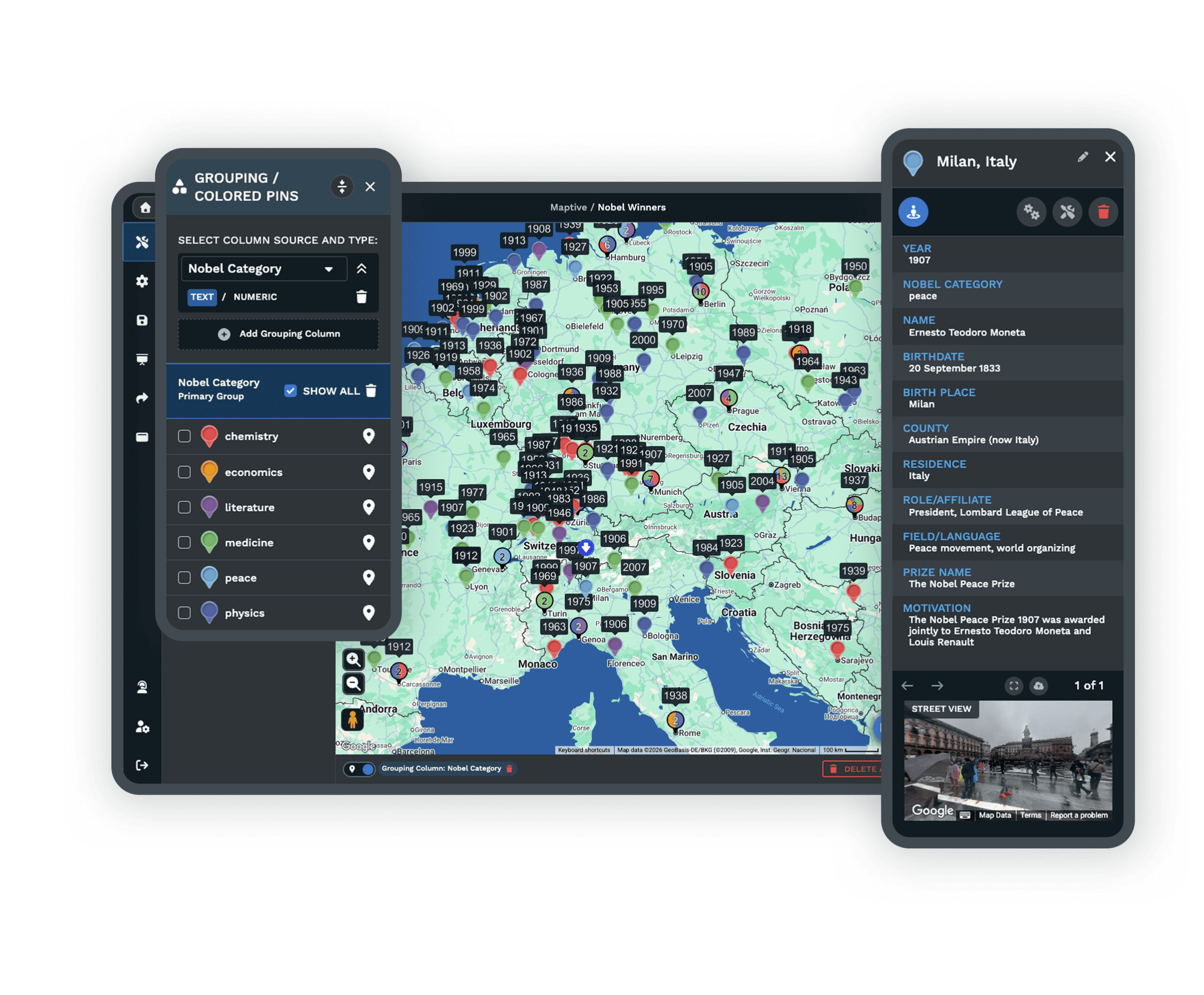
In the Grouping Tool, set the Primary Group to Type, and each record type gets its own color and legend entry. Give the subject a star from the Custom Map Markers library or upload your firm’s logo for it. If the set mixes NNN and full-service leases, add a secondary group on lease type so the two don’t get averaged together.
- 3
Set Search Area and Cutoffs
Center a 1-mile and a 3-mile Distance Radius Circle on the subject, or use the search distance your appraiser or client expects. The circles show how far you went for each trade. Then use the Filter Tool to keep only the sale years and lease types you’re willing to defend, so the map leaves out deals a reviewer would reject.
- 4
Deliver the Grid and Exhibit
From the 3-mile circle’s menu, Export Locations writes every remaining comp to xlsx or csv with its straight-line or driving distance from the subject. That file is the first draft of your comp grid. Then save the map view as a PDF or PNG with Export Map Image for the comp map page of the BOV or appraisal.
Start With the Trades You Already Track
Upload your comp spreadsheet to a free 10-day trial. No credit card is needed. A Maptive specialist can help you combine comps from more than one source if you book a demo.
No credit card required
Frequently Asked Questions
How do I map real estate comps and active listings together?
Put them in one file with a Type column that says Sale Comp, Lease Comp or Listing, and add a row for the subject. Group the map by that column. The harder part is choosing the comps. For a sale, look for the same property type with a similar size and age. For a lease, match the building class and the lease type. Put the subject’s own figures, such as asking price or in-place rent, in its row so you can click it and any comp to compare them.
Can I plot comparables within a 5-mile radius of a subject property?
Yes. Draw the circle at 5 miles around the subject, and every comp inside it is in your search area. Check how many qualifying trades it holds before you settle on that distance. In a dense market a 1-mile circle may hold enough recent deals, and a wider circle can bring in submarkets buyers don’t see as competitive. Rural and special-purpose property may need a wider search, and your report should explain why. A driving-distance column in the export helps when a river or highway splits the circle.
How recent should sale comps be?
Many lenders and appraisers prefer closed sales from the last 12 months. Older sales need a reason, such as a thin market or no recent trades of that property type. If you use older comps, expect questions about how you adjusted for changes in interest rates and pricing since the sale closed. Keep a sale year column in your file so you can apply your cutoff on the map in a couple of clicks, and state the date range on the comp page.
What should a lease comp include?
A lease comp needs the address, building class, square footage, lease type, starting rent, term, escalations, free rent and tenant improvement allowance. Also note if the deal was new or a renewal, because renewals often price differently. Effective rent, the rent after concessions spread over the term, tells you more than the face rate. Leave unknown concessions blank instead of entering zero, because a zero means the tenant got none. Each field can be a column in your file, and clicking a comp on the map shows the whole row.
Why plot listings next to closed comps?
Closed comps show what buyers and tenants paid in the past. Listings show what your subject competes with now, and their asking prices and rents are what a client will compare against. Seeing both around the subject helps you explain a list price that’s above the last trade, or show an owner how much similar space is already on the market nearby. Keep asking figures and closed figures in separate columns so they don’t get mixed up in the comp grid.
Why do the same comps show different numbers in two sources?
Data providers record deals differently. One may list rentable square feet and another usable square feet, and one may show the face rate while another shows effective rent. Closing dates can differ too. Pick one convention for square footage and rent and convert the outliers. Add a Source column so you know where each figure came from. On the map, two pins at the same address usually mean a duplicate record, so the map is a fast check on the spreadsheet.
Can I see comp details when I click a pin?
Yes. Clicking a marker shows the data from that row, including price per square foot and cap rate. Keep the uploaded columns to the fields you’d quote, because a full database export is hard to scan in a pop-up. On a shared version of the map you control which columns and tools a client can open, so internal notes such as a buyer’s contact details stay with your team and off the client’s screen.
Will the map update when we add new comps?
Yes. If you build the map from a Google Sheet through the live connection, new rows your team adds come through to the map without rebuilding it. If you work from Excel or a CSV export, upload the new file and the map updates to match. Keep the same column names between updates. When a listing closes, change its Type from Listing to Sale Comp, and it moves into the comp color along with its legend entry.
Can I color comps by price per square foot?
Yes. Open the Grouping Tool, pick the price per square foot or rent column and set it to number ranges. Choose how many ranges you want and edit the breaks to fit the market. Then pick a multi-color bubble or a growing pin, and the legend prints the ranges on the map. For a wider area, the Heat Mapping Tool with Represents Numerical Data shades the parts of the market where prices are higher.
Does Maptive provide comps or listing data?
No. Maptive doesn’t supply comps, listings or parcel data. You bring them from your own database or from a CoStar or LoopNet export, and you should check that your data license allows mapping them. Maptive adds the mapping tools. It also includes US and Canadian census demographics and a market data library you can read inside a ring around the subject. That helps when the BOV has a page about the area around the property.








