


Model Territory Changes Before You Commit
Tempted to reshuffle your territories but afraid to commit? Try the change on a copy first and watch the numbers.
No credit card required
- Copy your live map first, before you change a single thing now
- Test a territory move with no risk to the real, working setup
- Watch every area's totals update as you rework it on the copy
- Line up two territory setups and compare them side by side now
- Keep the original map safe and untouched while you experiment
- Share both versions so the whole team can weigh in and decide
Trusted by teams at









A Safe Copy to Test Every Change On
If you're looking to do a geographic analysis of how well you're serving your market, that's where I always start.
The Copy-and-Compare Path
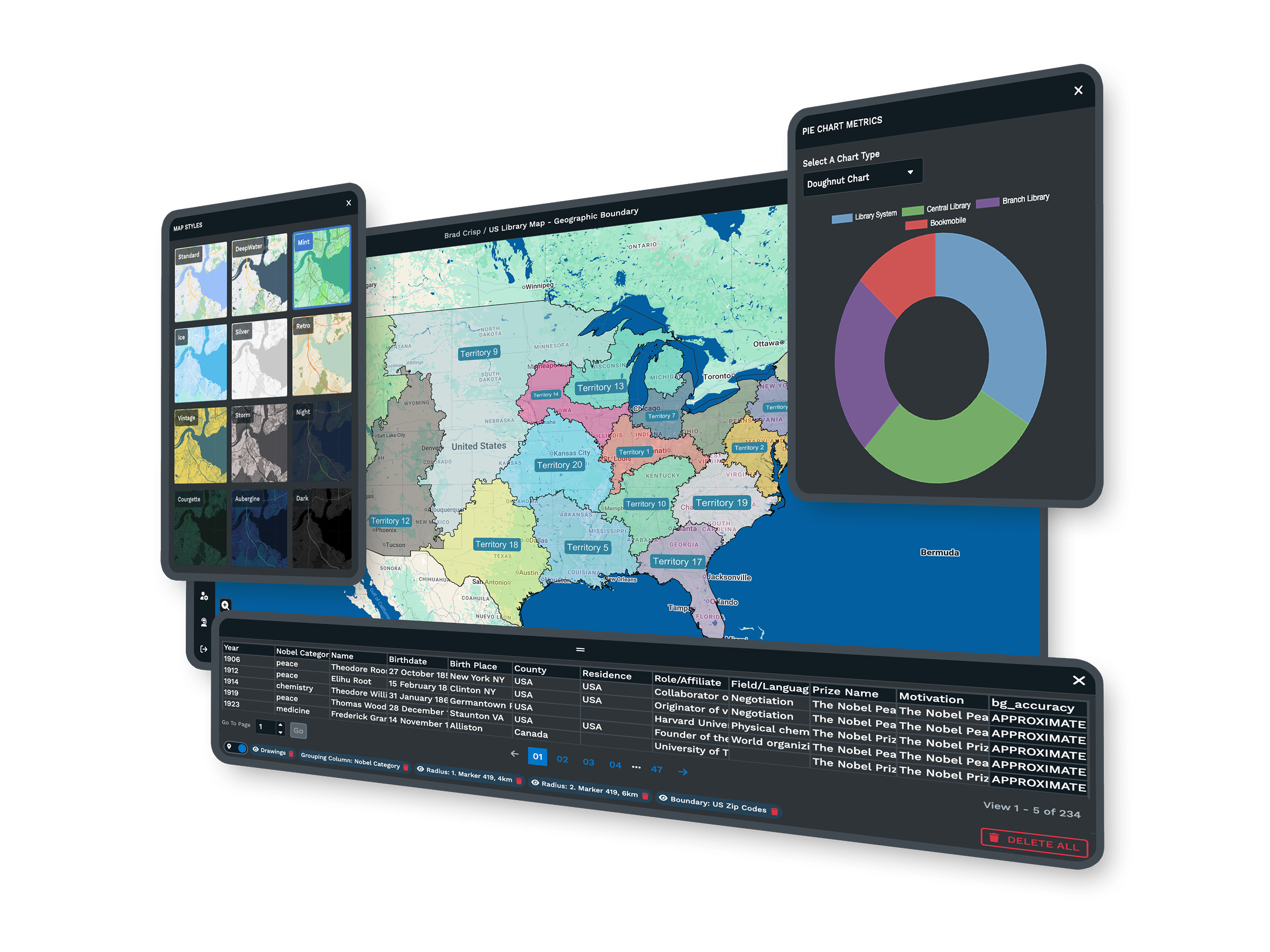
-
1
Save a Copy of Your Map
Duplicate your current map so you have a working version to play with.
-
2
Make the Change on the Copy
Move accounts, redraw a line, or regroup areas on that copy only.
-
3
Read the New Totals
Open each area's pop-up to see how its numbers came out.
-
4
Share Both for a Decision
Send the original and the copy so everyone can pick the winner.
Try Your First What-If Scenario Free
Start a 10-day free trial with no credit card required, copy your map, and test any change you're weighing before you make it real. Prefer a walk-through first? A Maptive specialist can show you how to set up two versions and compare them in a few minutes.
No credit card required
Frequently Asked Questions
How do I test a territory change before committing?
Save a copy of your map, then make the change on that copy instead of your live version. Move accounts between areas, redraw a boundary, or regroup a few ZIP codes, and each area's totals update as you go. Open any area's pop-up to read the new numbers. Because you're working on a copy, your original map stays exactly as it was, so nothing you try affects the real setup. When you're happy with the copy, you can roll the change out. If you're not, you simply set it aside and keep the original.
Can I compare two territory setups side by side?
Yes. Make a copy of your map, rework the copy into a second setup, and keep the first one as it is. Now you have two maps. One shows the way things stand today, and the other shows the alternative you're weighing. You can open them together and look at how the areas and boundaries differ between the two. Reading each area's pop-up on both maps shows you the net effect of your change area by area, so the comparison is concrete rather than a guess. Once you see the difference, you pick the setup that serves your market best.
Will my original map change while I experiment?
No. When you save a copy, the copy is the only map you're editing. Every move and redraw happens on that working version, while your original stays untouched in the background. This is what makes it safe to try bold changes. You can rework a copy as far as you like, and if the result isn't what you hoped, the real map is still sitting there, exactly as it was. Once a copy looks right, you can adopt it. Until then, nothing you do on the copy touches the setup your team is using day to day.
How do the per-area totals update as I make changes?
Each area on your map has a pop-up that adds up the accounts inside it, so when you move an account from one area to another, both totals catch the move. If you're mapping figures like revenue or account counts, those sums recalculate as the membership of each area changes. That means you don't have to step back to a spreadsheet to see the effect of a change. You make the move on the copy and open the pop-ups to read the new numbers right there, which keeps the whole what-if process on a single map.
Can I build more than one alternative to weigh?
You can make more than one copy and rework each into a different setup, so you're not limited to a single alternative. That said, every plan includes a set number of maps rather than an endless supply, so it's worth keeping your copies tidy and clearing out the ones you've ruled out. In practice, most people compare two or three versions at a time, meaning the current setup alongside a couple of alternatives. That's usually enough to see which one balances your areas best before you commit to rolling it out.
What kinds of changes can I try on a copy?
You can move individual accounts between areas, redraw a boundary line, regroup ZIP codes or counties, or reassign a whole area to a different rep. You can also recolor areas to see them more plainly or add and remove accounts as you test. Because it's all happening on a copy, you're free to try changes you might hesitate to make on the live map. Each change updates the totals in the affected areas, so you can see if a move helps or hurts before you decide to keep it and make it real.
How do I share both versions with my team?
Each map has a shareable link you can send, so you can share the original and the copy and let people open both. You can choose a view-only link for anyone who only needs to look, and you can protect a link with a password when the map is sensitive. Once your team can see the current setup next to the alternative, the discussion has something concrete to work from. Everyone is looking at real areas and real totals. That usually makes the decision faster, because the team is reading the same two maps rather than describing changes in words.
Do I need to redo my import for the copy?
No. When you copy a map, the copy already has all the accounts and data from the original, so you don't re-import anything. That's the whole point of starting from a copy. You begin with a full working version of your real setup and change only what you want to test. Your imported columns, like revenue or rep name, come along too, which is what lets the per-area totals recalculate as you rework the copy. You import once for the original map, and every copy you make inherits that same data automatically.
Once I pick a setup, how do I put it in place?
When a copy is the version you want, you can treat it as your new working map and share its link with the team, or you can carry the same changes over to your original if you'd rather keep that as the master. Either way, the point is that you've already seen the totals and the boundaries before committing, so there are no surprises when you roll it out. Reps see the setup you chose deliberately, not one you guessed at. And your earlier copies stay available in case you want to revisit an option later.
Is comparing setups this way better than using a spreadsheet?
A spreadsheet can hold the numbers, but it can't show you where the areas sit or how a boundary change plays out on the ground. On a map, you can see the change and read each area's totals in its pop-up, then set two versions next to each other to compare. That mix of the picture and the numbers is hard to get from rows and columns alone. So while a spreadsheet is fine for a first list of accounts, working out a territory move reads more plainly on a map, where each move is visible as you make it.








