


Plot Customers Within Their Territories
Ever wonder which accounts land in each rep's area? Drop your customer list on the map and every pin finds its zone.
No credit card required
- Import your full customer or account list from a spreadsheet.
- Drop every one of your accounts as a pin inside its territory.
- Color each account pin by the rep who owns that colored zone.
- See exactly which accounts sit inside each rep's colored zone.
- Catch any account sitting outside every rep's territory early.
- Open any account pin to read the customer details behind it.
Trusted by teams at









The Account Map Your Reps Can Read
You can't see that on an Excel file.
Plotting Accounts Step by Step
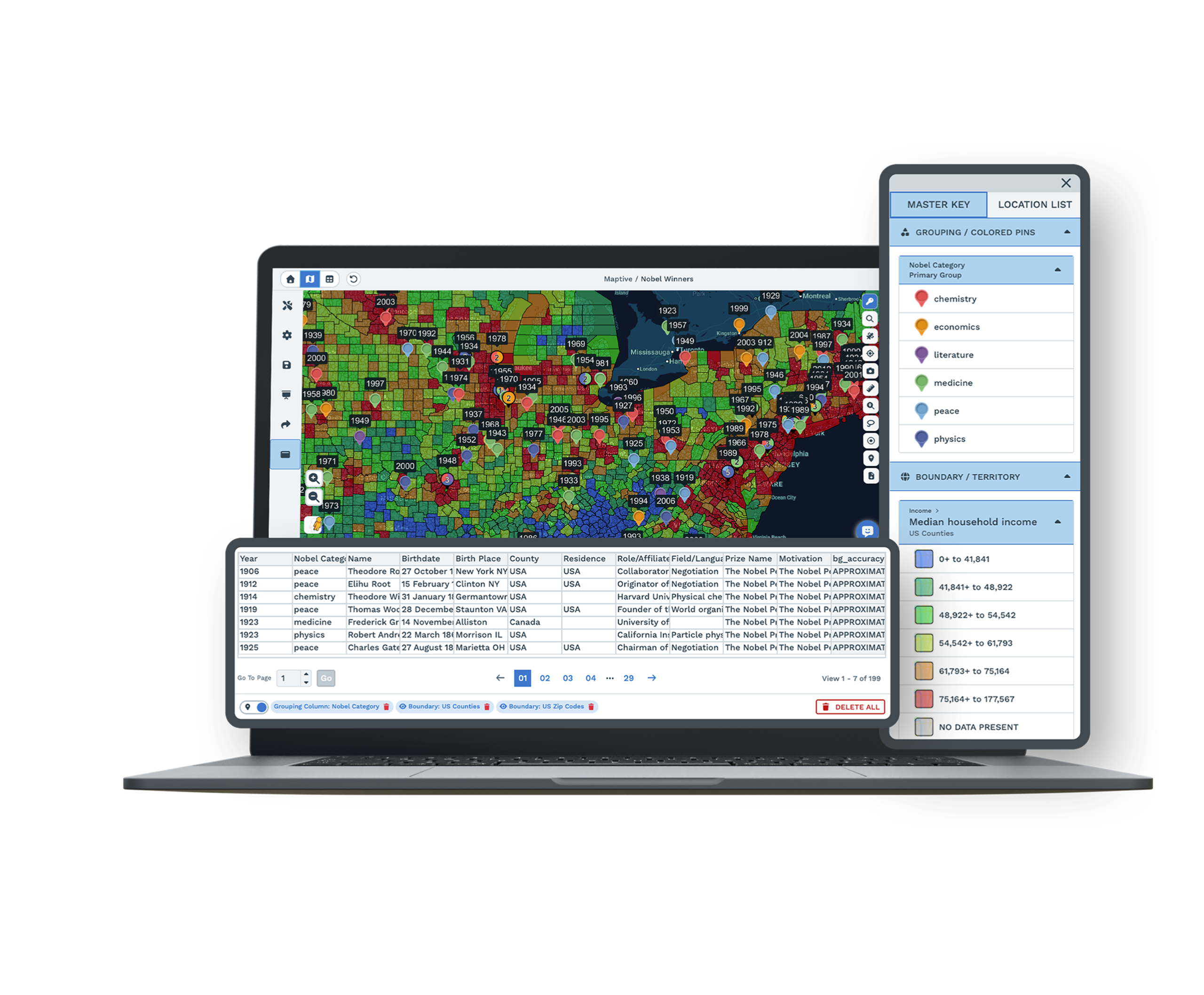
-
1
Import Your Customer List
Upload a spreadsheet with your accounts and every one lands on the map as a pin.
-
2
Show the Colored Territories
Bring your rep zones onto the same map so the pins sit inside their boundaries.
-
3
Color Pins by Their Rep
Point Maptive at the rep column and each account pin takes that person's color.
-
4
Read an Account's Details
Click any pin to open a pop-up with the account details you brought in.
Put Your Accounts on the Map Today
The 10-day free trial is the fastest way to see it, with no credit card. Import your customer list and drop your colored territories underneath. Every account lands inside its rep's zone as you watch. Want a hand? A Maptive specialist will walk your list with you and set up the first map together.
No credit card required
Frequently Asked Questions
How do I show my customer list inside each sales territory?
Import your customer list from a spreadsheet, with one column for the account and any details you track in the others. Maptive plots each account as a pin on the map. Bring your colored territories onto the same map, and every pin sits inside the zone it falls in. You can then point Maptive at your rep column so each account takes that person's color. The result is one map that shows exactly which accounts belong to which rep, instead of a list of names with no place attached.
Which accounts belong to which rep on the map?
Once your accounts are plotted and your territories are colored, the answer shows on the map itself. Every pin sits inside one colored zone, so you can see at a glance which accounts fall to which rep. Color the pins by the rep column too, and the account and its zone match. A rep can open the map, find their color, and work only the accounts inside their area. If an account moves to a new rep, you recolor it and both the pin and the count follow along.
Can I import my customer or account list from a spreadsheet?
Maptive reads Excel and CSV files, and it pulls straight from a Google Sheet. Keep one column for the account name and another for the address or ZIP so the map can place it. Add as many detail columns as you want to see later. When you upload, every account lands on the map as a pin. You do not reformat anything or learn a new file type. If you already keep your accounts in a sheet today, that same sheet is usually all you need to put the whole book on a map.
How do I color account pins by the rep who owns them?
Point Maptive at the column that holds the rep or salesperson name, and each account pin takes on that person's color. A busy region then shows up as sets of colored pins instead of one gray cloud, so you can see whose accounts are whose without reading a single label. If you add or rename a rep, the colors update to match. This is also the quickest way to spot an account that has drifted into the wrong zone, or a rep whose pins are thin on the ground.
How do I find accounts that fall outside every territory?
Plot your accounts and drop your colored territories on the same map, and any pin sitting outside all of the zones sits on its own. Those are the accounts nobody has been given yet. You can select them and hand the batch to the nearest rep in a few clicks. A gap that would hide inside a spreadsheet becomes obvious the moment the accounts are on a map. You catch the account before it slips through and stops getting called.
Can I see the details behind each account on the map?
Every account pin holds the details you imported, so a click opens a pop-up with that account's information. You choose which columns show, from the contact and the last order to a renewal date or a note your team keeps. A rep can open their own zone and read what matters on each account without leaving the map. There is no second window and no separate report to open. The map and your account details live in the same place, one pin at a time.
How many accounts can one map hold?
Maptive holds up to 200,000 locations on a single map, so even a national account base fits in one place instead of splitting across several files. You do not break a big customer map into regional chunks to keep it working. Every account stays on one canvas, which makes it easy to see the whole country of accounts at once and then zoom into a single territory when you want to check one rep's book up close. The colored zones stay put underneath as you move around.
Can I plot accounts and territories on the same map?
Yes, and that pairing is the whole point. Your colored territories go on as boundaries, and your accounts go on as pins that sit inside them. Because both live on one map, you read the account base and the zones together instead of flipping between two views. You can turn either one on or off while you work, so you look at only the pins, only the boundaries, or both at once. It is the same short set of steps no matter which you add first, the accounts or the zones.
Can a rep see only their own accounts?
You can share a view-only link so a rep opens the map, finds their color, and focuses on the accounts inside their zone without changing anything. You decide who can edit the master map and who can only look, and you can password-protect the link when the account data is sensitive. Each rep works from the same picture the sales ops owner keeps, so there is no stack of emailed lists going stale. Everyone sees the current map, and the accounts stay tied to the reps who own them.
Can I move an account to a different rep later?
Open the map, click the account you want to move, and give it to the other rep. The pin takes the new color right away, and any counts you track update with it, so you see the trade the moment you make it. There is nothing to re-key and no rows to edit by hand. If a rep leaves or a region is split, you can recolor a whole batch of accounts at once and the map keeps everyone's book current. Your account details ride along with each pin as it moves.








