


Account-to-Territory Alignment for Franchise & Sales Centers
Sort each customer account to the sales center whose boundary its address falls inside. Maptive plots your accounts, draws the territories, and shows which center owns each one.
No credit card required
- Plot your full account list on one map, up to 200,000 records
- Import an Excel, CSV, or Google Sheets export from your CRM
- Group ZIP or postal codes and US states into each center
- Color the pins by owning center to catch a wrong boundary
- Click any marker to read the account name, ZIP, and fields
- Share the sorted map by link with view-only or edit access
Trusted by teams at









Account Assignment at a Working Scale
Everything you need to plot a book of business and sort it to the right center sits inside one platform, on your real account file.
Sorting accounts to the covering center by boundary cuts manual assignment time by 33%.
Point-in-boundary matching drops accounts sent to the wrong center by 26%.
Aligning accounts to territories narrows the workload gap between centers by 21%.
Turning an Address List Into Assigned Accounts
Plot each account from your export, build each center's territory, color the pins by owner, and confirm every record straight on the map.
| 01 |
Every Account Plotted From Your ExportImport an Excel, CSV, or Google Sheets file straight from your CRM export, and each account address becomes a marker. Copy and paste works too when you only need to check a handful. |
| 02 |
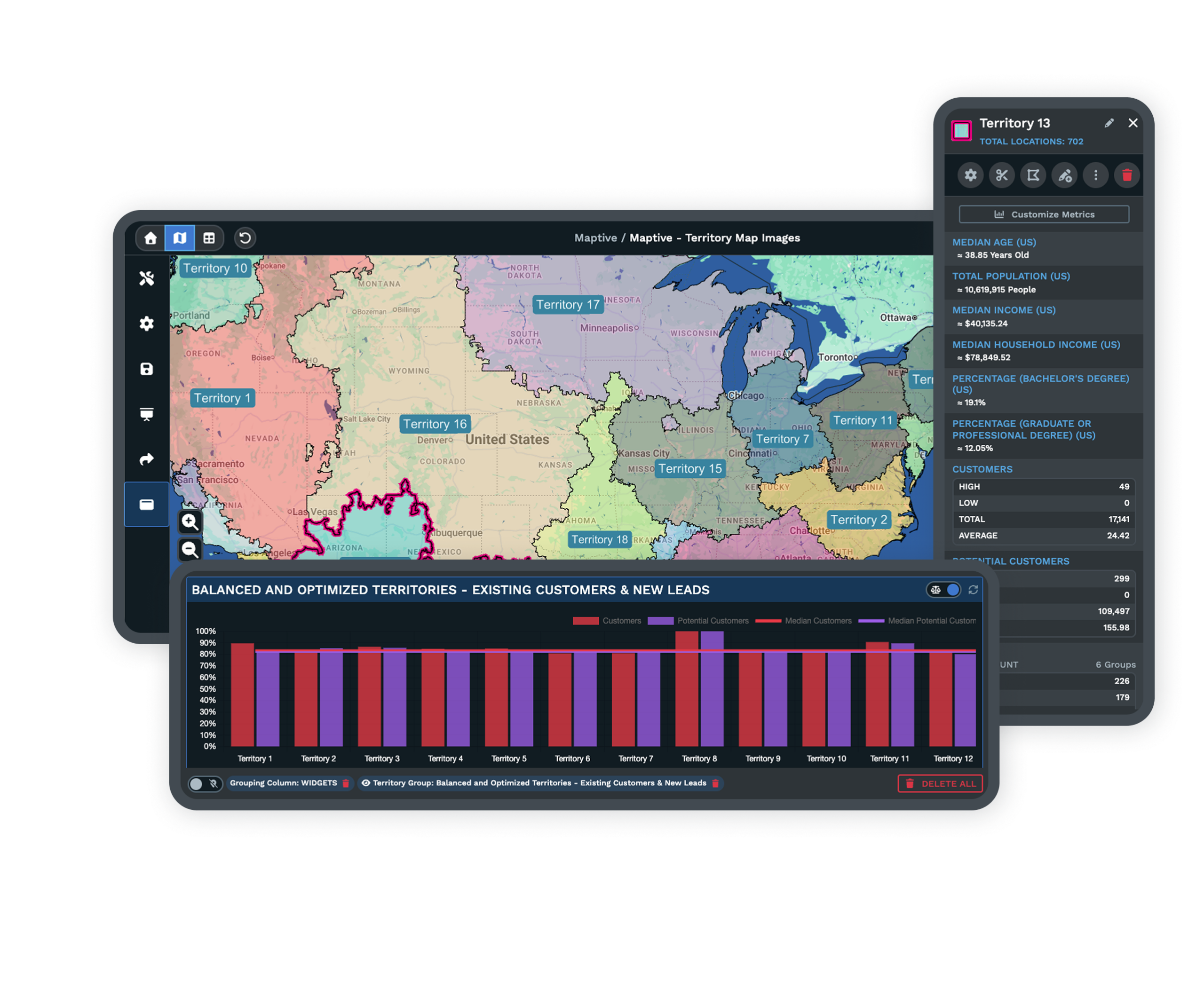
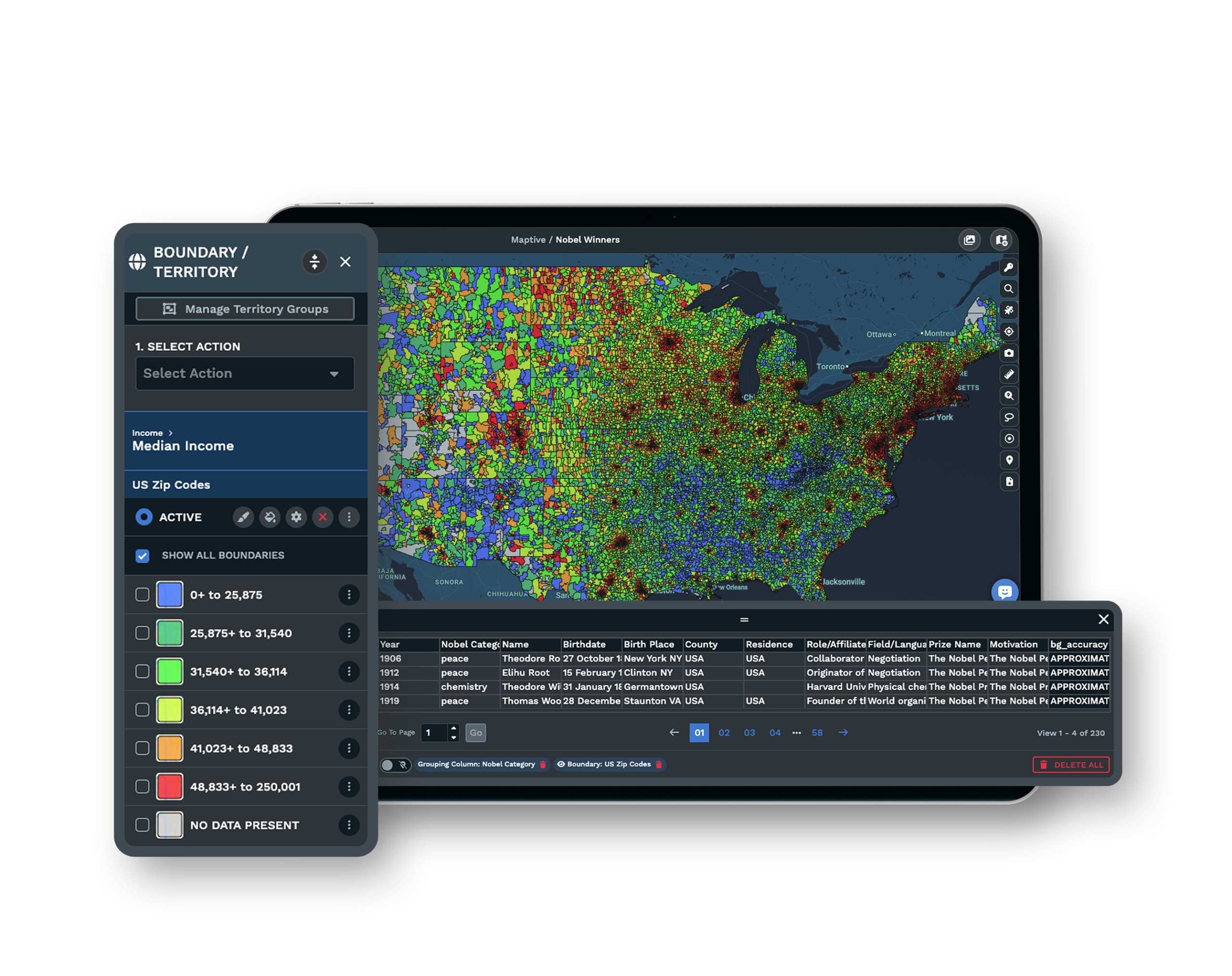
A Boundary Grouped by ZIP or StateBuild each center's territory with the Geographic Boundary Tool by grouping the ZIP or postal codes and US states it covers, or draw a freehand line, then drag the edge until it matches the agreement. Explore the boundary tool → |
| 03 |
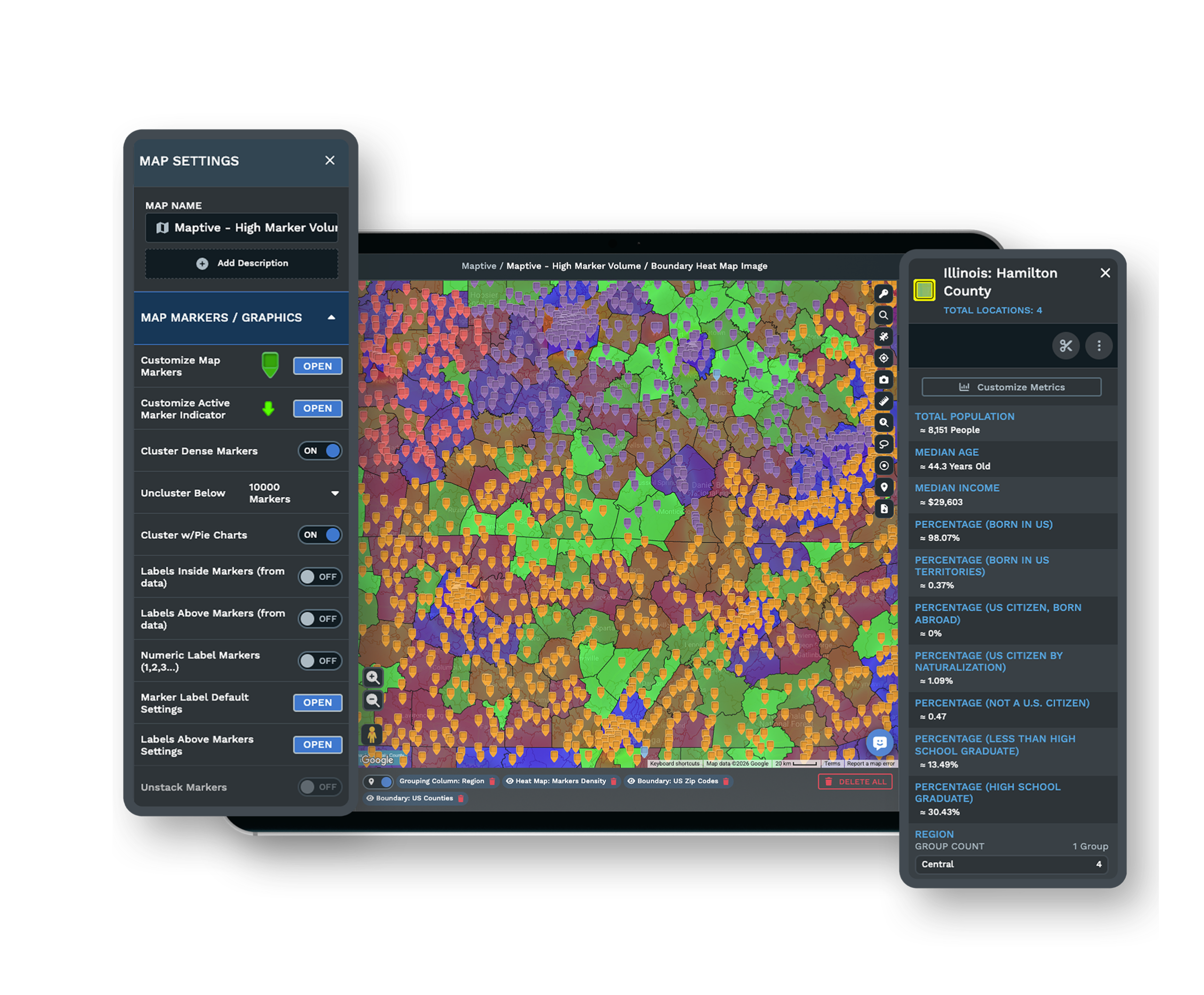
Colored Pins by the Owning CenterUse the Grouping Tool to color each account by its assigned center or status. When you shade the pins, an account sitting inside the wrong boundary shows up in a color that does not match the area around it. See the grouping tool → |
| 04 |
A Marker Pop-Up With the Account DetailsClick any marker to open its pop-up and read the account name, its ZIP, and the fields you carried over. That is how you confirm the record on the map is the same one your CRM is routing. |
The Boundary Enclosing an Account
The question under this whole job is which territory contains a given address, and that is a point-in-polygon test at heart, a check of if a plotted point sits inside an area. When several centers could claim a customer, you check each boundary until one contains the point.
Take the example of Birmingham against Montgomery. Both are Alabama, both can fall inside a large Southeast footprint, yet a ZIP-based territory resolves each to a specific center. On the map you skip the mental math and read the answer by color, since the marker sits inside exactly one shaded area.
Settling a Borderline or Multi-Location Account
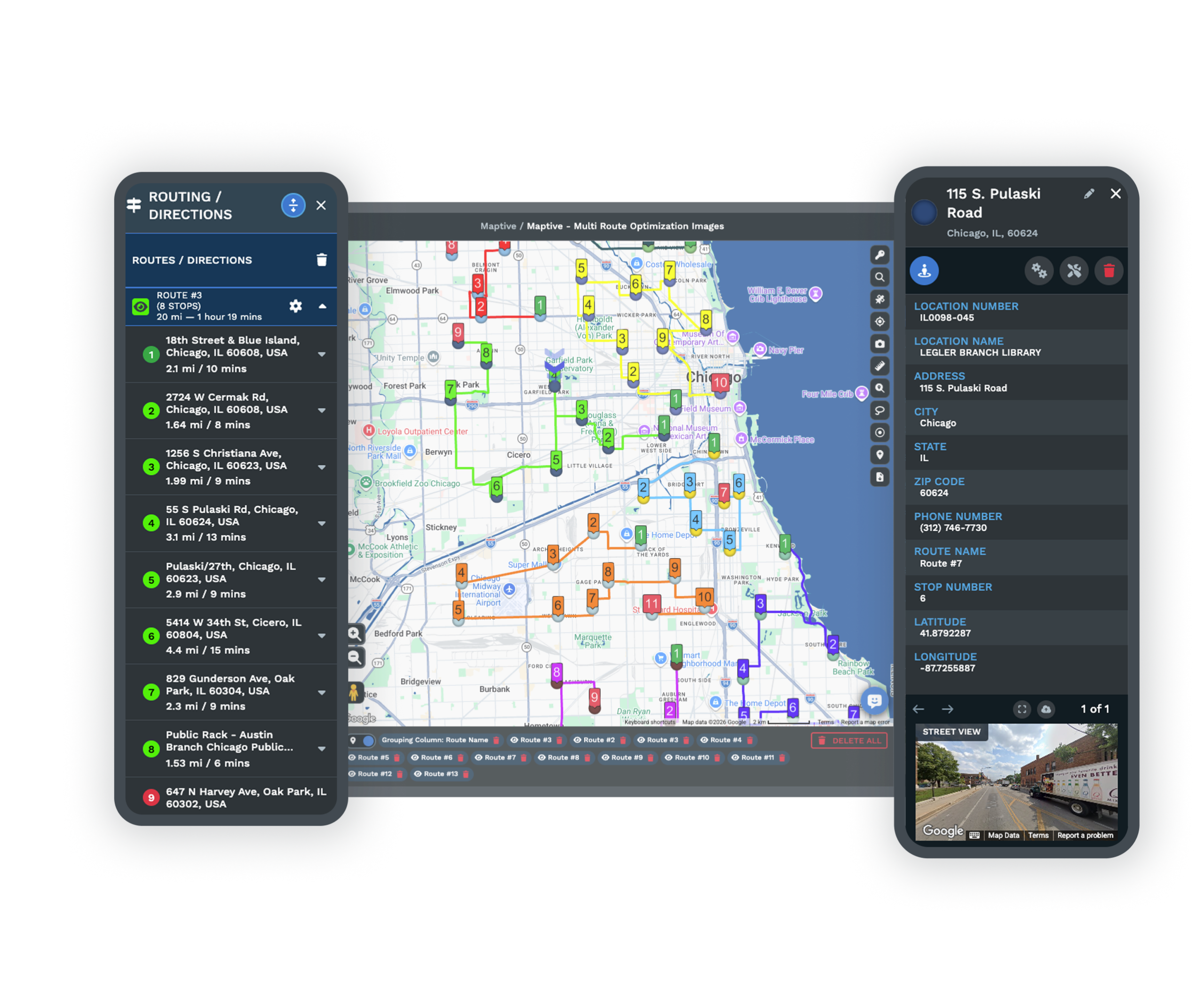
Most accounts fall cleanly, and a small set do not. A customer keeps its head office in one center and runs the actual site in another, or two overlapping ZIP lists let two centers claim the same address. Plot both locations of that account and the map shows which territories are in play, so you can apply a written rule instead of arguing it case by case.
Many teams settle it with a single-owner principle where every address belongs to exactly one center, decided in advance for inbound leads, multi-site accounts, and referrals. The map makes the decision visible, and once it is made you record the owner where your reps read it.
Working From a Clean, Shared Account Map
Sharing the Assignment Map by Link
Share the sorted map through a link and set each teammate to view-only or edit, so a regional manager can open their centers without touching anyone else's. The link stays live, so the next reassignment shows the moment you save it.
Two-Factor Sign-In on the Account Data
Your account file holds customer names and addresses, so the platform protects it with 256-bit SSL in transit and two-factor authentication at sign-in, and it passed the Salesforce AppExchange security review.
See enterprise security →Support While You Sort the Book
The US and Canada support team answers in under 15 minutes with a 9.7 out of 10 rating, and they will help clean and set up your account file so a stray column does not throw the sort.
Free trial with the full platform and no credit card
Sort Your Accounts to the Right Center
Start a 10-day free trial with no credit card and every tool open. Import your account export, group the ZIP codes into each center's territory, color the pins by owner, and read straight off the map which accounts landed where they should and which ones need a second look.
Bring Your Account File to a Working Session
If your sort has to satisfy sales-ops, RevOps, and a few regional managers at once, a Maptive specialist will build the first territories with you on your own data. Bring the accounts you are unsure about, and the session traces each one to its center in front of the people who own the call.
Frequently Asked Questions
How do I auto-assign accounts to the right franchise territory?
In a CRM, rules based on an account's ZIP code or state route each record to a territory, with exceptions handled by hand. On a map the honest equivalent is grouping ZIP or postal codes into center territories, plotting your accounts, and reading which territory each one falls in. The Automated Territory Creator can build balanced territories, but writing the owner back onto the record stays a step you do in the CRM.
Which sales center does this customer belong to?
The center whose territory boundary contains the customer's address. Plot the address as a marker and see which center's shaded area it sits inside. When territories are built from ZIP codes, the customer's ZIP decides the center directly, so a lookup against your ZIP-to-center grouping answers it.
Which polygon does this address fall in?
Working out if a plotted point sits inside a given area is a point-in-polygon test, a standard geospatial operation. When several territories could contain the point, the test checks each area until one contains it. On the map you get the answer visually, since the account marker appears inside exactly one colored territory rather than any of the others.
Which bottler or franchise serves this ZIP code?
Bottler and franchise territories are usually defined at the ZIP-code level, so a ZIP maps straight to a serving center. A Birmingham, Alabama address can fall inside a large Southeast footprint while a Montgomery address resolves to a different center within it. Grouping those ZIP lists into colored territories on one map lets you check any address the same way.
How do I look up which territory owns a specific address?
Reference the address against your territory allocation. Match its ZIP code to the ZIP list behind each center, or plot the address on the map and read which colored boundary contains it. Since you built each territory by grouping ZIP or postal codes, the marker lands inside one owner's area and the pop-up confirms the fields behind it.
Can I import my CRM accounts to map them by territory?
Yes. Export your accounts from Salesforce, HubSpot, or another system to Excel, CSV, or Google Sheets, then import that file to plot every account and group it into territories. A REST API is also available on every paid plan for programmatic loads. There is no live native two-way connector today, so the flow is export, import, map, and record the result back in your CRM.
How do I handle a multi-location account that spans two territories?
Decide the owner in advance with a written rule, for example the location that holds the account against the site where the work happens, then assign the account to that center. Plot both locations so the map shows which territories are involved, which lets you apply the same rule to every split account instead of judging each one differently.
What happens when two reps or franchisees claim the same account?
Overlapping ZIP-code rules can drop one account into two territories, which muddies ownership and commission credit. The fix is single-owner boundaries where every address falls inside exactly one center, backed by written rules for inbound leads, multi-site accounts, and referrals. Coloring accounts by owner on the map surfaces the double-claimed ones so you can settle each before it reaches a paycheck.
How do I check if accounts fell into the wrong territory?
Plot every account and color it by its assigned center, then look for markers whose color does not match the boundary they sit inside. Those mismatches are the accounts to reassign. A spreadsheet stores the assignment but cannot show an account sitting on the wrong side of a line, which is the case for reading the sort on a map first.








