


Free Online Tool
KML to CSV Converter
Turn a KML file into a clean CSV spreadsheet in seconds. Upload your file, and the converter pulls every placemark name, coordinate, and data field into rows you can open in Excel or Google Sheets.
Want your points on a live map instead? Maptive plots them in minutes.
Trusted by teams at













How it works
Three Steps From KML to Spreadsheet
No account, no setup, and nothing to install. The whole conversion happens in the box at the top of this page.
Upload your KML
Drag your file onto the converter or click to browse for it. Files from Google Earth and Google My Maps both work.
Convert in your browser
Click convert and the tool reads every placemark on your own device, building one clean spreadsheet row per place.
Download your CSV
Save the finished CSV and open it in Excel, Google Sheets, or any tool that reads a spreadsheet.
Before and after
From Map Markup to Clean Columns
KML stores your places as nested XML that is hard to read. The converter flattens it into rows and columns you can actually work with.
<Placemark>
  <name>Denver HQ</name>
  <Point>
    <coordinates>-104.99,39.73</coordinates>
  </Point>
</Placemark>
| Name | Latitude | Longitude |
|---|---|---|
| Denver HQ | 39.73 | -104.99 |
| Austin Branch | 30.27 | -97.74 |
| Chicago Store | 41.88 | -87.63 |
Your real file keeps every detail. Alongside Name and coordinates, the CSV adds a column for the description, each custom data field, the geometry type, and a WKT column for the full shape.
Why convert
What a CSV Lets You Do That KML Cannot
KML is built for viewing places on a map. CSV is built for working with the data behind them, and that opens up everything below. When you are ready to map again, Maptive turns the same file back into a live map.
Open in Excel or Sheets
Every placemark becomes a row you can open in Excel, Google Sheets, or any spreadsheet tool, with the name, coordinates, and your own fields in plain columns.
Sort, filter, and analyze
Sort places by name, filter by a region or category you stored in the file, and run totals or pivot tables that a KML file will never give you.
Clean up before remapping
Fix spelling, remove duplicate pins, or split an address into parts in a spreadsheet, then map the tidy file again whenever you are ready.
Move data between tools
CSV is the format almost every system reads, so the places you mapped in Google Earth drop straight into a CRM, a database, or a dashboard.
Keep every field
The tool reads the name, the description, and any custom data stored in the KML, then gives each one its own column, so nothing gets left behind.
Lines and polygons too
Routes and shapes come across as well. Each one gets its first coordinate, a geometry label, and the full shape written out in a WKT column.
Your File Never Leaves Your Computer
The conversion runs entirely inside your browser. Your KML is read on your device and the CSV is built there too, so the file is never sent to a server and nothing is stored after you close the page. That keeps private location data, such as customer or site lists, on your own machine the whole time. Because there is nothing to upload, the result appears the moment you click convert, and you can run as many files as you like.
The difference
KML and CSV, Side by Side
Each format is good at a different job. Converting between them lets you use whichever one fits the task in front of you.
KML
- An XML format made for maps
- Stores points, lines, polygons, and styling
- Built to be viewed in Google Earth and similar tools
- Great for showing geography, awkward to analyze
CSV
- A plain table of rows and columns
- Each row is a record, each column a field
- Read by spreadsheets, databases, and almost every app
- Great for sorting, editing, and moving data around
Next step
Put Your Locations Back on a Live Map
Once your places are in a CSV, Maptive turns them into an interactive map you can filter, group, route, and share. These are the tools people reach for most after a conversion.
Custom Map Markers
Drop your CSV into Maptive and every row becomes a marker you can color, label, and group, so a converted file turns into a map in minutes.
Explore markers →Heat Mapping Tool
Shade your locations by density or a value in your data, so the busiest areas stand out instead of staying hidden in spreadsheet rows.
Explore heat maps →Territory Map Maker
Group your mapped locations into sales territories and adjust them as you go, building from your data or drawing custom areas by hand.
Explore territories →Free trial with the full platform and no credit card
Map Your Locations in Maptive
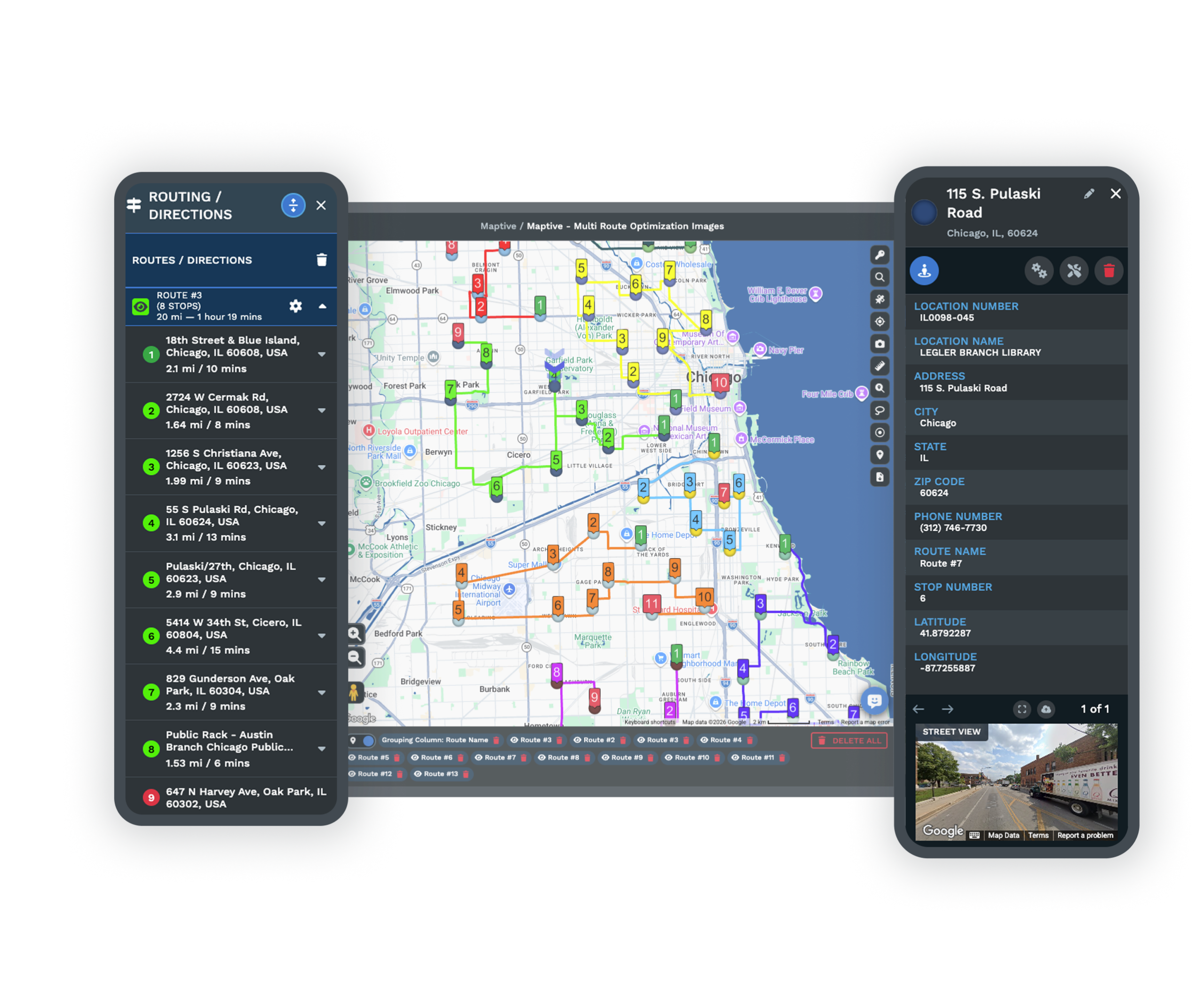
Converting to CSV is the first step. The next one is seeing your places on a live map. The ten-day free trial gives you every feature in Maptive, so you can import the CSV you just made, plot each location, color and group your markers, build territories, and share the result with a link.
FAQ
Frequently Asked Questions
How do I convert a KML file to CSV?
Upload your KML file using the converter at the top of this page, or drag it onto the upload box, then click convert. The tool reads every placemark in the file and builds a CSV with a row for each one. When it finishes, a download button appears and you save the CSV to your computer. The whole process takes a few seconds and happens right in your browser.
What is a KML file?
KML stands for Keyhole Markup Language. It is an XML based format that Google Earth and Google My Maps use to store places, routes, and shapes, along with their names and any custom information you add. Because it is written for maps rather than spreadsheets, it is great for viewing locations but awkward to read or analyze as plain data, which is why people convert it to CSV.
Is this KML to CSV converter free?
Yes. The converter is free to use and there is no limit on how many files you can convert. You do not need an account to use it. If you later want to turn your converted data into an interactive map, Maptive offers a ten-day free trial of the full platform, but the conversion tool itself is open to everyone at no cost.
Is my data uploaded to a server?
No. The conversion runs entirely inside your browser on your own device. Your KML file is read locally and the CSV is built locally, so the file is never sent to a server and nothing is stored after you leave the page. This keeps private location data, such as customer or site lists, on your computer the whole time.
What columns will the CSV have?
Every CSV includes a Name and Description column, followed by a column for each custom data field found in your KML, then Latitude, Longitude, a Geometry label, and a WKT column that holds the full shape. If a placemark does not have a value for a column, that cell is simply left blank, so the file stays neat and consistent from the first row to the last.
Does it work with files from Google Earth and Google My Maps?
Yes. Files exported from Google Earth and Google My Maps are standard KML, and the converter reads them the same way. As long as the file ends in .kml and contains placemarks, the tool will pull out the names, coordinates, and any data fields you saved. If your file is a KMZ, unzip it first to get the KML inside, then convert that.
Can it convert lines and polygons, not just points?
Yes. Points become a row with their latitude and longitude. Lines and polygons become a row as well, with the first coordinate in the latitude and longitude columns, a geometry label so you know the type, and the complete shape written out in the WKT column. A file that mixes pins, routes, and shapes converts in a single pass with every feature accounted for.
Does it keep my custom data fields?
Yes. The custom name and value pairs that KML stores as ExtendedData are read and given their own columns in the CSV. If your placemarks carry a region, a category, a phone number, or any other field, each one lines up next to every location in the file, so the detail you added in Google Earth comes through to your spreadsheet.
Can I turn the CSV back into a map?
Yes. Once your places are in a CSV, you can import the file into Maptive and every row becomes a marker on an interactive map. From there you can color and group your points, build sales territories, shade a heat map, and share the map with a link. The CSV you make here is ready to load straight into the platform.
What is the difference between KML and CSV?
KML is a map format that stores places, shapes, and styling so they can be drawn in Google Earth and similar tools. CSV is a plain table where each row is a record and each column is a field. KML is the better choice for viewing geography, while CSV is the better choice for sorting, editing, and moving data between programs. Converting from one to the other lets you use whichever fits the job in front of you.