


Build Account-Based Sales Territories by Named Account
What if your reps own named accounts, not map areas? Build each rep's territory out of the accounts themselves.
No credit card required
- Import an account list with the rep column already filled in
- Color each account pin by the rep who owns it, all at once now
- Group a rep's scattered accounts into one named account set.
- Give each rep roughly 30 named accounts, not a whole map area
- Keep every territory account-based, not tied to any geography
- Hand the finished rep-to-account list straight back to a CRM
Trusted by teams at









Territories Built From Your Account List
You can't see that on an Excel file.
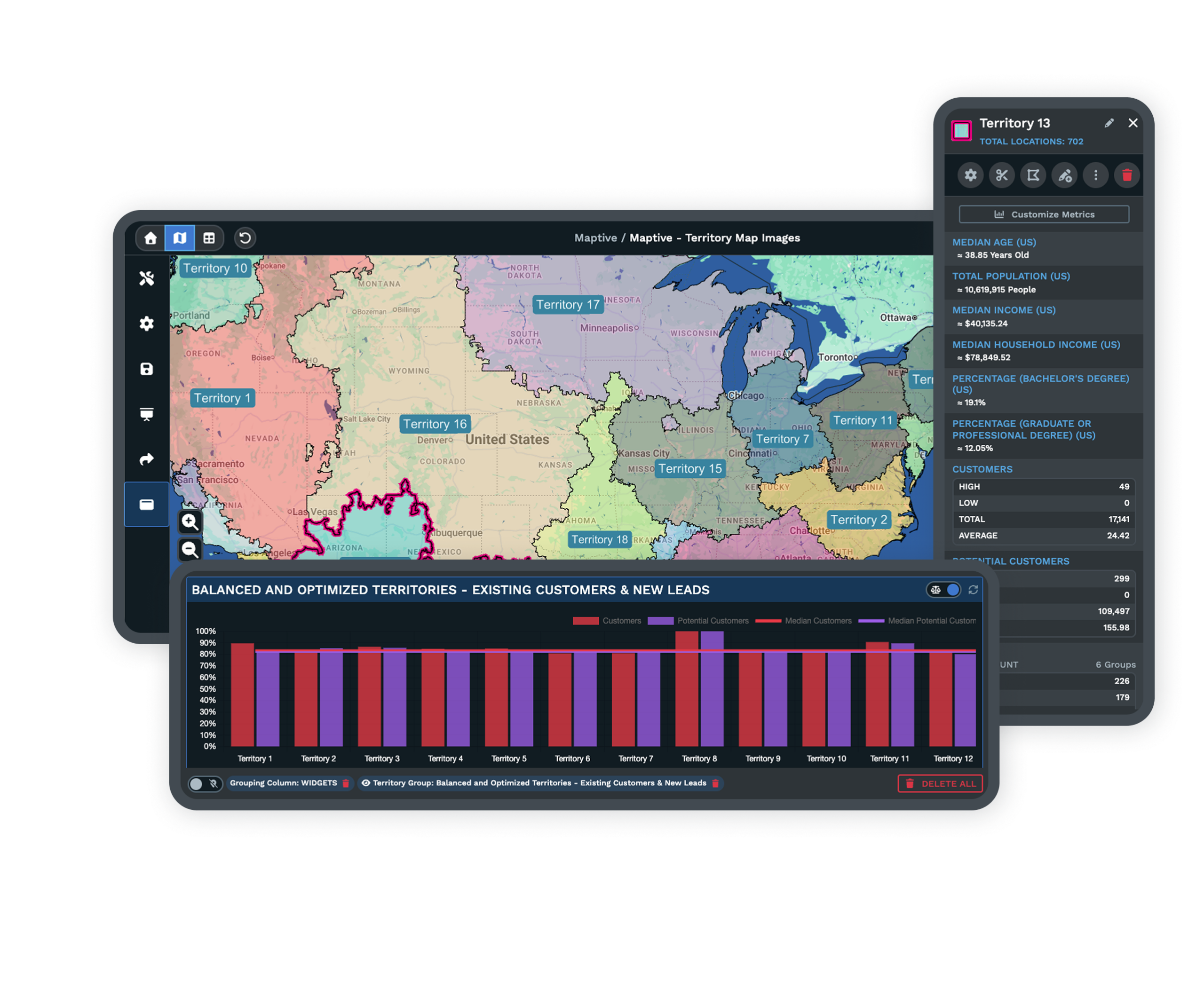
Grouping Accounts Into Books in Maptive
-
1
Import the Named-Account List
Bring in your customer file with a column that names each account's rep.
-
2
Shade Accounts by Owning Rep
Color every account by the rep column so each owner has a shade.
-
3
Lasso a Rep's Accounts
Select that rep's pins even when scattered, then save them as a book.
-
4
Send the List Back
Export the rep-to-account list or send it out through the REST API.
Map Your Named-Account Territories Free
Start a 10-day free trial with no credit card and put your account list on the map today. Group your first rep's accounts in minutes, or ask a Maptive specialist to walk you through it.
No credit card required
Frequently Asked Questions
How do I build territories by account instead of geography?
You build them by the accounts themselves, not by an area on the map. Import your customer list with a column naming the rep on each account, then color the pins by that rep column so every account shows in its owner's shade. To turn a set of accounts into a rep's book, use the Lasso or Grouping tool to select those pins, even when they sit far apart, and save them as one named group. The territory becomes a list of accounts, not a drawn boundary, so where a customer sits never limits who owns it.
Can I build a territory from a list of accounts?
Yes. You gather the accounts one rep owns, wherever they sit, and save them as a group under that rep's name. Color your pins by the rep column first, then lasso each rep's accounts into their own group. Accounts spread across different states can all belong to the same rep. You are not drawing a region on the map, you are listing the specific accounts that person is responsible for. That list is the territory, and it can change any time you move an account.
How do I bring in accounts that are synced from Salesforce?
Import it. Add your Salesforce accounts to a spreadsheet with a rep column, then bring that file in as an Excel or CSV upload, or from a Google Sheet. Maptive plots every account and reads the rep column so you can color and group by it right away. A native Salesforce connector is coming early 2026. For now the import handles a synced export cleanly, and a REST API on every paid plan lets your team move account lists in and out without retyping anything.
What if my accounts aren't aligned to any region?
Nothing about your process changes. Because a territory here is a set of named accounts, an account keeps its owner no matter where the customer sits. You can put one rep's accounts from several different states into a single book, and leave a nearby account with a different rep entirely. There are no lines to redraw and no region to defend. The rep column alone decides ownership, so two reps can even work the same city without any overlap at all.
How do I reassign an account to a different rep?
Open the account's group, change the rep on that account, and save. Since ownership lives in the rep column rather than in a drawn boundary, moving an account from one book to another is only an edit, not a redraw. Recolor the pins by rep and the map updates to show the account in its new owner's shade. When you are done, export the refreshed list so the new assignment flows back to your records with no manual cleanup afterward.
Can each rep hold about thirty accounts?
Around thirty is common, and Maptive puts no cap on how many accounts sit in a book. Group as many pins as a rep should own and the count is simply the number of accounts in that group. If you want the packages even, color by rep and compare the groups at a glance, then lasso a few accounts into a different book until the numbers look right. Nothing forces a fixed size, so you match your own account-package rule.
How do I see which rep owns an account?
Click any pin to open its pop-up and read that account's details, including the rep and any columns from your file. Because each pin carries the data you imported, a quick look tells you who owns the account and what is on it. You can also color by rep so the whole map shows books of business at a glance. For a shareable version, send a view-only map link so anyone on the team can look up an account without editing it.
Can I send the finished assignments back to my CRM?
Yes. Export the finished list as an .xlsx, .csv, or .tsv file with the rep column set exactly the way you grouped it, then load that file straight into your CRM. A REST API on every paid plan lets you move the assignments programmatically instead of by hand. A native Salesforce and HubSpot connector is coming early 2026. Until then the export and API keep your account-to-rep mapping in step with your system without any retyping at all on either side.
Can reps still see other views of the same accounts?
They can. Color pins by rep to see books of business, and switch to color by any other column, such as revenue or account tier, whenever you want a different view of the same accounts. Add Demographic Overlays if you want US or Canada context behind the pins. The accounts and their rep assignments stay exactly as grouped underneath, so a second view never disturbs who owns what. One map holds every account and every way you want to read it.
Does this work for a large account base?
Up to 200,000 locations fit on a single map, so even a large national account base plots on one map. Every pin can be colored by rep and grouped into a book, and each account carries the columns from your file in its pop-up. Import handles Excel and CSV files or a Google Sheet, and you get .xlsx or .csv files back on export. A REST API on every paid plan moves large lists in and out cleanly, which keeps a big account base easy to manage.








