


Location Mapping Software
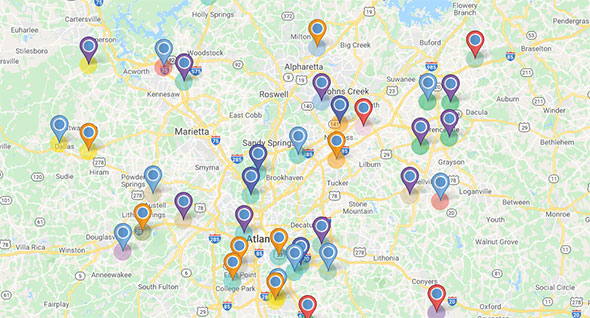
Maptive mapping software enables businesses of all sizes to bring flexibility and control over complex location data. Spreadsheets and databases of location data can be difficult to understand and interpret, especially if the data set contains hundreds or thousands of locations. If you are a business owner who wants to map multiple locations, you will need to use location mapping software. Maptive’s location mapping capabilities make it easy for you to upload a spreadsheet that contains your location data, and then see your locations on a map quickly and easily. In this article, we will show you how you can use location mapping software for your business and how to get the most insights from your location data.
What is Location Mapping Software?
What Can Location Map Software Be Used For?
There are many different uses cases for location mapping software. Here are some examples of some of the most common ones:
- Mapping out the locations of your business and its branches
- Location intelligence: Map out your businesses, suppliers, and locations of competing businesses to gain insights for business site selection.
- Mapping out customers or leads for sales territory generation and optimization
- Planning routes for salespeople, delivery drivers, service providers, and more
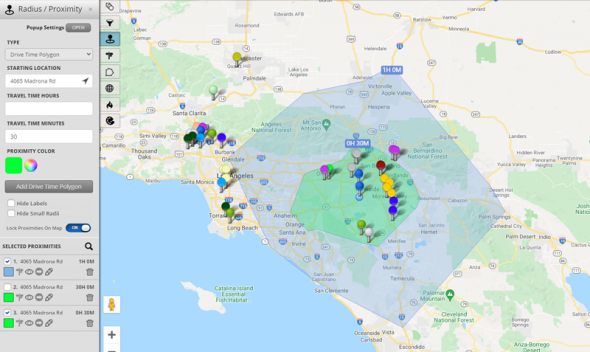
- Calculate commute times for all your employees to aid in office site selection
Maptive Features
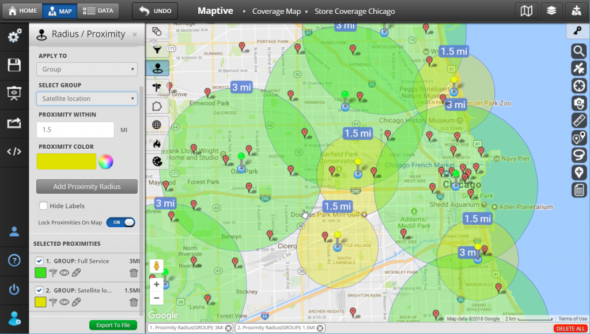
Maptive is based on Google maps so it brings the same great benefits as the Google maps platform. Maptive offers many more tools and advanced features for businesses looking for more customization and data intelligence than Google maps can offer. Maptive's features are comprehensive, bringing a variety of options for various industries. These options include:
Grouping and Filter Location Data
Global Mapping Data
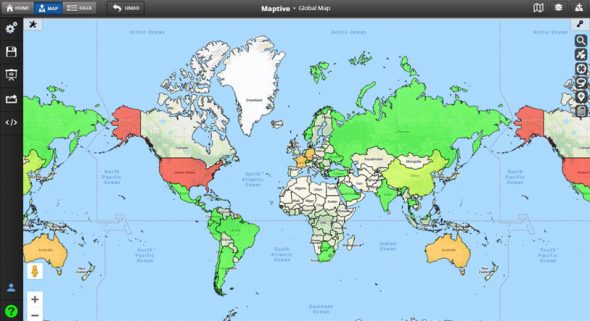
Maptive includes map data for every country in the world provided by Google maps. Map locations using addresses, zip code, postal code, county, and much more. In addition, Maptive comes with included data sets such as US demographics data that includes data on race, income, education levels, and more.
Fully Customizable Maps
Some of Maptive's Tools
Map Radius Tool
Drive Time Polygon Tool
Territory Tools
Heat Map Generator Tool
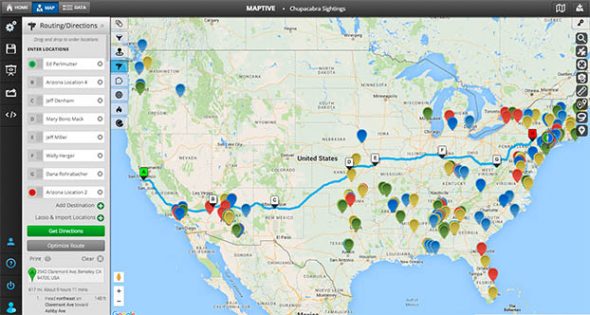
Route Planning & Optimization Tool
Optimize routes for yourself or for your employees using Maptive’s Route Planner & Optimizer. Plan routes with as many stops as required and Maptive will generate the optimal route through all the stops.
How to Create a Location Pin Map (Step by Step Guide)
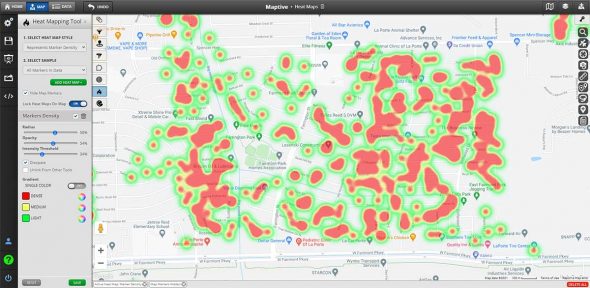
A personalized pin map identifies hot spots within your data or allows a comparative review of maps over different time frames. It can help identify landmarks and suppliers in connection to your pins, evaluate weaknesses within your business, determine competitors within geographic areas, map out real estate holdings, and more.
Developing maps shouldn’t take extensive knowledge or understanding – it needs to produce results quickly and effortlessly. Maptive helps you create beautiful maps within minutes of account creation.
Step 1: Register for your free Maptive trial account.
Step 2: Select the New Map option from the home screen and give your map a name.
Step 3: Copy or upload your location data into the software. Copy and paste the content directly into the program, drag and drop existing excel files, or upload a file from your device.
Step 4: Select the data headers you’d like to map.
Step 5: Select the Done button and watch your data automatically generate on the map.
Customizing Your Map & Markers
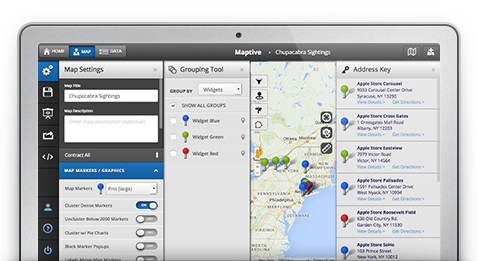
Once you’ve created your first map, you can customize the visual appearance of your map under the “map settings” menu. There are currently 17 different built-in options for pin sizes and styles, although users can upload custom map pins too.
To change your map’s default settings, select the “Settings” gear button on the top corner of the map. Choose the Map Markers/ Graphics option and use the dropdown menu to adjust the default settings. To add upload your own custom Marker, scroll to the bottom of the marker settings menu.
In map settings you can also change the style of your maps and enabled and disable different features as well as set security & sharing settings for your maps.
Grouping Tools
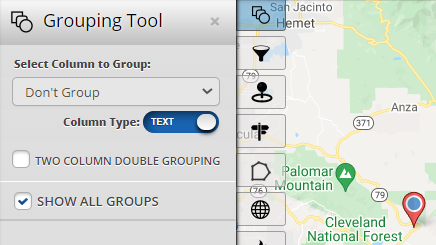
As a default setting, all data pins are the same color during the initial upload into the mapping software. The grouping tool allows customization of these pins, with different categories being the differential factor. This customization might include color-code options based on category, location, name, salesperson, or another relevant data category for your industry.
Establishing Map Boundaries
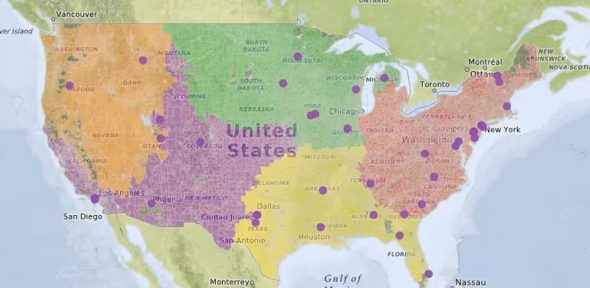
Incorporating geographic boundaries into your map allow you to visualize your location data based on geographic boundaries such as zip code, city, state, province, county, and more! You can also use the geographic boundaries tool to incorporate built-in demographics data into your maps for additional insights. US Demographics data is included for free with your Maptive subscription.
Try Maptive Now!
Whether you’re just starting, or you’ve been in business for decades, visualizing your data can bring valuable insight and information to the business’s functioning. Streamline your data into a visual aid with location mapping software and develop a competitive advantage you can’t find with traditional spreadsheets. Get started with your free 10-day trial of Maptive now!
Start Your Free, No Risk, 10 Day Trial
No credit card required. No surprises. Just Results.